By Data RecoveryUpdated on December 24, 2025
“I accidentally formatted the SD card in my phone, which stored the growth photos of my child from infancy to childhood. I originally thought the data on the card was just hidden, but when I reinserted the card into the phone, I found that the photo album was completely empty.” Such cases of photo loss caused by memory card malfunctions or accidental formatting are not uncommon among Android users. Photos carry irreplaceable moments, and losing them often breaks one’s heart. Fortunately, even if you encounter such a situation, there are still some methods you can try to recover these precious visual memories.
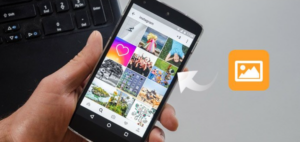
If you regularly back up photos from your Android phone to your computer, you can easily retrieve deleted photos from these backups. Otherwise, a reliable Android data recovery tool will be needed.
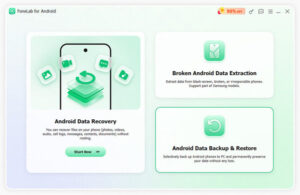
Recommended is the professional “Android Data Recovery” software, which not only recovers deleted photos but also restores contacts, messages, notes, videos, and more. Available for free download, this tool allows you to follow simple steps to learn how to recover photos from an Android device.


Step 1 Connect Android phone to computer
Connect Android to PC via a USB cable. Wait seconds, and this program will detect your Android phone automatically.
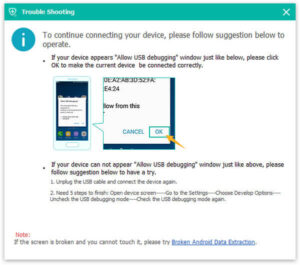
Note: If you fail to connect your Android phone to computer, you need to check your phone to enable USB debug.
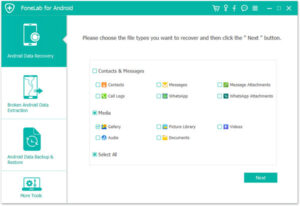
Step 2 Choose photos to scan
After succeeding in connecting your phone, choose the file type that you want to recover. And here we want to restore pictures, so tick “Gallery” and “Picture library” to scan. You could also choose other files types to retrieve, including text messages, contacts, videos, etc.
Note: To get access to scanning Android files, you need to you need to root your Android phone. After rooting your phone successfully, for scanning deleted data, this software needs your permission from the phone. You could make the setting for granting permission on your phone. Then click “Retry” to proceed the to next steps.
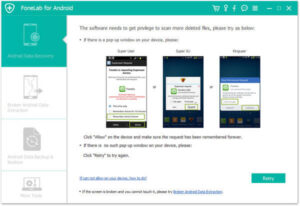
Step 3 Preview restored Android photos
After scanning all the photos, click “Gallery” or “Picture Library” on the left side, you are able to view all the photos, including the deleted (photo name marked in red color) and existing photos (photo name marked in black color) and pictures on Android.
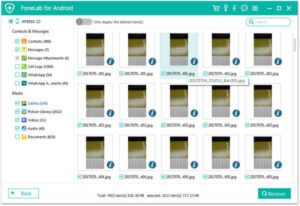
Step 4 Restore pictures on Android
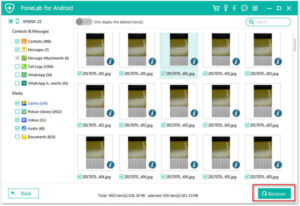
Select what deleted photos you want to recover, and click “Recover” to download the recovered deleted photos to your computer. For the downloaded photos, you can keep them on your PC for backup.
Using cloud services like Google Drive makes recovering deleted photos from Android phones easier. Google provides cloud storage for Android users, allowing photos to sync automatically. By enabling auto-sync on your device, you can simply restore deleted photos.
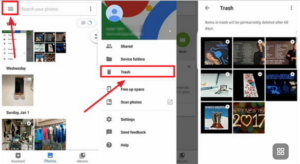
Step 1 Sigh in to your Google account on your Android phone.
Step 2 Open Google “Photos” app.
Step 3 Click the “Menu” icon in the left top corner, Select “Trash”.
Step 4 Find and hold the photos you want to recover, and touch the “Restore” icon on the top-right side. Then yout can restore he deleted photos from its original place in the “Photos” app on your computer.
Note
1. To recover pictures on Android via Google cloud, you have to make the pictures are deleted within 60 days.
2. Similarly, you could also restore pictures using other cloud services like Dropbox.
This article outlines the core approaches to Android photo recovery. Depending on your specific situation: if cloud sync was enabled, you can first attempt quick restoration through cloud backups; if no backup exists, it is recommended to use a reliable third-party recovery tool for deep scanning and restoration.
Copyright © 2025 DatasRecovery All rights reserved.
 iPhone Data Recovery
  iPhone Unlocker
  Android Data Recovery
  Broken Android Data Extraction
  Android Unlocker
  Data Recovery (Windows/Mac)