By Data RecoveryUpdated on February 06, 2026
When you are ready to switch from an Android phone to an iPhone, migrating the contacts from your old device is the top priority to solve. Now you no longer need to spend time on contact transfer from Android to iOS, as there are a variety of convenient and secure methods available on the market, including official tools launched by Apple, professional third-party transfer software, and simple operations with the help of accounts and SIM cards. This article will detail 5 efficient methods to help you easily transfer Android contacts to iPhone, suitable for different operating habits and usage scenarios.
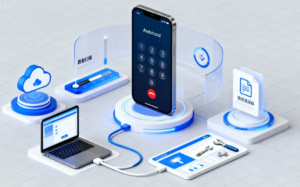
For fast and batch transfer of Android contacts to iPhone, the professional mobile data transfer software MobieSync is the first choice. This tool focuses on cross-platform device data migration, which not only enables accurate transfer of contacts between Android and iPhone, but also supports the intertransfer of multiple types of files such as photos, videos, and music. It is also compatible with two-way transfer between iOS devices, between Android devices, as well as file intercommunication between mobile phones and computers. In addition, MobieSync has device data management functions, which allow you to directly preview, edit, merge and delete contacts in the software. It can also complete HEIC photo format conversion, custom mobile phone ringtones and other operations, solving mobile phone data processing needs in one stop.
Operation Steps:
Step 1:Download and install MobieSync on your computer, and launch the software directly after completion;

Step 2:Connect both your Android phone and iPhone to the computer with a USB data cable. After the software recognizes the devices, set the Android phone as the data source device;
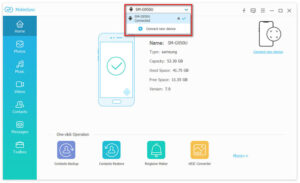
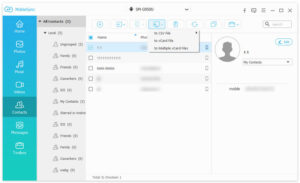
Step 3:Click “Contacts” in the left category bar of the software, you can preview all contact information in the Android phone in advance, and edit and correct duplicate or wrong contacts;
Step 4:Check the contacts you need to migrate (you can select all or customize), click “Export to Device” and select the connected iPhone, then the fast transfer of contacts can be completed.
If your Android phone contacts have been synced to your Google account, you can directly migrate the contacts to your iPhone through cloud sync without additional tools, and the whole operation is completed on the mobile phone. The core premise is to ensure that Android contacts have been saved to the Google cloud, not just on the local mobile phone, otherwise the sync cannot be completed.
Operation Steps:
Step 1:Turn on your new iPhone, go to the system “Settings”, scroll down to find and click the “Contacts” option, select “Accounts” and then click “Add Account”;
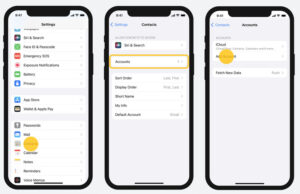
Step 2:Select “Google” in the account list, and enter your Gmail account and password to log in;
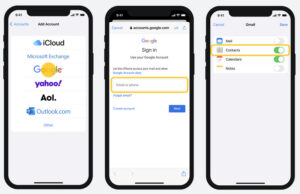
Step 3:After logging in, in the sync settings interface, make sure the sync switch of “Contacts” is on. You can choose to turn on other services such as Calendar and Mail according to your needs, and click “Save” after the settings are completed;
Step 4:Return to the iPhone home screen, open the “Contacts” app, wait for the Google cloud contacts to complete syncing, and you can view the migrated contacts after a short wait.
Migrating contacts with the help of a SIM card is suitable for scenarios without a network and for pursuing minimalist operations. If your new iPhone supports the SIM card of your old Android phone, this method will be very convenient. It should be noted that the storage capacity of a SIM card is limited, so it cannot save a large number of contacts. In addition, contacts with detailed information such as avatars and notes may not be completely copied due to storage limitations.
Operation Steps:
Step 1:On your Android phone, open the “Phone” or “Contacts” app, find the “Import/Export” function (you can also enter through “Settings – Contacts – Import/Export”), select “Export to SIM Card”, and select all or part of the contacts to save as needed;
Step 2:Take out the SIM card from the Android phone, insert it into the new iPhone and turn it on to unlock. Go to iPhone “Settings”, find the “Contacts” option, and click “Import SIM Card Contacts”;
Step 3:Wait for the system to complete identification and saving, the contacts will be directly stored in the iPhone local, and the migration is completed.
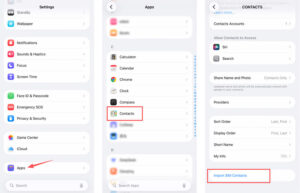
iCloud is Apple’s official cloud service. You can migrate contacts by exporting Android contacts to the standard VCF (vCard) format and then importing them to iCloud. The whole process is free, and the detailed information of contacts can be completely saved. This method is suitable for users who want to sync contacts to the Apple cloud for multi-device sharing.
Operation Steps:
Step 1:Export contacts on Android phone: Open “Contacts”, click the menu button and select “Import/Export”, then select “Export to SD Card/Phone Storage”, the contacts will be saved to the device in VCF format;
Step 2:Transfer the VCF file to the computer: Connect the Android phone to the computer with a USB data cable, or directly take out the SD card and insert it into the computer, and copy the saved VCF file to the local computer;
Step 3:Import the VCF file to iCloud: Log in to your iCloud account in a computer browser (you can register directly if you don’t have an account), enter the “Contacts” interface, click the gear-shaped “Settings” icon at the bottom, select “Import vCard”, and select the VCF file on the computer to complete the import;
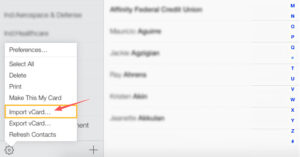
Step 4:Sync iCloud contacts on iPhone: Make sure the iPhone has logged in to the same iCloud account, go to “Settings – [Your Name] – iCloud”, turn on the “Contacts” sync switch, and wait for the cloud contacts to sync to the phone.
Note: There are relevant restrictions on importing vCards to iCloud, with a maximum of 50,000 imported at a time, a maximum capacity of 256KB for a single vCard (including photos and text), and a maximum capacity of 224KB for avatars in the vCard.
Move to iOS is a free official app launched by Apple for users switching from Android to iOS, designed for automated data transfer when setting up a new iPhone for the first time. In addition to contacts, it can also sync core content such as photos, text messages, and app data. It is the official recommended cross-platform migration method, suitable for users who have just bought an iPhone and have not completed the system initialization.
Operation Steps:
Step 1:Turn on your new iPhone and complete the basic settings according to the on-screen prompts. When you enter the “Transfer Apps & Data” interface, select the “Move Data from Android” option;
Step 2:Search and install the Move to iOS app on the Google Play Store on your Android phone, launch it after installation, and click “Continue” on both devices;
Step 3:The iPhone will generate a 6-digit or 10-digit verification code. Enter the verification code in the Move to iOS interface on the Android phone to complete the wireless connection between the two devices;
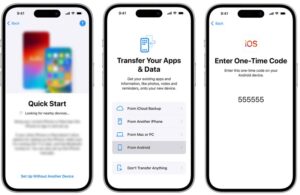
Step 4:The Android phone interface will list the types of files that can be transferred. Check “Contacts” and other content that needs to be migrated, click “Next”, and wait for the transfer to complete.
The above 5 methods for migrating Android contacts to iPhone each have their own applicable scenarios: the professional tool MobieSync is suitable for all scenarios, especially for users who need to transfer and manage contacts in batches, with efficient operation and comprehensive functions; Google Account and iCloud are suitable for users who are used to cloud sync without the help of a computer; SIM card copy is suitable for minimalist operation scenarios without a network; Move to iOS is the official Apple-recommended migration solution for new phone initialization.
Among them, MobieSync has become the best choice for comprehensive experience with its cross-platform compatibility, data management functions and transfer efficiency. It can process other data while migrating contacts, making the switch from Android to iPhone smoother.



Copyright © 2025 DatasRecovery All rights reserved.
 iPhone Data Recovery
  iPhone Unlocker
  Android Data Recovery
  Broken Android Data Extraction
  Android Unlocker
  Data Recovery (Windows/Mac)