By Data RecoveryUpdated on January 28, 2026
Text messages on Android phones often contain crucial information such as important chats, verification codes, and work-related details—including text, images, videos, and even voice messages. Accidental deletion or phone malfunctions can lead to irreversible data loss. Copying and pasting manually is not only tedious but also risky for missing data, so choosing the right backup method is essential. This article outlines 3 scenario-specific solutions to help you easily and securely transfer Android SMS to your computer, balancing convenience and compatibility.

For efficient and comprehensive data transfer, third-party professional desktop software is the top choice. Aiseesoft MobieSync is a powerful mobile data management tool that supports bidirectional data transfer between Android devices and computers. It not only backs up SMS but also syncs contacts, photos, audio, and other file types, compatible with major Android brands like Samsung, LG, Huawei, and Google.

Step-by-Step Guide:
Step 1:Free download and install Aiseesoft MobieSync on your computer. Connect your Android phone to the PC via a USB cable. Launch the software, and it will automatically detect your device, displaying details such as phone name, storage capacity, and system version.
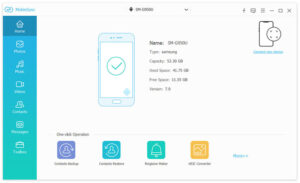
Step 2:The left sidebar of the software features clear file categories. Click “Messages” to load all SMS on your phone. If data fails to display, click “Refresh” to reload. Once loaded, you can preview each message directly.
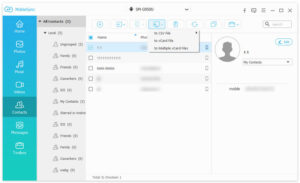
Step 3:Select the SMS you want to back up (batch selection supported), then click “Export to Computer”. Choose to save the messages in CSV, HTML, or TXT format according to your needs. Set the storage path, and the software will complete the export quickly—no complicated operations required.
This software also supports recovering deleted SMS. Regular backups can effectively prevent data loss, making it ideal for users who need frequent backups or multi-type data synchronization.
For Samsung users, the brand’s built-in backup tools offer better adaptability. Samsung Kies is designed for older Samsung models (Galaxy Note III and earlier, Galaxy S4, etc.), while newer models (such as Galaxy Note 9) require Smart Switch. Both tools enable accurate SMS backup and support syncing photos, contacts, and other data.
Step-by-Step Guide:
Step 1:Download the corresponding version of Kies (Windows or Mac) or Smart Switch from the Samsung official website. Install the software and connect your phone to the computer via a USB cable. Device detection may take a few seconds—if prompted to update the firmware, select “Cancel” to avoid disrupting the backup process.
Step 2:In the software interface, select your phone’s name, navigate to the “Backup/Restore” section, and click “Data Backup”.
Step 3:Under the “Personal Information” category, find and check “Messages”. You can also select other data types to back up. Confirm your selections and click the “Backup” button in the upper right corner.
Step 4:Keep the phone connected to the computer stably during the backup until the progress bar completes. The SMS will be automatically saved to the specified path on your computer.
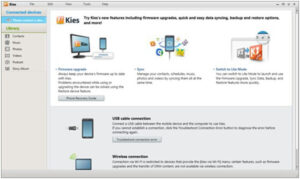
This method requires no additional third-party software and offers high security, making it a convenient exclusive option for Samsung users.
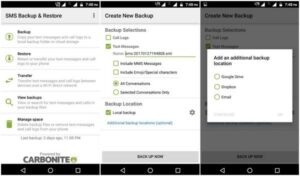
If using a USB cable is inconvenient, a wireless backup solution provides greater flexibility. SMS Backup & Restore is a dedicated Android app for SMS backup. It allows you to save SMS to an SD card without connecting to a computer, then transfer the data to your PC via the SD card—simple and data-free.
Step-by-Step Guide:
Step 1:Open the Google Play Store on your Android phone, search for “SMS Backup & Restore”, and install it. The app supports most Android system versions and occupies minimal storage space.
Step 2:Insert an SD card into your phone’s slot. Launch the app and click the “Backup” button on the main interface. Customize the backup file name and choose from personalized options such as “Backup all conversations”, “Select specific chats”, or “Backup MMS”—check the boxes as needed.
Step 3:Confirm your settings and click “OK”. The app will automatically back up the SMS to the SD card. Once completed, remove the SD card from your phone.
Step 4:Insert the SD card into your computer via a card reader. The computer will recognize it as a removable storage device. Simply copy and paste the backup files from the SD card to complete the SMS backup.
This method does not require a real-time computer connection, making it ideal for emergency backups when you’re on the go or without a USB cable. It also supports MMS backup to meet diverse needs.
The 3 methods above cover different usage scenarios: Aiseesoft MobieSync is compatible with all Android models, offering comprehensive features and efficiency; Samsung’s Kies/Smart Switch is tailored for Samsung users with strong adaptability; SMS Backup & Restore emphasizes wireless convenience, enabling backup without a USB cable. Choose the method that fits your phone brand and usage habits, and back up your SMS regularly to protect important information from loss. If you encounter any issues during operation, feel free to leave a comment for assistance.



Copyright © 2025 DatasRecovery All rights reserved.
 iPhone Data Recovery
  iPhone Unlocker
  Android Data Recovery
  Broken Android Data Extraction
  Android Unlocker
  Data Recovery (Windows/Mac)