By Data RecoveryUpdated on March 24, 2026
If you’re wondering how to transfer photos from iPad to iPad quickly and safely, you may have found that the built-in Bluetooth feature on Apple devices is not intuitive for this task—especially when you want to move all your precious photos, including camera roll shots, panoramic photos, videos, and all content in your photo library to a new iPad or share them with friends who also use an iPad.
Many Apple users abandon iTunes and iCloud for iPad to iPad photo transfer, and for good reason. These native tools are not only cumbersome to operate but also raise legitimate privacy and security concerns for users. Instead, FoneTrans has become the top choice for iPad photo transfer thanks to its ultra-fast transfer speed and 100% secure data protection. This professional iOS data transfer tool safeguards your privacy during cross-device photo sharing and stands out as the most reliable solution for seamless iPad to iPad file transfer.
FoneTrans is far more than just a photo transfer tool for iOS—it can also export contacts, calendars, photos and other important data from your iPad to Windows and Mac computers. Its most standout feature for iPad users is the direct iPad to iPad photo transfer function: you don’t need to copy photos to a computer first and then transfer them to the target iPad. With just one click, all your photos and videos can be synced between iPads, eliminating tedious intermediate steps and saving you a great deal of time.
Step-by-Step Guide for iPad to iPad Photo Transfer with FoneTrans
1、First, download and install FoneTrans on your computer, then launch the software after installation is complete.


2、Connect both iPads to the same computer using USB cables; FoneTrans will automatically recognize the connected iOS devices. If you’re using FoneTrans for the first time, you need to tap “Trust This Computer” on both iPads to complete the device authorization.
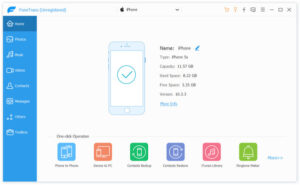
3、In the FoneTrans interface, select the photos you want to transfer to the target iPad—you can also select all photos with one click for bulk transfer. After selection, click the “Export to” option on the software interface and choose the target iPad as the receiving device.

4、Once the transfer process is finished, unlock the target iPad and check its photo library—you will find all selected photos and videos have been successfully transferred.
For users who need long-term photo storage, we highly recommend transferring photos from your iPad to a computer for backup via FoneTrans, which can prevent accidental data loss and keep your precious memories safe forever.



 iPhone Data Recovery
  iPhone Unlocker
  Android Data Recovery
  Broken Android Data Extraction
  Android Unlocker
  Data Recovery (Windows/Mac)