By Data RecoveryUpdated on January 17, 2026
“Accidentally dropped my Android phone into the pool, and it still won’t turn on after drying for days. I have no backups of my travel photos and work files—can I still get them back from the SD card?” — This is a common urgent plea from Android users who’ve experienced water damage.
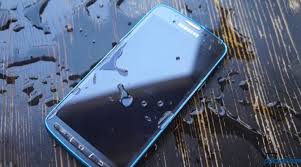
Smartphones aren’t designed for submersion (except for high-end waterproof models). When they fall into water, what users fear most is often not the phone itself, but the precious data stored inside. Don’t panic! This article will break down two proven methods to recover data from the SD card of a water-damaged Android phone, along with key tips to avoid permanent device damage.
Before starting the data recovery process, it’s crucial to confirm if your device has indeed suffered water damage to take precise follow-up actions.
For Samsung Galaxy devices, the manufacturer attaches a white detection sticker (marked with a red cross) to the battery. If the phone has been exposed to moisture, this sticker will automatically turn purple—simply remove the battery to check.
Most other Android brands equip their devices with dedicated Liquid Contact Indicators (LCIs). The location of the LCI varies by model; you can visit the phone’s official website to find instructions for locating the LCI on your specific device and quickly determine if it’s water-damaged.
Water-damaged Android phones usually can’t boot normally, so third-party data recovery software becomes an essential tool. There are countless recovery tools on the market, but the Broken Android Data Extraction feature of Android data recovery is specifically designed for data recovery from damaged Android devices, making it ideal for water-logged scenarios—easy to use with a high recovery success rate.


Here’s the step-by-step guide to retrieve data from the SD card of a non-booting water-damaged Android phone:
Step 1:Connect Device to Software
Launch the Android data recovery software on your computer. Connect your Samsung phone to the computer via a USB cable and click the “Start” button to allow the software to recognize and connect to your device.
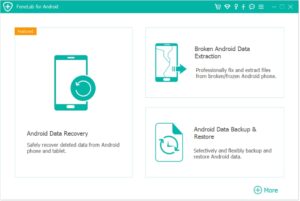
⚠️ Note: This software can only access rooted Android devices. Ensure your phone is rooted before attempting data recovery.
Step 2:Scan for Lost Files
Once the device is successfully connected, the software will quickly scan the device to find all existing and lost data. You can filter by file type to quickly locate the data you need. Scan results may display counts for contacts, text messages, photo albums, videos, audio files, and documents (e.g., 2 out of 8 contacts, 1 out of 2 text messages).
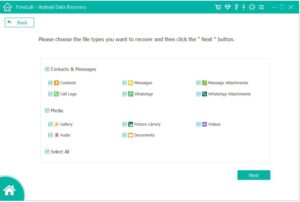
Step 3:Preview and Recover Data
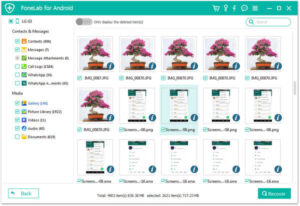
Preview all recoverable files one by one and select the ones you need. You can check the “Only display deleted items” option to filter the results. Finally, click the “Recover” button and choose a local storage path (e.g., C drive, D drive, E drive) to save the retrieved files.
If you use a Samsung device, you can also recover data using Samsung’s official “Find My Mobile” service—water damage usually doesn’t directly destroy data itself. As long as the preconditions are met, you can quickly retrieve photos and videos.
Note: This method only works for devices logged into a Samsung account.
Follow these steps:
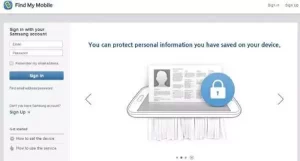
1.Open a browser and visit Samsung’s official “Find My Mobile” website (https://findmymobile.samsung.com), then log in with the Samsung account credentials used on your water-damaged device;
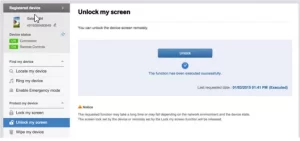
2.After logging in, find the “Unlock My Screen” option in the list of page functions, click it, and confirm the unlock operation;
3.Once unlocked, connect the phone to your computer with a USB cable. Open “File Explorer” on your computer and locate the phone’s SD card or internal storage drive under “This PC”;
4.Open the storage drive, copy the files you need to recover, and paste them into a designated folder on your computer to complete the backup.
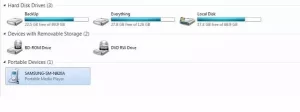
However, this method has limitations: it can’t recover WhatsApp chats, contacts, or other data—only photos and videos; it requires logging into a Samsung account in advance; it’s exclusive to Samsung devices; and it’s much more time-consuming than using professional software. For other Android brands, it’s recommended to prioritize professional recovery tools like Android data recovery.
When your phone falls into water, panic won’t help. Correct emergency handling can reduce the risk of device damage and create better conditions for data recovery:
1.Remove the phone from water immediately—the longer it stays submerged, the higher the chance of motherboard short-circuiting and data loss;
2.Never attempt to turn on the phone or charge it—this may cause permanent motherboard damage, making data recovery impossible;
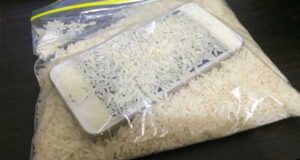
3.Wipe the surface moisture of the phone with a soft cloth or towel. If the phone’s back cover is removable, be sure to take out the battery, SIM card, SD card, and other components, wipe off residual water droplets one by one, and let them air dry (avoid using a hair dryer on high heat).
Copyright © 2025 DatasRecovery All rights reserved.
 iPhone Data Recovery
  iPhone Unlocker
  Android Data Recovery
  Broken Android Data Extraction
  Android Unlocker
  Data Recovery (Windows/Mac)