By Data RecoveryUpdated on February 12, 2026
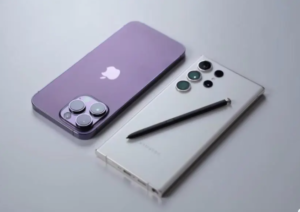
Switching from a Samsung Android phone to the Apple iPhone 17 brings an exciting new experience with its advanced system ecosystem and hardware, but cross-system data migration has become a headache for many users. Due to the architectural differences between Android and iOS, core data such as contacts, photos, and chat history cannot be synced directly, and improper operation may even lead to data loss. This article compiles 5 proven methods for data transfer from Samsung to iPhone 17, including professional tool direct transfer, official wireless migration, cloud service sync, and more. Balancing transfer speed and ease of operation, it helps you seamlessly migrate all or part of your data with ease.
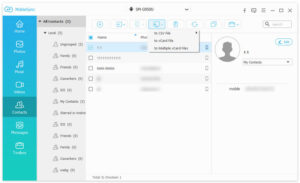
MobieSync is a professional cross-platform mobile data transfer tool, and also the top choice for full data migration from Samsung to iPhone 17. It breaks through the compatibility limitations between systems, supports one-click direct transfer between mobile phones, and can completely retain photos, music, videos, contacts, text messages and other types of data. It also allows free selection of partial data migration to meet the transfer needs of different users.
Core Advantages:
1.Supports two-way data transfer between Android and iOS devices with no system compatibility barriers
2.Enables independent selection of single-type/full data migration with maximum flexibility
3.Wired direct transfer is faster and more stable than wireless transfer, unaffected by the network
4.Simple operation steps with no complicated settings required for migration
No data loss or damage during transmission, with guaranteed integrity
Step-by-Step Operation:
① Download and install the MobieSync software on your computer;

② Connect both your Samsung phone and iPhone 17 to the computer via USB data cables;
③ After launching the software, select the core function of Phone-to-Phone Direct Transfer;
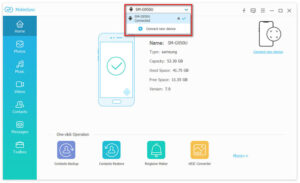
④ Set your Samsung phone as the data source device and iPhone 17 as the target receiving device;
⑤ Check the various types of data you need to transfer (contacts, media files, text messages, etc.), click Start Transfer, and wait for completion.
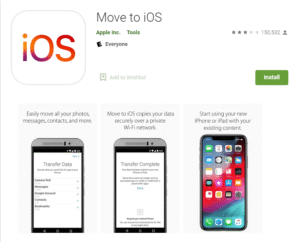
Move to iOS is an official Android-to-iOS data transfer app launched by Apple, designed exclusively for the initialization of new iPhones. It can wirelessly migrate core data from Samsung phones without the need for a computer, making it ideal for use when setting up a newly unboxed iPhone 17 for the first time.
Step-by-Step Operation:
① Search for and download the Move to iOS app in the Google Play Store on your Samsung phone;
② Perform the initial setup of your iPhone 17 until you reach the Apps & Data screen;
③ Select the option of Move Data from Android on this screen;
④ Open Move to iOS on your Samsung phone, enter the unique verification code displayed on the iPhone 17 screen, and complete device pairing;
⑤ Check the core data you need to transfer, wait for the completion of wireless migration, and then continue with the subsequent setup of iPhone 17.
Notes:
1.Both devices must be connected to the same stable Wi-Fi network;
2.Only supports migrating core data such as contacts, photos, bookmarks, and email accounts; apps and music files cannot be transferred;
3.Only applicable to the initial setup stage of iPhone 17. If the initialization is completed, the device needs to be reset for use.
If your Samsung phone has Google Account Sync enabled on a daily basis, you can achieve cloud sync of lightweight data from Samsung to iPhone 17 via Google Services. This method requires no additional tools, is easy to operate, and is suitable for migrating lightweight data such as contacts, calendars, and photos.
Step-by-Step Operation:
① Open your Samsung phone, go to Settings > Accounts > Google > Sync, and confirm that the sync function for contacts, calendars and other data is enabled;
② If you need to migrate photos, open the Samsung Gallery app, enable the Google Photos Backup function, and sync photos to the Google Cloud;
③ On your iPhone 17, go to Settings > Mail > Accounts > Add Account and select the Google option;
④ Log in with the same Google Account as your Samsung phone, turn on the sync switch for contacts, calendars, and notes, and wait for data sync;
⑤ Download the Google Photos app from the App Store on your iPhone 17, and you can view and download the synced photos after logging in.
Notes:
1.Users who deeply use the Google ecosystem will have a better experience with smoother data sync;
2.Cannot transfer text messages, call logs, app data and other content;
3.Ensure that Google Drive has enough storage space to save large files such as photos and videos.
This method combines Samsung’s official backup tool with Apple’s sync tool. First back up Samsung data to the computer, then manually import it to iPhone 17. It is suitable for transferring large-capacity media files such as music, videos, and documents, and allows independent management of transferred file content.
Step-by-Step Operation:
① Install the official Samsung Smart Switch software on your computer (Windows/Mac);
② Connect your Samsung phone to the computer with a data cable, and back up media files, documents and other data from the phone to the local computer via Smart Switch;
③ Open iTunes (Windows system) or Finder (macOS system) on the computer;
④ Connect your iPhone 17 to the computer with a Lightning to USB-C data cable;
⑤ Drag the backed-up music, videos, and documents from the computer to the iPhone sync interface in iTunes/Finder, click Sync, and complete the data import.
Notes:
1.Ideal for transferring large-capacity media files, the best solution for audio and video resource migration;
2.Cannot transfer text messages, app data, call logs and other content;
3.After the transfer is completed, you may need to manually organize file categories on iPhone 17.
With the help of third-party cloud storage services such as Dropbox and OneDrive, you can realize manual file transfer from Samsung to iPhone 17, and independently select the files to be migrated. It is suitable for transferring specific data such as work documents, project files, and selected photos, and also supports cross-platform sharing across multiple devices.
Step-by-Step Operation:
① Install the Dropbox/OneDrive cloud storage app on your Samsung phone, log in to your account, and upload the files to be transferred to the cloud;
② Install the same cloud storage app from the App Store on your iPhone 17 and log in with the same account;
③ Find the uploaded files in the cloud storage app on iPhone 17, and view or download them to the local as needed;
④ If you need to migrate photos/videos in the Apple ecosystem, you can enable the iCloud Photos function on iPhone 17 to achieve cross-device sync.
Notes:
1.Supports file intercommunication between multiple devices such as computers, tablets and mobile phones;
2.The free version of cloud storage has a quota limit (usually 5-15GB), and a membership is required for large-capacity file transfer;
3.Downloading large-capacity files takes a long time, so a smooth network connection is required.
1.Backup Both Devices: Create data backups for both your Samsung phone and iPhone 17 before transfer to avoid data loss due to accidents during the transfer process;
2.Format Check: Some Android-exclusive media formats are not natively supported by the iOS system (such as .apk installation packages), so screen out and delete useless format files in advance;
3.Data Sorting: Clean up junk files and duplicate data on your Samsung phone before transfer to save storage space and improve transfer efficiency;
4.Social App Preparation: WhatsApp now supports chat history migration from Android to iOS, so ensure that both devices have the latest version of WhatsApp installed;
5.Battery Protection: Keep both devices charged above 50% during transfer, or operate while connected to a power source to avoid power failure in the middle.
Frequently Asked Questions about Samsung to iPhone 17 Data Transfer
Q1: Can WhatsApp chat history from a Samsung phone be migrated to iPhone 17?
A: Yes. WhatsApp officially supports chat history migration from Android to iOS. Simply connect both your Samsung phone and iPhone 17 to the same Wi-Fi network, update WhatsApp to the latest version on both devices, and complete the operation through the migration function in the app.
Q2: Is a SIM card required in iPhone 17 for data transfer?
A: No mandatory requirement. Data transfer can be performed normally without a SIM card when using tools such as MobieSync and Move to iOS; inserting a SIM card can make the sync process of contacts and text messages smoother.
Q3: Can Android apps from Samsung phones be directly transferred to iPhone 17?
A: No. The installation package format of Android apps is incompatible with the iOS system and cannot be directly transferred for use. You need to re-download the corresponding iOS version of the app from the App Store on iPhone 17. If it is a cross-platform paid app, you usually do not need to pay again when logging in with your original account.
Q4: How long does it take to transfer data from Samsung to iPhone 17?
A: The transfer time depends on the transfer method and the amount of data. Wireless transfer (such as Move to iOS) may take several hours if migrating a large photo library; using MobieSync for wired direct transfer, full data migration can usually be completed within 30 minutes; the time for cloud sync/manual transfer is affected by network speed.
Q5: Can data migration be performed after iPhone 17 has completed initialization?
A: Yes. Apple’s official Move to iOS only supports the new phone initialization stage, but data transfer can be completed through MobieSync, third-party cloud storage, Google Services and other methods without resetting the iPhone 17.
Cross-system data migration from Samsung phone to iPhone 17 does not need to be a trouble due to system differences, and different transfer methods are adapted to different usage scenarios: Apple’s official Move to iOS is suitable for wireless migration of core data during new phone initialization, Google Services for quick cloud sync of lightweight data, Smart Switch + iTunes/Finder for computer-side transfer of large-capacity media files, and third-party cloud storage for custom selection of specific file migration. MobieSync is the optimal solution that balances full data, transfer speed, and ease of operation, enabling seamless direct transfer across systems and being the first choice for users switching phones. As long as you sort out and back up your data in advance and choose the transfer method that suits you, you can fully retain all important data from your Samsung phone while using the iPhone 17.



Copyright © 2025 DatasRecovery All rights reserved.
 iPhone Data Recovery
  iPhone Unlocker
  Android Data Recovery
  Broken Android Data Extraction
  Android Unlocker
  Data Recovery (Windows/Mac)