By Data RecoveryUpdated on March 03, 2026
Switching from a Samsung phone to an iPhone is a highly cost-effective choice, as it not only allows you to experience the smoothness and security of the iOS system but also enables you to integrate into the well-established Apple ecosystem. However, many users often struggle with how to migrate important data from their old devices. MobieSync, a professional cross-device data transfer tool, can quickly migrate various types of data such as contacts, messages, and photos from Samsung phones to iPhone, easily solving the problem of data transfer.
The reasons users choose to switch from Samsung to iPhone vary—some value the information security guarantees of the iOS system, others prefer the multi-device synergy experience of the Apple ecosystem, while some are drawn to the convenience of Apple Pay, continuous system update services, and the practical features of Family Sharing. At this stage, the iOS system still demonstrates unique advantages over the Samsung system in terms of ecosystem integration and security protection.
Getting a new iPhone is supposed to be a joyful event, but if you have been using your Samsung phone for a long time and have accumulated a large amount of practical data such as contacts, messages, photos, and calendars, figuring out how to transfer this data completely and efficiently to your new iOS device often becomes a major challenge.
This article will introduce two simple and easy methods to help you quickly transfer various files from your Samsung phone to your iPhone. It will also clarify the types of data that can be migrated and provide specific step-by-step instructions, making cross-device data migration no longer a hassle.
MobieSync is a user-friendly cross-device data transfer tool that enables direct data migration from Samsung phones to iOS devices such as iPhone, iPad, and iPod. It supports the transfer of all common data types, including contacts, messages, music, videos, and photos, making it an excellent data transfer solution tailored for Samsung and iOS devices.
Core Features:
1、Supports transmission of all common data types such as contacts, photos, videos, audio, text messages, and voice memos;
2、Enables two-way file transfer between Samsung and iPhone;
3、Easily transfer computer files to Samsung/iOS devices, or back up iPhone/Samsung data to the computer;
4、Directly view and manage various data in Samsung phones and iPhones;
5、Comes with powerful ringtone production and HEIC format conversion functions to meet personalized usage needs.
Steps for File Transfer from Samsung to iPhone
Step 1:First, download and install this professional Samsung-to-iPhone data transfer tool for free on your computer through official download channels, then follow the steps below to transfer Samsung files to your new iPhone.

Step 2:After installation, double-click the software icon to launch MobieSync on the computer quickly;
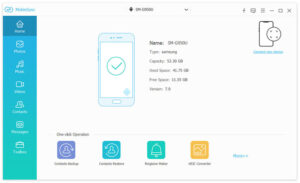
Step 3:Connect your Samsung phone and iPhone to MobieSync at the same time with data cables, and the software will automatically identify the connected devices;
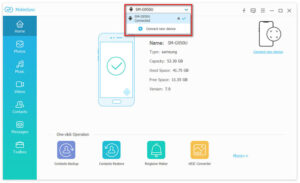
Step 4:Set your Samsung phone as the source device: Click the device model in the middle of the top of the interface and select the corresponding Samsung phone as the source device from the drop-down list;
Step 5:All common files are displayed in categories in the left sidebar, click the specific data type on the left to view the data details in the right preview window;
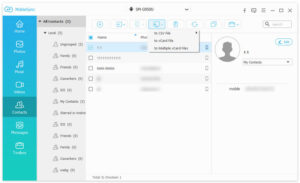
Check the files you need to transfer to the new iPhone, click the phone-shaped “Export to Device” icon, and then select your iPhone as the target device for data transfer. The software also provides a “Select All” button to select all Samsung data with one click for batch migration.
Through the above operations, you can easily transfer all important data from your Samsung phone to the iOS device. In addition, MobieSync can also transfer computer data to iPhone and back up iOS files to the computer, so we recommend you download it for free to experience.
If you don’t want to use the above method, you can also transfer Samsung phone data to iPhone with the Move to iOS app, an official cross-device data transfer method launched by Apple with equally simple operations.
Before using this method, you need to know that the Move to iOS app does not support the transmission of music, Samsung apps and attachments, passwords, etc., and your iPhone must run iOS 9 or a higher version of the system.
Specific Transfer Steps:
1、Turn on the iPhone, complete the initial setup until you enter the “Apps & Data” interface, and click the “Move Data from Android” option;
2、Download, install and open the Move to iOS app on your old Samsung phone, click “Continue” on both devices, then click “Agree” on the Samsung phone and then “Next”;
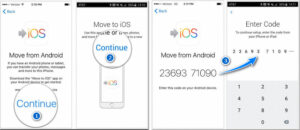
3、A 12-digit verification code will be displayed on the iPhone screen, enter it into the Samsung phone. During this process, make sure both devices are connected to the same Wi-Fi network;
4、After entering the “Transfer Data” interface, select the specific Samsung data to be transferred, such as bookmarks, text messages, contacts, camera roll, etc., and then the system will automatically start transferring the selected Samsung files to the iPhone;
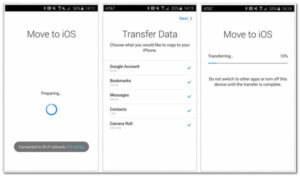
5、After the transfer is completed, click “Continue Setting Up iPhone”, then complete the other settings of the new iPhone, and you can register a new Apple ID or log in to an existing one as needed.
This article mainly introduces two practical data transfer methods for switching from Samsung to iPhone. After mastering these methods, you can easily and completely migrate all important data from your Samsung phone to your new iPhone. Among them, MobieSync supports full-category data migration with flexible operation and rich functions, making it the preferred tool for data transfer from Samsung to iPhone. If you encounter any problems during the operation, feel free to leave a message in the comment area for communication.



Copyright © 2025 DatasRecovery All rights reserved.
 iPhone Data Recovery
  iPhone Unlocker
  Android Data Recovery
  Broken Android Data Extraction
  Android Unlocker
  Data Recovery (Windows/Mac)