By Data RecoveryUpdated on February 08, 2026
Switching from an Android phone to an iPhone is a breeze when it comes to hardware, but transferring SMS messages from Android to iPhone has become a tricky problem for many users. Most data transfer tools on the market can conveniently transfer photos, contacts, music and other files from Android to iPhone, but few can directly complete cross-system SMS migration. This article will detail three highly practical methods to make the transfer of Android SMS to iPhone simple and easy for beginners to master.

It should be noted in advance that there are few apps that support direct and secure cross-system SMS transfer. To complete SMS migration from Android to iPhone, some methods require simple transit operations, which are not difficult and can be easily mastered by beginners.
After actual testing, to migrate Android SMS to iPhone safely and completely, the optimal desktop software solution requires the use of two tools in combination: first, export SMS from Android phone and iPhone to the computer respectively through the MobieSync desktop app; then merge the SMS files exported from the two devices into a single complete CSV file; finally, import the merged SMS file back to iPhone from the computer through the iTools desktop app to complete the migration.
MobieSync is a multi-functional mobile phone data management and transfer tool that enables mutual transmission of common data between iPhone/iPad/iPod, Android devices and computers, as well as between iOS and Android devices. This tool can easily migrate contacts, photos, videos and other data, but only temporarily does not support direct SMS transfer from Android to iPhone. Its core functions cover multiple needs of mobile phone data management.
Core Functions of Aiseesoft MobieSync:
1.Supports mutual transmission of mainstream mobile phone files such as contacts, photos, videos and music between Android and iPhone;
2.Realizes one-click backup of full or specified data of Android or iOS devices;
3.Enables fast export and saving of various mobile phone files to the computer;
4.Supports batch import of files from the computer to mobile devices;
5.Contacts on Android/iOS devices can be backed up to the computer with one click, and can also be restored to the device from the computer;
6.Comes with practical functions such as ringtone making and HEIC image format conversion.
This one-stop mobile phone data management tool can meet the transfer and backup needs of multiple scenarios, and is an excellent choice for cross-device data management.
Step 1: Export SMS from Both Devices to the Computer with Aiseesoft MobieSync
Download and install MobieSync on the computer, and launch the software after completion;

Connect both the Android phone and iPhone to the computer with a USB data cable to ensure the software successfully recognizes the two devices;
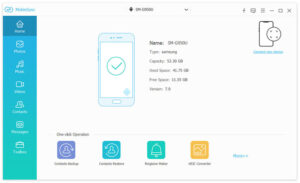
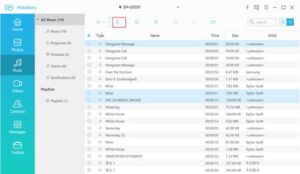
Set the Android phone as the source device, find the SMS option in the left classification bar of the software, click it and wait for the software to load all SMS in the Android phone, check the SMS content to be migrated, click “Export to Computer”, and select CSV format to complete the export (the software also supports HTML and TXT formats);
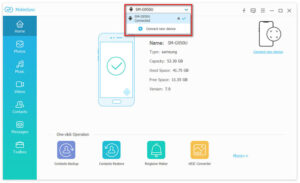
Switch the iPhone to the source device, and export the existing SMS on the iPhone to the same directory on the computer in CSV format according to the above operation steps for subsequent operations.
Step 2: Merge the Android and iPhone SMS CSV Files
At this point, there are two SMS CSV files of the two devices on the computer. After opening the two files and checking the content, perform the merge operation with two key points to note:
Directly copy and paste the Android SMS content to the bottom of the iPhone SMS CSV file content without leaving any blank lines throughout the process to avoid data errors during import;
After pasting, click “Save As”, rename the merged file and save it in CSV format, which is a key step to ensure the SMS can be imported to iPhone smoothly.
Step 3: Import the Merged File to iPhone via iTools
After merging the files, use iTools to import the complete SMS file back to iPhone with the following steps:
Download and install iTools on the computer, connect the iPhone to the software, and wait for the device to be successfully recognized;
Enter “Toolbox” – “iTunes Backup/Restore” in the software, find the name of the connected iPhone device and double-click it, click “SMS” in the left classification bar, then double-click the sms.db file;
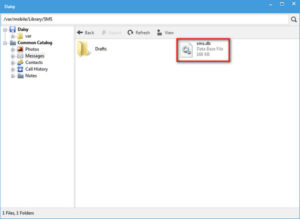
Select “Import” – “Import from CSV File” in the pop-up menu bar, select the merged SMS CSV file, and wait for the import to complete.
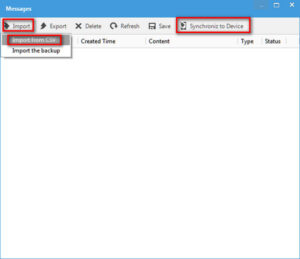
Although this method requires a few transit operations, it has the advantages of safe transmission and high data integrity, and the efficiency will be greatly improved after proficient operation, which is suitable for users who need to keep SMS records completely.
Move to iOS is an official cross-system data migration app launched by Apple, which supports migrating Android phone’s SMS, call logs, contacts, web bookmarks and other data to iOS devices. However, this app has clear usage restrictions: it can only be used when a new iPhone has not completed the initial setup, or when the iPhone is reset to factory settings and reset again. If the iPhone is in normal use and has important data, it is not recommended to use this method. The specific operation steps are as follows:
Download and install the Move to iOS app from the app store on the Android phone;
Turn on the new or factory-reset iPhone and follow the on-screen prompts to perform the initial setup;
When the setup interface enters the “Apps & Data” section, click “Move Data from Android”, then click “Continue” and record the 6-digit or 10-digit verification code displayed on the screen;
Open the Move to iOS app on the Android phone, click “Continue” and agree to the user agreement, and enter the verification code obtained from the iPhone when the interface prompts to enter the verification code to complete device pairing;
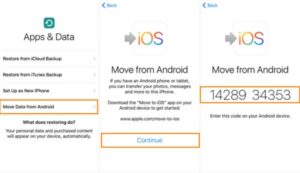
In the optional data list on the Android phone, check “SMS” and other data to be migrated, click “Next”, and wait for the data transfer to complete. Do not switch apps or turn off the Android phone during the transfer to avoid transfer interruption.
SMS Backup+ is a free open-source Android app that can back up Android SMS through a Gmail account for viewing on iPhone, which is a lightweight method without complicated operations. The specific steps are as follows:
Log in to your personal Gmail account on the Android phone, and enter the “Settings” – “Forwarding and POP/IMAP” option of the account;
Check “Enable IMAP” in this interface, slide down the page and click “Save Changes” to complete the email permission settings;
Download and install the SMS Backup+ app from the Google Play Store on the Android phone, click “Connect” after opening, and select the Gmail account that has been set up as the backup account;
Click the “Backup” button in the app and wait for all SMS in the Android phone to be backed up, and the data will be synchronized to the corresponding Gmail account;
Log in to the same Gmail account on the iPhone, and you can view all backed up Android SMS records in the file attachments of the email.
The advantage of this method is simple operation and no need for computer transit, while the disadvantage is that SMS records can only be viewed in Gmail and cannot be imported into the native SMS app of iPhone, which is suitable for users who only need to view SMS content and do not need to integrate it into the native app.
The above three methods each have applicable scenarios, and you can choose according to your own usage needs and device conditions to easily complete the migration or viewing of Android SMS to iPhone.



Copyright © 2025 DatasRecovery All rights reserved.
 iPhone Data Recovery
  iPhone Unlocker
  Android Data Recovery
  Broken Android Data Extraction
  Android Unlocker
  Data Recovery (Windows/Mac)