By Data RecoveryUpdated on January 17, 2026
“Help! My Samsung Galaxy S9 is completely dead and won’t turn on. Can I still save the photos, videos, and important files inside? Urgent!”
Many Android users have faced similar dilemmas—storing precious photos, critical text messages, and key contacts on their phones, only to have the device suddenly die or become unresponsive due to malfunctions, with no prior backup. Does this mean all data is lost forever? Absolutely not! Even if your Android phone is damaged or unresponsive, as long as the internal storage is intact, there’s a good chance to recover the data successfully.
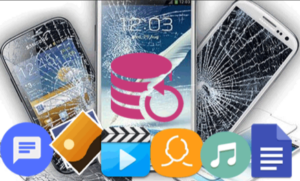
This article details 5 free and effective methods to retrieve core data from a damaged or dead Android phone. No complex operations are required—even beginners can follow along easily.
1. What is a “dead/broken Android phone”?
A dead or broken Android phone refers to a device that shows no response—no matter how many times you try to turn it on or charge it, the screen remains blank. This situation is often caused by hardware failures, water damage, or system crashes, but the internal storage of the phone is usually undamaged, which is the core prerequisite for data recovery.
2. Can I recover photos from a broken Android phone?
Yes! As long as the internal storage isn’t physically damaged, data like photos, videos, and documents are still stored on the device. To retrieve these data efficiently and accurately, it’s recommended to use a professional automated recovery tool like Broken Android Data Extraction, with detailed steps provided later.
3. How to avoid secondary data loss after the phone is damaged?
After your phone dies or becomes unresponsive, never repeatedly force restart it or charge it excessively! Frequent operations may cause secondary damage to the internal storage, making data recovery more difficult. The correct approach is to turn off the phone immediately (if possible), stop all attempts, and use the methods recommended below to extract data as soon as possible.
If you have previously enabled “USB Debugging” and “Always allow from this computer” on your Samsung phone, using dedicated Android data recovery software is an excellent choice. This tool supports multiple Android brands including Samsung, HTC, and LG, and can recover various data types such as photos, videos, contacts, text messages, and audio files.


Step-by-Step Operation:
Step 1:Connect Device to Software
Launch the Android data recovery software on your computer. Connect your Samsung phone to the computer via a USB cable and click the “Start” button to allow the software to recognize and connect to your device.
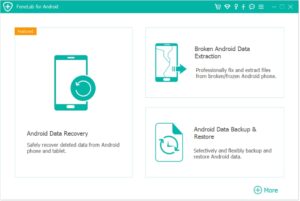
⚠️ Note: This software can only access rooted Android devices. Ensure your phone is rooted before attempting data recovery.
Step 2:Scan for Lost Files
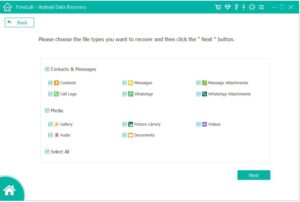
Once the device is successfully connected, the software will quickly scan the device to find all existing and lost data. You can filter by file type to quickly locate the data you need. Scan results may display counts for contacts, text messages, photo albums, videos, audio files, and documents (e.g., 2 out of 8 contacts, 1 out of 2 text messages).
Step 3:Preview and Recover Data
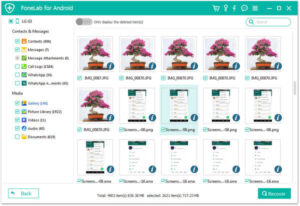
Preview all recoverable files one by one and select the ones you need. You can check the “Only display deleted items” option to filter the results. Finally, click the “Recover” button and choose a local storage path (e.g., C drive, D drive, E drive) to save the retrieved files.
Google Drive is a built-in cloud backup tool for Android. If you have enabled the service and backed up data before, you can retrieve files quickly.
Steps:
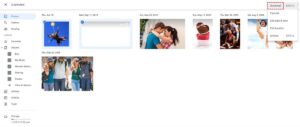
1.Prepare a new Android phone and log in to the Google account you used on the broken phone;
2.After logging in, the system will display all devices linked to the account. Select the broken phone from which you want to recover data;
3.Click the “Restore” option, and the system will automatically sync the backed-up photos, contacts, files, etc., to the new phone.
Notes:
1.Only works if you have backed up data via Google Drive previously;
2.Google Drive offers limited free storage (15GB by default), which may not be enough for all files;
3.Recovered data needs to be transferred from the new phone to a computer or other devices.
If your Android phone has “USB Debugging” enabled before, even if it’s now dead or the touch screen is unresponsive, you can connect a mouse via an OTG cable to access the phone’s storage directly.
Steps:
1.Prepare an OTG adapter cable, and connect the mouse to the broken phone via the OTG cable;
2.After connection, a mouse cursor will appear on the phone screen. Unlock the phone with the mouse (you need to know the lock screen password);
3.Once unlocked, you can access the phone’s internal storage, find the files to recover, and transfer them to the computer via a data cable.
If your phone supports an SD card and important files are stored on it, this method is the most straightforward—provided the SD card is intact.
Steps:
1.Turn off the broken phone (wait for the battery to die if you can’t turn it off), and carefully remove the SD card from the phone;
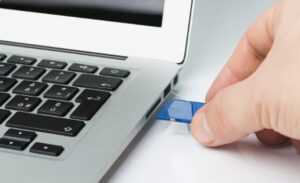
2.Insert the SD card into a card reader, then connect it to the computer;
3.After the computer recognizes the SD card, open File Explorer to access the data on the SD card;
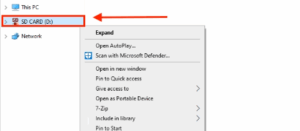
4.Copy the files you need to recover and paste them into a designated folder on the computer.
If your damaged device is a Samsung phone (e.g., Galaxy series) and you have enabled the “Find My Mobile” feature before, you can back up and recover data remotely via Samsung Cloud.
Steps:
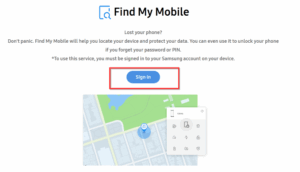
1.Open a web browser on a computer or other device, and visit Samsung’s “Find My Mobile” official website;
2.Log in to your Samsung account, and select the damaged Samsung phone from the device list;
3.Choose the file types you want to recover, click the “Backup” button, and the system will sync the data to Samsung Cloud;
4.Later, you can log in to Samsung Cloud on a new Samsung device or computer to download and restore the backed-up files.
To avoid data loss risks in the future, it’s recommended to enable your phone’s cloud backup feature after recovering data and sync important files to the cloud or computer regularly!
Copyright © 2025 DatasRecovery All rights reserved.
 iPhone Data Recovery
  iPhone Unlocker
  Android Data Recovery
  Broken Android Data Extraction
  Android Unlocker
  Data Recovery (Windows/Mac)