By Data RecoveryUpdated on January 17, 2026
Spring is the prime time to declutter electronic devices. As a popular flagship series, the Samsung Galaxy S24 (including Plus, Ultra, and FE models) can run more smoothly by cleaning up redundant SMS and spam conversations. However, accidental deletion of important messages—such as work communications or family chats—is common during operation. Don’t panic! Below are two tested and efficient solutions to help you quickly retrieve deleted messages on your Galaxy S24.
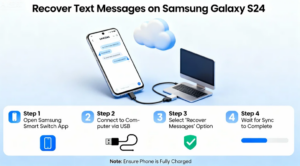
Samsung Cloud, an exclusive cloud service for Galaxy users, is a core tool for device data backup and recovery. If your Samsung Galaxy S24 was logged into a Samsung account during initial setup and the “Messages” automatic backup feature was enabled in advance, you can easily recover deleted SMS with these steps:
1.Open the “Settings” app on your Samsung Galaxy S24, find the “Cloud and accounts” option in the menu, tap to enter, and select “Backup and restore”;
2.On the new page, tap “Restore data”—the system will list recoverable backup types;
3.Check the box next to “Messages” in the option list to confirm restoring only this data type;
4.Follow the on-screen guidance to complete subsequent verification and recovery processes, and wait a moment to retrieve the backed-up SMS content.
If you haven’t enabled Samsung Cloud SMS backup, or the deleted messages aren’t in the existing backup, don’t give up—A professional Android Data Recovery tool can perform a deep scan to retrieve lost SMS from Galaxy S24 storage. It’s compatible with all S24 models (e.g., SM-S921B, SM-S926U, SM-S928N, etc.).
This tool features a user-friendly graphical interface for easy operation, supports recovery of multiple data types (contacts, call logs, photos, etc.), and offers local backup functionality to securely store S24 data on your computer. Here’s the step-by-step guide:
Step 1 Download Android Data Recovery
First of all, you need to download Android Data Recovery . Then finish the installation according to the guide it gives you. You can also download it free to enjoy the free trial.


Step 2 Connect Android device
Launch Android Data Recovery on your computer. Then you need to connect your Android device to computer via a USB cable. This professional software will detect your Android phone automatically.
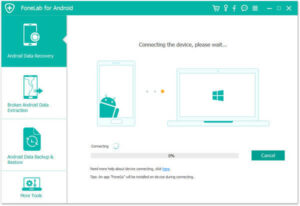
Step 3 Enable USB debugging mode
This software will prompt you to enable USB debugging on your phone if you don’t open the debugging mode. Then it will detect your Android version and give you the guide how to open this mode. Next click on OK button to continue your operation.
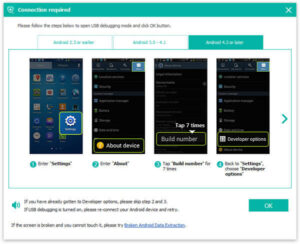
Step 4 Scan Android data
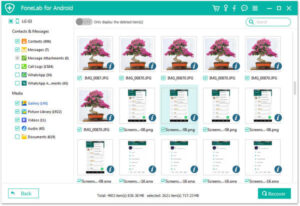
Now you can see all file types on your Android will be showed to you. Just choose the file types you want to recover from these types. Then click Next button to scan the deleted Android data.
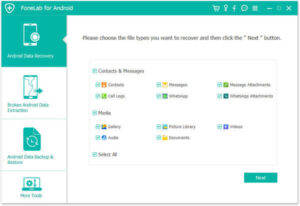
Step 5 Restore Android phone
When the scanning process is finished, all types of files will be listed to you. Now you are allowed to check the detailed information of each data you want to know. Then preview and select what you want to recover to restore Android phone by clicking Recover button.
Whether restoring via Samsung Cloud backup or deep scanning with a professional tool, you can efficiently solve the problem of accidental SMS deletion on Samsung Galaxy S24. It’s recommended to enable Samsung Cloud SMS backup daily and regularly create local backups with professional tools to double-protect important data.
Copyright © 2025 DatasRecovery All rights reserved.
 iPhone Data Recovery
  iPhone Unlocker
  Android Data Recovery
  Broken Android Data Extraction
  Android Unlocker
  Data Recovery (Windows/Mac)