By Data RecoveryUpdated on March 26, 2026
Are you struggling to transfer SMS between iPhone and iPhone? Whether you’ve just upgraded to a new iPhone and need to move all your text messages, or want to share important SMS conversations with friends who use Apple devices, you’ll find that the default tools on iOS are far from user-friendly. Bluetooth on iPhone often fails for efficient data transfer, and mainstream tools like iTunes and iCloud are not only cumbersome to operate but also carry potential privacy and security risks for your personal SMS data—making them an unideal choice for seamless SMS transfer.
According to relevant research, a large number of iOS users now choose FoneTrans as the best alternative to iTunes and iCloud for iPhone data transfer. As a professional and reliable iOS SMS transfer software, FoneTrans has become the top choice for global users with its ultra-fast transfer speed and 100% privacy protection. It perfectly solves the pain points of traditional SMS transfer methods, and can realize direct SMS transfer between iPhone devices without complicated intermediate steps, effectively protecting the integrity and security of your text message data during the transfer process.
FoneTrans is not only excellent at transferring SMS between iPhone and iPhone, but also has a wealth of powerful functions to meet all your iOS data management needs. It can export contacts, calendars, photos, SMS and other important data from iPhone to Windows and Mac computers for backup, and also supports one-click direct transfer of various data including SMS between iPhone and iPad. The biggest advantage of this software is that it skips the tedious operation of copying data to the computer first and then transferring it to the target iPhone—transfer SMS between iPhone and iPhone with just one click, and all your text messages can be synced to the new device in full.
1、First, download and install FoneTrans on your Windows or Mac computer, then launch the software after the installation is complete.


2、Connect two iPhones to the computer at the same time using original USB data cables; FoneTrans will automatically recognize the connected iOS devices. For first-time users, you need to tap “Trust This Computer” on the iPhone screen to complete the device authorization.
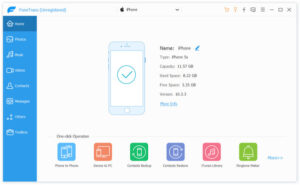
3、On the FoneTrans main interface, select the SMS option in the data list, check the text messages you want to transfer to the target iPhone—you can also select all SMS with one click for batch transfer, then click the Export to button on the interface and select the target iPhone as the receiving device.
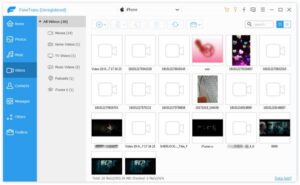
4、Wait for the transfer process to complete, then unlock the target iPhone and check the SMS app—all selected text messages have been successfully transferred and saved completely.
If you have a demand for long-term preservation of important SMS conversations, it is highly recommended to use FoneTrans to transfer iPhone SMS to computer for backup, which can avoid accidental loss of SMS data due to device damage or replacement.



Copyright © 2025 DatasRecovery All rights reserved.
 iPhone Data Recovery
  iPhone Unlocker
  Android Data Recovery
  Broken Android Data Extraction
  Android Unlocker
  Data Recovery (Windows/Mac)