By Data RecoveryUpdated on March 07, 2026
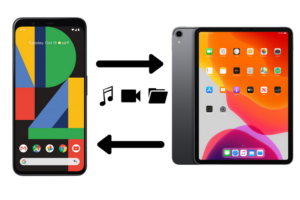
In the digital age, most music enthusiasts own multiple electronic devices, and transfer music from iPad to Samsung has become a common demand for cross-device audio enjoyment. This article will detail 4 reliable and easy-to-operate methods to help you achieve iPad to Samsung music transfer seamlessly. Whether you are a beginner in digital operation or an experienced user, you can follow the step-by-step instructions to complete the transmission and listen to your favorite songs on your Samsung phone at any time.
Table of Contents
Method 1: Transfer Music via Cloud Storage Services
Cloud storage services are a wireless and convenient way to transfer iPad music to Samsung Galaxy, which only requires network access and no complicated data cable connections. Here are the detailed operations of three mainstream cloud storage services:
Google Drive
- Download and install the Google Drive app on both your iPad and Samsung phone from the official app store respectively.
- Open Google Drive on your iPad, log in with your Google account, tap the “+” button on the interface and select the “Upload” option.
- Browse your iPad’s music library, find and select the music files you want to transfer, then tap “Upload” to start the upload process.
- To save the uploaded music to your Samsung phone, open Google Drive on the device, log in with the same Google account, locate the corresponding music files, tap each file and select the download icon to save the music directly to the local storage of the Samsung phone.
Dropbox
- Install the Dropbox app on your iPad and Samsung phone, and make sure the app is updated to the latest version.
- Open the Dropbox app on your iPad, log in or register an account, tap the “+” button and choose “Upload Files”.
- Browse your iPad to select the target music files, tap “Next” and then click “Upload” to upload the files to the cloud.
- Open Dropbox on your Samsung phone, log in with the same account, find the folder where the music files are stored, and download the needed music to the local storage of the device.
OneDrive
- Download and install the OneDrive app on your iPad and Samsung phone from the respective app stores of the two systems.
- Upload music from iPad: Open OneDrive on your iPad, log in with your Microsoft account (register a new one if you don’t have it); tap the “+” button in the app and select “Upload”; browse and select the music files you want to transfer, then tap “Done” to start uploading.
- Access music on Samsung: Open the OneDrive app on your Samsung phone, log in with the same Microsoft account used on the iPad, and find the specific folder where the music was uploaded.
- Save music to Samsung: Select the music files to be transferred, find the download or save option (usually a download icon or a menu option), and save the selected files to the local storage of the Samsung phone.
Method 2: Transfer iPad Music to Samsung with Professional Data Transfer Tools
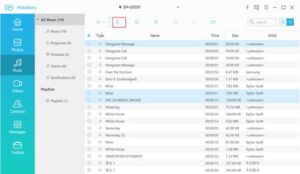
Professional cross-device data transfer tools can realize fast and safe transfer of iPad music to Samsung, which can ensure the integrity of music files during transmission and avoid data loss. It is the best choice for users who need to transfer a large number of music files at one time. The specific steps are as follows:

1、Download and install a professional data transfer tool on your computer, and open the tool after the installation is completed.
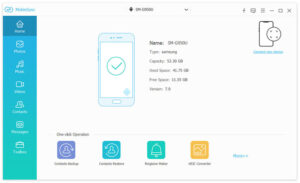
2、Connect your iPad and Samsung phone to the same computer with USB data cables at the same time, and wait for the tool to automatically recognize the two devices.
3、Select the “Phone Transfer” module in the tool, set the iPad as the source device and the Samsung phone as the target device, and you can swap the device attributes if necessary.
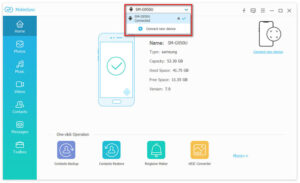
4、In the middle selection panel of the tool, check “Music” as the only data type to be transferred, and click the start button to initiate the music transmission process.
5、After the transfer progress bar is completed, safely unplug the USB data cables of the two devices, and you can immediately play the iPad music on your Samsung phone.
Method 3: Sync iTunes Music to Samsung via Google Play Music
If most of your music resources are stored in iTunes, you can sync iTunes music to Samsung easily through Google Play Music, which realizes the seamless connection between the iTunes music library and Samsung devices. The detailed operation steps are as follows:
1、Download and open the Google Play Music management tool on your computer, and ensure the computer is connected to a stable network.
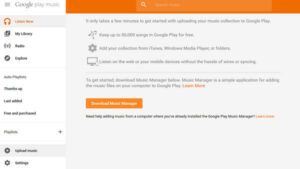
2、Log in to the tool with your Google account, click the “Upload” button on the interface, and select “iTunes” when the system prompts you to specify the music storage location.
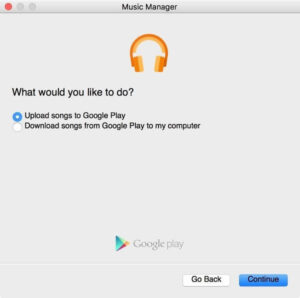
3、Choose to upload all the songs in the iTunes library or a custom music playlist according to your actual needs.
4、Install the Google Play Music app on your Samsung phone, log in with the same Google account used on the computer, select your favorite songs or albums in the app, and click the download icon to save the music to the local device for offline playback.
Method 4: Manually Copy iPad Music to Samsung via Computer
Manual transfer via computer is a traditional and reliable way to copy iPad music to Samsung phone, which does not rely on any third-party cloud services or tools, and is suitable for users who like to operate file transfer by themselves. The specific steps are as follows:
- Connect your iPad to the computer with a USB data cable, and open the iTunes app on the computer after the device is successfully recognized.
- Click the device icon in the iTunes interface, and select the connected iPad from the device list.
- Enter the “Summary” tab, check the option of “Manually manage music and videos”, and click the “Apply” button at the bottom to save the settings.
- Open the “Music” tab in the left sidebar of the computer’s file management system, select the music files to be transferred from the iPad, drag them to the specified folder on the computer, and disconnect the iPad from the computer after the copy is completed.
- Connect your Samsung phone to the computer with a USB data cable, and wait for the computer to load the device’s storage drive.
- On your Samsung phone, pull down the notification bar, find the USB connection prompt, and switch the connection mode to “File Transfer” mode.
- Open the storage folder of the Samsung phone on the computer, and move the music files saved in the computer’s specified folder to the dedicated music folder of the Samsung phone.
- After the file movement is completed, click the “Safely Remove Hardware” option on the computer to disconnect the Samsung phone, and then you can play the transferred iPad music in the music player of the Samsung phone.
Conclusion
Choosing the right method makes migrating iPad music to Samsung phone a simple task, and each of the four methods introduced above has its own unique advantages and applicable scenarios:
- Cloud storage services support wireless transmission, save the local storage space of devices, and are suitable for users who transfer a small number of music files and use multiple devices to access music resources.
- Professional data transfer tools have the advantages of fast transmission speed and high data security, which is the optimal choice for users who need to batch transfer a large number of iPad music files at one time.
- Syncing via Google Play Music is specially designed for users whose music is mainly stored in iTunes, with high compatibility and simple and intuitive operation steps.
- Manual transfer via computer is independent of third-party tools, with a transparent file transmission process, and is suitable for users who are proficient in computer file operation and pursue data security.
No matter which method you choose, you can smoothly complete the music transfer from iPad to Samsung phone, and realize the free cross-device listening of your favorite music on Apple and Samsung devices.




 iPhone Data Recovery
  iPhone Unlocker
  Android Data Recovery
  Broken Android Data Extraction
  Android Unlocker
  Data Recovery (Windows/Mac)