By Data RecoveryUpdated on February 11, 2026
When you have stored contact information with complete details such as name, phone number, company, and avatar on your Samsung phone, and switch to an iPhone, how to transfer this information to the new device without loss has become a top demand for many Samsung users. As two mainstream brands in the smartphone industry, the scenario of switching between Samsung and iPhone is very common. When switching from Samsung to iPhone, completing the contact migration is the key to getting started with the new device quickly. This article collates 5 highly practical methods for transferring Samsung contacts to iPhone to meet the operational needs of different users.

MobieSync is a professional data transfer tool that can replace iTunes. It enables fast migration of contacts from Samsung to iPhone, and also supports cross-device transfer of various files such as photos, videos, and music, making it an excellent choice for cross-platform data synchronization.
Core Features of the Tool
1.Support one-click migration of contacts from Samsung to iPhone with simple and efficient operation;
2.Synchronize all types of files including contacts, audio and video, and pictures to meet multi-dimensional data transfer needs;
3.Adapt to two-way file transfer between Android and iOS devices, and between mobile phones and computers;
4.Compatible with all iPhone models from iPhone 4 to iPhone 16, and all system versions from iOS 13 to iOS 18.
Specific Operation Steps:
Step 1:Download and install MobieSync: Obtain the tool by clicking the official download button on the computer, and run the software directly after completion;

Step 2:Connect two devices: Connect the Samsung phone and iPhone to the computer at the same time using a USB data cable. The software will automatically identify the devices, and you can view the basic parameters of the devices on the interface;
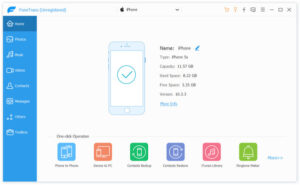
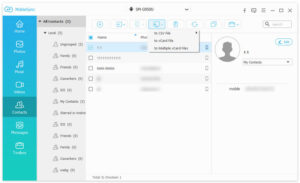
Step 3:Preview Samsung contacts: The left classification bar of the software will display all files of the Samsung phone. Click the “Contacts” option to view the complete information of all contacts;
Step 4:Perform the transfer operation: Check the contacts to be transferred, click “Export to Device” and select iPhone to complete the transfer; if you need to back up contacts, you can select “Export to Computer”. This tool also supports reverse transfer of iPhone contacts to Samsung.
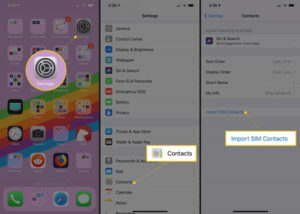
Using the storage function of the SIM card, you can quickly copy Samsung contacts to iPhone without the help of a computer or third-party tools, which is suitable for users who pursue minimalist operations. If the contacts of the Samsung phone have not been saved to the SIM card, you can complete the migration according to the following steps.
1.Open the “Contacts” app on your Samsung phone, click the menu button on the page, and select the “Import/Export” function;
Click “Export Contacts to SIM Card” and check the contact information to be transferred;
2.Click “Export”, select “OK” in the pop-up confirmation window, and complete the storage of contacts to the SIM card;
Take out the SIM card from the Samsung phone and install it into the iPhone correctly;
3.Open the “Contacts” app on the iPhone, click the menu button and select “Import/Export”;
4.Select “Import Contacts from SIM Card” and follow the prompts on the phone screen to complete the subsequent operations to finish the migration.
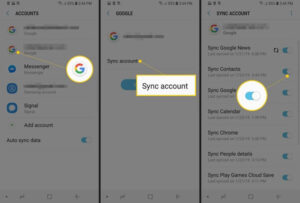
All Samsung Android devices can be bound to a Google Account, which comes with 15GB of free cloud storage space. With the cloud sync function, wireless migration of Samsung contacts to iPhone can be achieved, and the sync can be completed only by logging in to the same account on the iPhone.
1.On your Samsung phone, go to “Settings” – “Accounts”, select the bound Google Account, and turn on the “Sync Contacts” switch;
2.Wait for a while to ensure that all contacts on the Samsung phone have been synced to the Google cloud;
3.On the iPhone, go to “Settings” – “Passwords & Accounts”, click the “Gmail” option, and log in to the same Google Account mentioned above;
4.Turn on the “Contacts” sync switch in the account settings, and the cloud contact information will be automatically synced to the Contacts app on the iPhone.
Note: If you are using an iPhone 5 or later models, it is recommended to turn off the contact sync function of the Google Account after completing the contact sync to avoid the modified contact information on the iPhone being automatically synced to the Google cloud, resulting in accidental data modification.
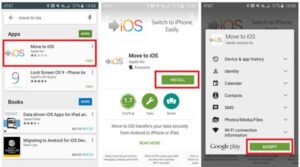
Move to iOS is an official cross-platform data migration app launched by Apple, designed specifically for switching from Android devices to iPhone. It can safely and automatically migrate Android data to iPhone, and is the official preferred method for switching from Samsung to iPhone.
1.Turn on the new iPhone and complete the initial setup. When entering the “Apps & Data” interface, select the “Move Data from Android” option;
2.Download and install the Move to iOS app from the app store on your Samsung phone, and ensure that both Samsung and iPhone are connected to the same wireless network;
3.Open Move to iOS on your Samsung phone, click “Continue” and agree to the user agreement, then click “Next” on the “Find Your Code” interface;
Switch back to the iPhone, click “Continue” on the corresponding interface to get the verification code generated by the system;
4.Enter the verification code in the Move to iOS app on the Samsung phone, check the “Contacts” option and click “Next”, the system will automatically complete the contact sync.
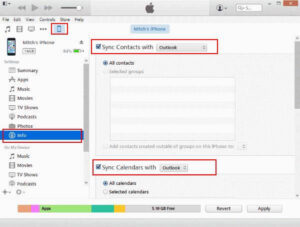
iTunes is an official device management tool of Apple, suitable for iPhone 4 and earlier models that are not compatible with Move to iOS. It can realize the transfer of Samsung contacts to iPhone by means of account backup.
1.First back up the contacts of the Samsung phone to a Gmail or Outlook account to ensure that the contact data has been synced to the corresponding cloud;
2.Connect the iPhone to the computer using a Lightning cable and launch the latest version of iTunes software;
3.Click the device icon in the top menu bar of iTunes, enter the “Info” tab, check “Sync Contacts”, and select the Gmail or Outlook account with backed-up contacts in the drop-down menu;
4.Wait for the system to complete the contact sync and transfer, disconnect the iPhone from the computer after the end, and you can view the migrated contacts on the iPhone.
There are many practical methods for migrating contacts from Samsung to iPhone, which can be selected according to your own needs: if you only need to migrate contacts, Move to iOS, Google Account, and SIM card copy are all convenient choices, among which Move to iOS is the official adaptation scheme with more suitable operation; if you are using an old iPhone (iPhone 4 and earlier), you can choose the iTunes tool to complete the sync; if you need to migrate other data such as photos, videos, and music in addition to contacts, MobieSync is the best choice, which can realize one-click sync of all types of files, and also complete automatic adaptation of file formats to meet the all-round data transfer needs across devices.



Copyright © 2025 DatasRecovery All rights reserved.
 iPhone Data Recovery
  iPhone Unlocker
  Android Data Recovery
  Broken Android Data Extraction
  Android Unlocker
  Data Recovery (Windows/Mac)