By Data RecoveryUpdated on February 08, 2026
Although the iOS system has been continuously upgraded and optimized, many users still encounter difficulties in data migration when switching from Android to iPhone. Small-size data such as contacts and text messages can be easily transferred via wireless network, but large files like music and photos are prone to stuttering and interruption during transmission when the network speed is poor. This article will share 6 simple and feasible methods in detail to teach you how to quickly transfer music from an Android phone to an iPhone, involving tools such as iTunes, MobieSync, Google Drive, Apple’s exclusive Move to iOS app, and File Explorer. It also explains that Bluetooth does not support such transmission for the time being. Each method is accompanied by complete operation steps to help you listen to your favorite music on your new iPhone quickly.
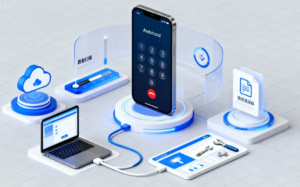
iTunes is a well-known file management tool that can still realize music transmission from Android to iPhone. This method requires transferring Android music to a computer first, and then synchronizing it to the iPhone via iTunes. The specific operation steps are as follows.
Operation Steps:
First, enable the USB debugging mode on your Android phone to obtain higher device access rights, then connect the Android phone to the computer with a USB data cable; find the storage directory of the Android phone on the computer, open the music folder, copy the songs in it and paste them to the local folder of the computer.
Add the songs on the computer to the iTunes library: Run iTunes on the computer and update it to the latest version, click [File] in the software menu bar, select [Add File to Library], and select the music files transferred from Android to the computer earlier.
Synchronize music to iPhone: Connect the iPhone to the computer with a USB data cable, iTunes will automatically recognize the device, and click the iPhone icon on the interface; select [Music] in the left setting bar and check [Sync Music]. At this time, a pop-up window will prompt whether to remove the existing music and related data on the iPhone, click [Remove and Sync]; then you can check the entire music library or specified playlists, singers, albums as needed, and also choose whether to include videos and voice memos. Finally, click [Apply] in the lower right corner to start the transmission.
This method is a free solution, but the operation is a bit cumbersome, and the existing songs on the iPhone will be deleted during synchronization, suitable for users who don’t mind the operation steps.
If you want to avoid the cumbersome operation of iTunes, you can use the professional data transfer tool MobieSync. It only takes three steps to complete music migration from Android to iPhone, and it can also realize cross-device transfer of multiple types of data, which is a more convenient choice.
Core Functions of MobieSync:
Support transferring a single song, multiple songs or even all songs from an Android phone to an iPhone, and you can choose as needed;
Can synchronize various audio format files such as music videos, voice memos, ringtones, and audiobooks;
Can directly perform management operations such as adding and deleting music and playlists on the mobile phone on the computer side;
Compatible with all series of iPhone models such as iPhone 16/15/14, and a variety of Android devices such as Samsung Galaxy S20/S10.
Complete Android Music to iPhone Transfer in Three Steps
Free download and install MobieSync on the computer, it is recommended to close iTunes before running to avoid software conflicts; connect both the iPhone and the Android phone to the computer with a USB data cable, and the software will automatically recognize the two devices.

Select the Android phone as the source device in the device list at the top of the software interface, click the [Music] option on the left, and you can view all audio files in the Android phone, including music, ringtones, podcasts, playlists, etc.
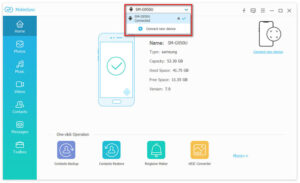
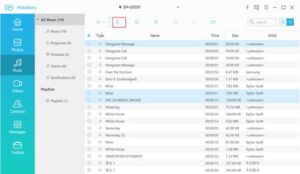
Check the music files to be transferred, click the [Export to Device] button, select the target iPhone in the drop-down option, and the software will automatically start the transmission without manual intervention throughout the process.
If you don’t want to use data cables and computers, the cloud transmission method of Google Drive is an excellent choice. As long as both devices are connected to the network, you can complete the migration of Android music to the iPhone, with simple operation and high security.
Operation Steps
If Google Drive is not installed on your Android phone, install it in the app store first, and log in to your Google account after opening it.
Click the [+] icon on the app interface, select [Upload], then click [Music Files], select the songs to be transferred in the Android phone, and wait for the upload to complete.
Install Google Drive on the iPhone, log in to the same Google account, find the uploaded music files in the cloud, you can directly download them to the local iPhone, or open them for listening with a compatible music app.
This method does not require a computer, and can be operated flexibly whether transferring a small or large number of songs, suitable for users who often need to store and access files in the cloud across devices.
Move to iOS is an exclusive migration app launched by Apple for Android switchers. Although it focuses on the transmission of core data such as contacts and text messages, it also supports the migration of music files in compatible formats. It is suitable for one-stop data transmission during the initialization of a new iPhone.
Operation Steps
Search, download and install the Move to iOS app in the Google Play Store on your Android device.
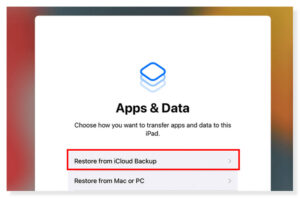
Turn on the new iPhone and perform the initialization setup. When entering the [Apps & Data] interface, select the [Move Data from Android] option.
Open the Move to iOS app on your Android phone, agree to the relevant user terms, enter the verification code displayed on the iPhone screen, and complete the pairing of the two devices.
On the app interface of the Android side, check the content to be transferred (including music files), click [Next], wait for the transmission to complete, and then continue to complete the remaining initialization settings of the iPhone.
This method can realize automatic migration of multiple types of data without processing files one by one, and is very friendly to beginners who are not familiar with mobile phone operations.
If you prefer manual operation and want to manage music files and playlists by yourself, you can use the computer’s File Explorer to complete the transmission without third-party apps or cloud services, and you can control the file sorting process throughout.
Operation Steps
Connect the Android phone to the computer with a USB data cable, open the File Explorer, and find the music folder in the Android phone’s storage.
Copy the songs to be transferred or the entire music folder, then connect the iPhone to the computer with a USB data cable, and then disconnect the Android phone from the computer.
If you use a Mac computer, open Finder or iTunes, enter the music section, and import or paste the copied songs to the corresponding directory; if it is a Windows computer, complete the import operation directly in iTunes.
Perform synchronization settings on the iPhone, and the music file transmission can be completed after confirmation.
This method is suitable for users who need to sort large-capacity music files and customize playlists, and can realize personalized management of the music library to the greatest extent.
Supplementary Note
The Bluetooth transmission method mentioned at the beginning of this article does not actually support music transmission between Android and iPhone, so there is no need to try this method, and you can complete the migration smoothly by choosing the above five methods.
Music transmission from Android to iPhone is not a difficult task, the key is to choose the method that suits you. If you pursue a free solution, you can choose iTunes; if you want to realize one-click convenient transmission, MobieSync is the best choice; if you prefer wireless cloud transmission, Google Drive can meet your needs; for one-stop migration during the initialization of a new iPhone, the Move to iOS app is more suitable; and users who like manual management and sorting of music libraries will find File Explorer a good choice. Choose a method according to your usage habits and device conditions, and you can transfer all your favorite songs from your Android phone to your iPhone in just a few steps to enjoy listening anytime and anywhere.



Copyright © 2025 DatasRecovery All rights reserved.
 iPhone Data Recovery
  iPhone Unlocker
  Android Data Recovery
  Broken Android Data Extraction
  Android Unlocker
  Data Recovery (Windows/Mac)