By Data RecoveryUpdated on March 03, 2026
Switching from an HTC phone to an iPhone allows you to experience the advantages of the iOS system, such as information security, ecological integration, convenient payment, continuous system updates, and exclusive features like Family Sharing, which is an excellent choice to upgrade your user experience. However, a long-used HTC phone accumulates a large amount of important data including contacts, text messages, photos, calendars, and music. How to transfer these data efficiently and completely to a new iPhone has become a puzzle for many users. This article will detail two simple and easy-to-operate data transfer methods from HTC to iPhone, clearly explain the transferable content and specific steps, and help you complete the device switch with ease.
MobieSync is a user-friendly cross-platform mobile data transfer tool that can directly move various types of data from an HTC phone to iOS devices such as iPhone, iPad, and iPod. It supports the migration of multiple commonly used data types and is the preferred tool for data transfer between HTC and Apple devices.
Core Features:
1、Supports the transfer of all categories of commonly used data including contacts, photos, videos, audio, text messages, and voice memos;
2、Realizes two-way data transfer between HTC and iPhone, meeting data migration needs in various scenarios;
3、Can quickly transfer computer files to HTC/iOS devices, and also back up data from HTC/iPhone to the computer for multi-terminal data management;
4、Intuitively view and manage all types of data in HTC and iPhone with one click, and organize device files conveniently;
5、Comes with practical functions such as ringtone making and HEIC image format conversion, combining data transfer with device personalized operations.
Step-by-Step Data Transfer from HTC to iPhone:
First, download and install MobieSync for free on your computer through the official channel, then follow the steps below to quickly transfer files from your HTC phone to the new iPhone:

Step 1:After installation, double-click the software icon to launch MobieSync on your computer;
Step 2:Connect both your HTC phone and iPhone to the software with data cables, and the software will automatically recognize the connected devices;
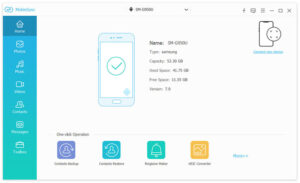
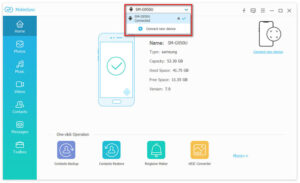
Step 3:Set your HTC phone as the source device: Click the device model option in the middle of the top of the software interface, and select your HTC phone as the source device for data sending from the drop-down list;
Step 4:The left menu bar of the software will display all commonly used files in your HTC phone by data type. Click the corresponding category on the left to view the detailed file information in the preview window on the right;
Step 5:Check the files you need to transfer to the iPhone, click the “Export to Device” phone icon on the interface, and then select the iPhone as the target device for data transfer. The software provides a “Select All” function, which can select all data in the HTC phone with one click for batch transfer.
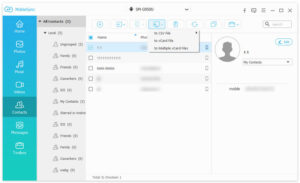
Through the above steps, you can completely transfer the important data from your HTC phone to the iOS device. In addition, MobieSync’s functions of data transfer between computer and device and device data backup can also protect your data security, which you can download for free to experience.
If you don’t want to use third-party tools, you can also complete the data transfer from HTC to iPhone with the official Apple app – Move to iOS. It should be noted that this method has certain data transfer restrictions and has clear requirements for the system version of the iPhone.
Preparations & Notes
Before transferring data with the Move to iOS app, make sure your iPhone runs on iOS 9 or later; the app cannot transfer music, third-party apps and their attachments on HTC phones, various account passwords and other content. You need to manually back up and migrate such data in advance.
Step-by-Step Transfer Operations:
1、Turn on your new iPhone and complete the initial setup according to the guide. When you enter the “Apps & Data” screen, tap “Move Data from Android”;
2、Download, install and open the Move to iOS app from the app store on your old HTC phone. Tap “Continue” on both your HTC phone and iPhone, then agree to the app’s relevant terms on your HTC phone and tap “Next”;
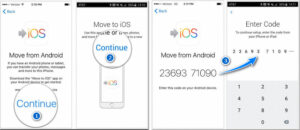
3、A 12-digit verification code will be automatically generated on the iPhone screen. Enter the verification code accurately into the corresponding input box on your HTC phone. During this process, ensure both devices are connected to the same Wi-Fi network to avoid transfer interruption;
4、After verification, enter the “Transfer Data” screen. Check the content you need to transfer on your HTC phone, such as browser bookmarks, text messages, contacts, and camera roll. The app will automatically start data transfer after selection;
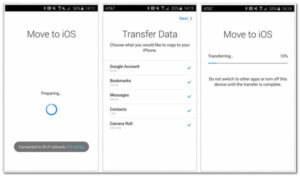
5、After the data transfer is completed, tap “Continue Setting Up Your iPhone” on the iPhone, and follow the guide to complete the subsequent operations such as Apple ID registration/login and Face ID setup to finish all configurations of the new iPhone.



Copyright © 2025 DatasRecovery All rights reserved.
 iPhone Data Recovery
  iPhone Unlocker
  Android Data Recovery
  Broken Android Data Extraction
  Android Unlocker
  Data Recovery (Windows/Mac)