By Data RecoveryUpdated on March 13, 2026
Switching from an iPhone to an Android device often comes with the need to transfer iPhone contacts to Android seamlessly. Manually entering each contact’s name, phone number, and details is time-consuming and error-prone, so using reliable methods to sync iPhone contacts to Android is the best choice. Whether you’re moving to a Samsung Android device or other Android models, these four proven methods will help you migrate iPhone contacts to Android quickly, safely, and without data loss. Below, we break down each step clearly for effortless iPhone to Android contact transfer.
Method 1: The Best Solution to Transfer iPhone Contacts to Samsung Android Devices
For users switching to Samsung or other Android devices, a professional cross-device data transfer tool is the most efficient option for direct iPhone contact migration to Android—no need to transfer contacts to a computer first as an intermediate step. This type of tool not only supports iPhone to Android contact sync but also transfers photos, videos, music, and other files between the two systems, meeting all your data migration needs in one go.
Step-by-Step Operation for Direct iPhone to Android Contact Transfer
Step 1:Download and install a professional cross-device data transfer tool on your computer.

Step 2:Connect both your iPhone and Android device to the computer via USB cables. The tool will automatically recognize both devices and load their basic information on the main interface.
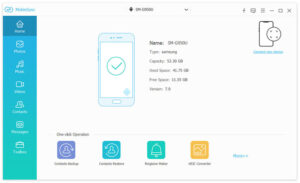
Step 3:Preview iPhone contacts: On the left sidebar of the tool, files are categorized by type—click the Contacts option to view all detailed information of your iPhone contacts.
Step 4:Transfer contacts to Android: Check the contacts you want to sync, then click the Export to Device button to directly transfer iPhone contacts to your Android phone. If you want to back up contacts for later use, click Export to Computer to save them on your PC.
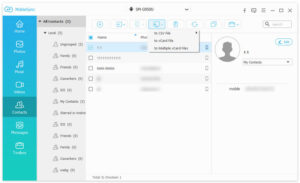
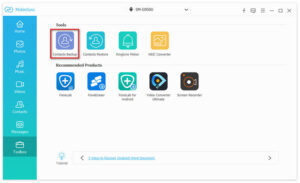
This tool also offers one-click contact backup and recovery features: access the Toolbox on the sidebar, select Contact Backup for quick one-click backup, or choose Contact Recovery to restore contacts from previously saved backup files whenever needed.
Method 2: Transfer iPhone Contacts to Android via Google Sync
Google Sync is a free, convenient way to sync iPhone contacts to Android without third-party tools. It syncs your iPhone contacts to your Google account, and once you log in to the same account on your Android device, the contacts will be automatically synced to the phone. This method features fast transfer speed, high security, and simple operations, making it a top choice for users who prefer cloud-based iPhone to Android contact transfer.
Step-by-Step for Google Sync Contact Transfer
1、Open the Settings app on your iPhone, scroll down, and tap Mail or Passwords & Accounts.
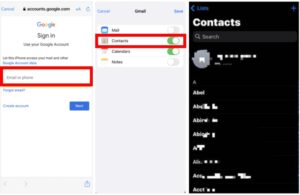
2、Tap Add Account, select Google, and enter your Google account credentials to log in.
3、After logging in, toggle on the Contacts sync switch. Wait a few moments, and all your iPhone contacts will be synced to your Google account (ensure a stable network for smooth syncing).
4、On your Android device, log in to the same Google account, open the Contacts app, and all your iPhone contacts will be automatically synced to the Android phone immediately.
Note: Keep both devices connected to a stable Wi-Fi network throughout the process to avoid sync delays or data loss during iPhone contact migration to Android.
Method 3: Migrate iPhone Contacts to Android via iCloud Sync
iCloud Sync is another reliable cloud-based method to transfer iPhone contacts to Android, ideal for one-time transfers without installing any third-party software. The core step is exporting iPhone contacts from iCloud as a vCard file (a universal contact format supported by all Android devices) and then importing the file to your Android device or Google Contacts.
Step-by-Step for iCloud Contact Transfer
1、Open Settings on your iPhone, tap your Apple ID, select iCloud, and make sure the Contacts toggle is turned on to sync iPhone contacts to iCloud first.
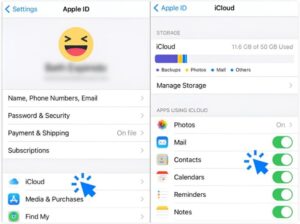
2、On your computer, open a browser, visit the official iCloud website, and log in with your Apple ID and password.
3、Click the Contacts icon on the iCloud homepage, select the contacts you want to export (or select all), then click the export option and choose Export vCard to save the contact file to your computer.
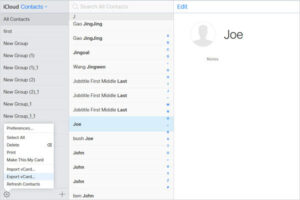
4、On your Android device, log in to your Google account, go to the Google Contacts web page, click Import, select the vCard file saved on your computer, and complete the import. All your iPhone contacts will then be displayed on your Android device.
Method 4: Transfer iPhone Contacts to Android with iTunes
If you prefer a wired, computer-based backup method over cloud services, iTunes is a great option to back up iPhone contacts and transfer them to Android. This method involves backing up iPhone contacts to a computer first, then converting or importing the backup file to your Android device or Google account for iPhone to Android contact sync.
Step-by-Step for iTunes Contact Transfer
1、Connect your iPhone to your computer, open the iTunes software, select your iPhone device in the software. Depending on your iTunes version, tap Info or Summary, then navigate to the Backup section.
2、Check the Sync Contacts option, then start backing up all your iPhone contacts to the computer (the backup file may be in native contact format or vCard format).
3、Locate the contact backup file on your computer, then import the file to your Google account or directly to the Contacts app on your Android device (convert the file format if needed for Android compatibility).
4、On your Android device, log in to the same Google account and sync the imported contacts—your iPhone contacts will then be fully transferred to the Android phone.
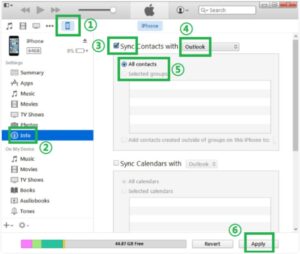
Note: iTunes can create a complete backup of iPhone contacts, but you may need an extra step to convert the backup file to a format compatible with Android devices for smooth iPhone contact migration to Android.
Conclusion
Transferring contacts from iPhone to Android doesn’t have to be a hassle—these four methods cover direct cross-device transfer, cloud-based sync (Google and iCloud), and computer-based backup (iTunes), catering to all user preferences for iPhone to Android contact transfer. Whether you want a one-click direct transfer, a free cloud sync, or a wired backup, all these methods can help you sync iPhone contacts to Android efficiently, save time and effort, and keep your contact information organized and intact. No matter which method you choose, you can complete the iPhone contact migration to Android safely and seamlessly for a smooth device-switching experience.



 iPhone Data Recovery
  iPhone Unlocker
  Android Data Recovery
  Broken Android Data Extraction
  Android Unlocker
  Data Recovery (Windows/Mac)