By Data RecoveryUpdated on March 26, 2026
If you’re wondering how to transfer music from iPod to iPhone smoothly, you may have found that the built-in Bluetooth on Apple devices is not intuitive for this kind of file transfer. Whether you want to move your favorite music playlists, downloaded songs, or audio files from your iPod to a new iPhone, or share your precious music collection with friends who use Apple devices, finding a hassle-free method is key.
A lot of Apple users abandon iTunes and iCloud when it comes to iPod to iPhone music transfer, and for good reason. iTunes and iCloud are not only cumbersome to operate for music migration but also raise concerns about privacy and security risks during data syncing. That’s why FoneTrans has become the top choice for millions of users—it’s a professional iOS data transfer tool that delivers ultra-fast transfer speed and 100% privacy protection, making it the most reliable solution for transferring music from iPod to iPhone and other iOS device-to-device data sharing.
FoneTrans is more than just a music transfer tool for Apple devices. It can export contacts, calendars, photos, music, and other data from iOS devices to Windows and Mac computers with ease. What makes it stand out for iPod to iPhone music transfer is its direct transfer feature—you don’t need to copy music from your iPod to a computer first and then retransfer it to your iPhone. With just one click, you can sync all your iPod music to your iPhone seamlessly, saving you a ton of time and effort. It supports all types of audio files on iPod, including local songs, playlists, and voice memos, ensuring complete and lossless music transfer between iOS devices.
1、First, download and install FoneTrans on your Windows or Mac computer, then launch the software after installation is complete.


2、Connect both your iPod and iPhone to the computer using original USB cables. FoneTrans will automatically recognize both iOS devices. For first-time users, you need to tap “Trust This Computer” on your iPod and iPhone to authorize the connection.
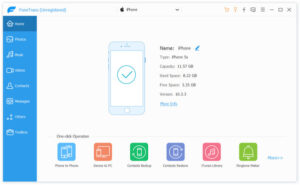
3、On the FoneTrans interface, select the Music category from the left sidebar, then tick the specific songs, playlists, or audio files you want to transfer from iPod to iPhone. You can also click the “Select All” option to transfer your entire iPod music library at once. After selecting, click the Export to button on the top toolbar.
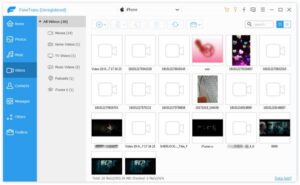
4、Choose your iPhone as the target device in the pop-up window, and the software will start transferring music immediately. Once the process is finished, you can open the Music app on your iPhone to check all the transferred music files—they will be saved in your iPhone’s music library without any loss.
If you have a need to keep your music collection safe for the long term, we also recommend using FoneTrans to transfer music from your iPod and iPhone to your computer for backup. This way, you can avoid accidental data loss and keep your precious audio files secure forever.



Copyright © 2025 DatasRecovery All rights reserved.
 iPhone Data Recovery
  iPhone Unlocker
  Android Data Recovery
  Broken Android Data Extraction
  Android Unlocker
  Data Recovery (Windows/Mac)