By Data RecoveryUpdated on January 17, 2026
Contacts on the Samsung Galaxy S24 series (including Plus, Ultra, and FE versions) are core data for daily communication, and their loss can cause great inconvenience. If you encounter the problem of missing contacts, there’s no need to panic. You can troubleshoot and recover them step by step as follows to retrieve important numbers easily.
First, check if the “display” status of the contacts has been mistakenly set — enter the settings interface of the mobile phone’s address book and confirm that all contacts are not marked as “hidden”. If they are just invisible due to being hidden, after adjusting to the “display” status, the contacts will immediately appear in the address book; if not found, you can try the following two more effective recovery methods.
If your Samsung S24 has logged into a Google account and enabled automatic sync, the lost contacts can probably be retrieved through Google Contacts. The operation is very simple: log in to your Gmail account, click the “Mail” button at the top, select “Contacts” from the drop-down menu, and you can retrieve and restore contacts created or mistakenly deleted within 30 days. After recovery, open the settings of your Samsung S24, find the “Sync” option in account management, click to sync, and the lost contacts will be quickly synced back to the mobile phone’s address book.
If Google Sync is not enabled, don’t worry. In the Android system, deleting a contact usually only removes the file link, and the original data may still be stored in the mobile phone’s internal storage (if not overwritten by new data). At this time, the Android Data Recovery tool can come into play. It can not only specifically recover contacts from the S24 but also support various data such as photos, text messages, and call logs without affecting the normal data existing on the device. It can also back up mobile phone data to the computer to avoid subsequent loss. This tool is compatible with Mac and Windows systems and also applies to other Android mobile phones and tablets.


The following are detailed steps to recover Samsung S24 contacts using the Android Data Recovery tool, supporting all models such as SM-S921B, SM-S926B, SM-S928B, and SM-S721B:
Operation Steps:
Step 1:Download and install: Download and install the tool from the official website on a Windows or Mac computer;
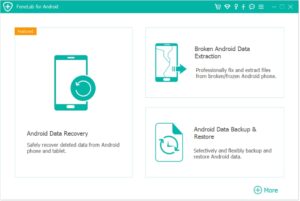
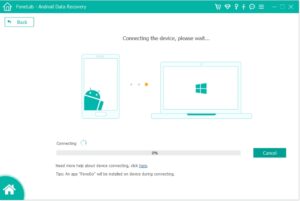
Step 2:Connect the device: Connect your Android phone to the computer using a USB data cable;
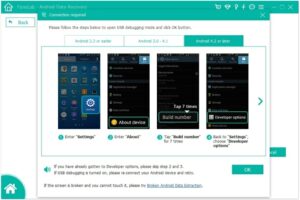
Step 3:Enable debugging: Follow the software prompts to enable USB debugging mode on your phone;
Step 4:Select types: Check the categories of data you need to recover (e.g., photos, text messages);
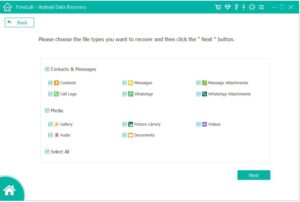
Step 5:Scan and preview: The software will automatically scan the device, and you can preview recoverable data after completion;
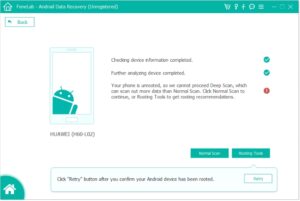
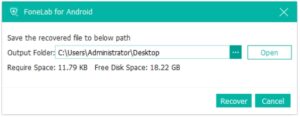
Step 6:Recover and save: Select the target files, click the “Recover” button, and save the data to a specified location on your computer.
Copyright © 2025 DatasRecovery All rights reserved.
 iPhone Data Recovery
  iPhone Unlocker
  Android Data Recovery
  Broken Android Data Extraction
  Android Unlocker
  Data Recovery (Windows/Mac)