By Data RecoveryUpdated on March 13, 2026
When switching phones, moving from an iPhone to an Android device, the most troublesome problem for everyone is the migration of various iOS data. Precious photos, important contacts, daily text messages, favorite music and videos all need to be completely transferred to the new Android phone. In fact, there is no need to worry. Choosing the right method allows you to easily complete iPhone to Android data transfer. This article will share two practical operation methods for you, which can smoothly realize the migration of iOS data to Android devices with or without a computer.
Method 1: Direct Computer Connection, an Efficient Solution for iPhone to Android Data Transfer
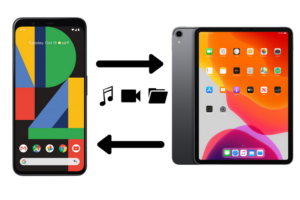
Using a professional cross-platform data transfer tool is the best choice for direct data transfer between iPhone and Android devices. Such tools support the cross-platform transfer of almost all commonly used iOS data types such as photos, contacts, text messages, music, videos, call logs, and calendars. They also enable file mutual transmission and data backup between devices and computers, support two-way file transfer between iPhone and Android devices, and can directly view and manage various data on both devices. Some tools also come with practical functions such as ringtone production and image format conversion.
Specific Operation Steps for iPhone Data Transfer via Direct Computer Connection
Step 1: Download and install a cross-platform data transfer tool
Find a regular cross-platform data transfer tool on your computer for free download, complete the installation according to the system prompts, and then launch the tool to enter the operation interface.

Step 2: Connect iPhone and Android device
Use the original USB data cable to connect both the iPhone and the Android phone to the computer with the tool installed. The tool will automatically identify the connected devices and display basic information such as device model and storage on the interface.
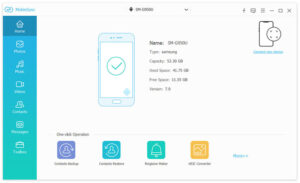
Operation Tip: To transfer iPhone data to Android, you need to set the iPhone as the data source device in the tool interface, which can generally be completed by clicking the device model at the top of the interface.
Step 3: Preview and select the iOS data to be transferred
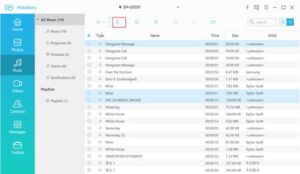
The tool will sort all files in the iPhone by category in the left navigation bar. Click the corresponding data types such as photos, contacts, and text messages, and you can view the specific content in the right preview window. It supports checking the data one by one and accurately selecting all iOS files that need to be transferred.
Step 4: Start the iOS Data to Android transfer process
After selecting all the iPhone data to be transferred, click the “Export to Device” option in the tool interface, then select the connected Android phone as the target device for data reception. After confirmation, the tool will automatically start the data transfer, just wait for the transfer progress to complete.
This method of direct computer connection can not only realize data migration from iPhone to Android, but also complete a variety of cross-platform operations such as transferring computer files to iOS/Android devices, Android data to iPhone, and backing up mobile phone data to the computer, with strong practicability.
Method 2: No Computer Needed, Transfer iPhone Data to Android via Cloud Drive
Cloud drive is a commonly used file backup and synchronization tool, with functions similar to iCloud. It supports installation and use on iOS devices and can conveniently back up basic data such as contacts, photos, videos, and calendar schedules. Therefore, it can also be used as a simple data transfer method for iPhone to Android, without the need for a computer throughout the process, only a smooth network connection is required.
Specific Operation Steps for iOS Data Transfer via Cloud Drive
Step 1: Install and log in to Cloud Drive on iPhone
Download the cloud drive app for free in the App Store on your iPhone. After the installation is complete, open the app and log in with your personal account; if you do not have a relevant account, you can complete the registration and log in directly in the app.
Step 2: Back up basic data in iPhone
After successful login, click “Menu” — “Settings” — “Backup” in turn in the cloud drive app, and finally click “Start Backup” to back up the specified data in the iPhone to the cloud server.
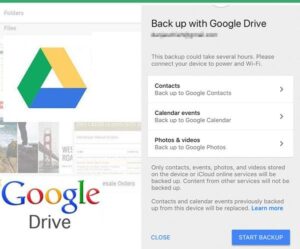
Notes: This method cannot back up all files in the iPhone, only supports backing up contacts, calendar schedules, pictures and videos in the device local or iCloud; in addition, the contacts and calendar data of the iPhone previously backed up by this cloud tool will be overwritten by the backup content of this time, and you can check it in advance before operation.
Step 3: Log in and sync backup data on Android
After the data backup on the iPhone is completed, install the same cloud drive app on the new Android phone, log in with the same account as the iPhone, and the system will automatically sync the backup data in the cloud after logging in. You can view and use various basic data transferred from the iPhone on the Android device.
This cloud transfer method is simple to operate and does not require computer assistance, suitable for users who only need to transfer basic data such as contacts, photos, and calendars. During the operation, it is necessary to ensure that the iPhone and Android device are in a stable same network environment to avoid backup or sync interruption.
Summary
There are two main methods to transfer iPhone data to Android devices: professional tool transfer via direct computer connection and cloud drive synchronization. You can choose according to your own needs: if you need to completely transfer all commonly used data such as photos, text messages, music, and videos, the professional tool via direct computer connection is the best choice with high transfer efficiency and full data coverage; if you only need to migrate basic data such as contacts and pictures, the cloud drive synchronization method without a computer is more convenient. In addition to the above two methods, there are many cross-platform data transfer tools on the market, all of which can realize cross-platform data migration from iOS to Android, and you can choose according to your usage habits.



 iPhone Data Recovery
  iPhone Unlocker
  Android Data Recovery
  Broken Android Data Extraction
  Android Unlocker
  Data Recovery (Windows/Mac)