By Data RecoveryUpdated on February 12, 2026
Want to seamlessly transfer data from your old Android or iPhone to the Huawei Mate 60? No more worrying about cross-system data transfer issues. This article collates practical methods for a variety of tools and native migration techniques, explaining step-by-step how to transfer all types of data from contacts and photos to music, making it easy for beginners to follow.
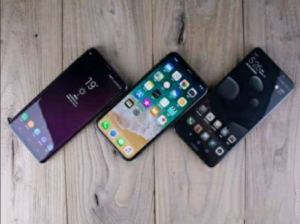
The Huawei Mate 60 has become a popular choice for device upgrade due to its excellent performance and imaging capabilities, and cross-system data transfer is a major concern for many users. In fact, whether it is Android to Huawei for the same system or iOS to Huawei, there are corresponding efficient transfer methods. You can either use Huawei’s native Phone Clone for quick migration, or realize classified data transfer with various cloud tools and professional synchronization software. The detailed operation steps are introduced below.
Phone Clone is a free built-in data migration tool of Huawei, which supports direct cross-device transfer without a computer, and is the basic preferred way to migrate data from Android and iPhone to Mate 60.
① Migrate from Android device to Mate 60
Open the Huawei Mate 60, go to Settings > System and Updates, find and open Phone Clone, set the Mate 60 as the New Device, then select Other Android Phones. On your old Android phone, download and open Phone Clone according to the prompts on the Mate 60 screen, complete the connection via QR code scanning, check the data to be transferred, and click Start to finish the migration.
② Migrate from iPhone to Mate 60
On the Huawei Mate 60, open Settings > System and Updates > Phone Clone, set the device as the New Device and select iPhone. Complete the QR code pairing on your old iPhone according to the prompts, confirm the authorization in the pop-up window, check the data types to be transferred such as contacts, photos and videos, and wait for the transfer to complete.
If you need to transfer a large variety and volume of data, MobieSync is the best choice. This professional data synchronization tool supports cross-system transfer of all types of data without prior backup and has high transfer efficiency. It also allows you to preview and select specific files to be transferred, avoiding useless data from occupying the space of the new phone.

Specific Operation Steps:
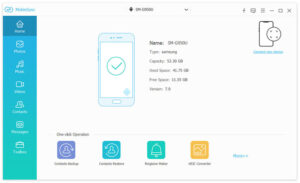
Step 1:Download and install MobieSync on your computer, connect both the Huawei Mate 60 and the old Android/iPhone to the computer with data cables. The software will automatically recognize the two devices and display the device information on the home page.
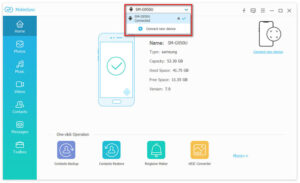
Step 2:Confirm that the old phone appears in the device list of the software; if not recognized, click the drop-down button to manually select the corresponding old device.
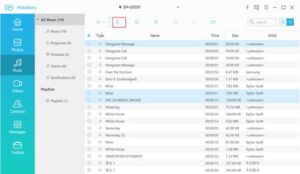
Step 3:The left sidebar of the software classifies data by contacts, photos, music, videos and other categories. Click the corresponding category to preview specific files on the right and filter as needed.
Step 4:Click the Inter-device Data Transfer function in the software, select Export to Device, and set Huawei Mate 60 as the target device.
Check all the data to be transferred, click Confirm, and wait for the software to complete the synchronization.
Contacts are one of the core data of the mobile phone. Transferring Apple/Android contacts to Huawei Mate 60 with iCloud requires no third-party tools, with simple operation and low risk of data loss, which is the preferred way for separate contact transfer.
Specific Operation Steps:
1.Unlock your iPhone/Android phone, go to Settings, click your personal account and find iCloud, turn on the sync switch of Contacts, and upload the phone contacts completely to the iCloud cloud.
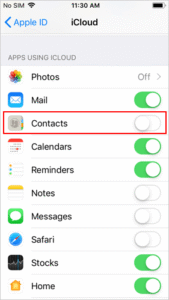
2.Open the official iCloud website in a computer browser, log in to the bound Apple ID, and enter the Contacts section.
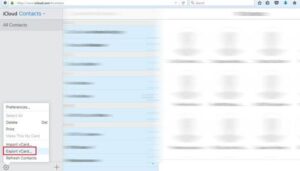
3.Check the contacts to be transferred on the contacts page, click the operation icon, select the export format, and save the contact file to the computer or SD card.
4.Insert the SD card with the contact file into the Huawei Mate 60, or connect the computer to the Mate 60 with a data cable, and import the contact file into the new phone to complete the synchronization.
Photos and videos are the largest media data in mobile phones. Transferring with Google Drive supports cloud-based cross-device synchronization without a data cable, which is suitable for batch photo transfer to Huawei Mate 60.
Specific Operation Steps:
1.Install and open Google Drive on both the old Android/iPhone and Huawei Mate 60, ensuring both devices are in a networked environment.
2.Log in to your Google account on the old phone, click the + icon on the home page of the software, select the Upload function, then enter the Album or Pictures folder, check the photos and videos to be transferred, and start uploading to the cloud.
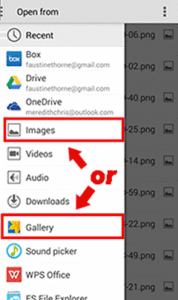
3.After the upload is completed, log in to the same Google account on the Huawei Mate 60, and find the uploaded photos and videos in Google Drive.
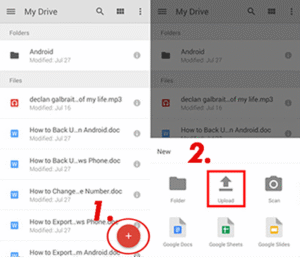
4.Check the content to be saved, click Send a copy, select Save image/video, and the photos and videos will be downloaded and saved to the local album of the Huawei Mate 60.
If you have previously synced the music from your Android/iPhone to the iTunes on your computer, you can directly import the music files to the Huawei Mate 60 in batches via iTunes without re-downloading, completing the music data migration efficiently.
Specific Operation Steps:
1.Open the computer and find the iTunes music folder according to the system: For Mac OS X system, click Home Directory > Music > iTunes > iTunes Media Folder; For Windows system, go to C drive > Users > User Name > My Music > iTunes > iTunes Media Folder.
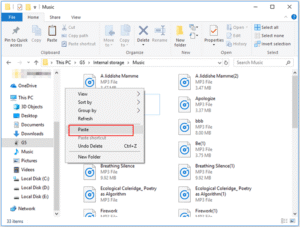
2.Connect the Huawei Mate 60 to the computer with a data cable, open the File Explorer on the computer, find and open the local storage folder of the Huawei Mate 60, and create a new Music folder (open it directly if it already exists).
3.Select all or filter the music files in the iTunes Media Folder as needed, copy them and paste them into the Music folder of the Huawei Mate 60, and wait for the transfer to complete.
Summary and Recommendation of All Transfer Methods
The Huawei Mate 60 data transfer methods introduced in this article cover four categories: native tools, professional synchronization software, cloud tools and local tools, which can be selected according to your own needs:
1.No computer and want to quickly migrate full data: Prioritize using Phone Clone, which is free and easy to operate, suitable for beginners.
2.Cross-system, need to transfer multiple types of data and want precise screening: Choose MobieSync, with high transfer efficiency and support for file preview and screening.
3.Only need to transfer contacts: Use iCloud, no third-party tools required, and data synchronization is more secure.
4.Only need to transfer photos in batches: Choose Google Drive, wireless transfer, suitable for large-size photos and videos.
5.Need to migrate music synced to iTunes: Directly copy and paste via the iTunes local folder, simple and efficient.
If some data is accidentally lost on the Huawei Mate 60 after transfer, you can use the Android data recovery tool to retrieve the data, ensuring data security to the greatest extent.



Copyright © 2025 DatasRecovery All rights reserved.
 iPhone Data Recovery
  iPhone Unlocker
  Android Data Recovery
  Broken Android Data Extraction
  Android Unlocker
  Data Recovery (Windows/Mac)