By Data RecoveryUpdated on March 07, 2026
When upgrading to the new Samsung Galaxy S23/S24/S25, the core demand for most users is how to completely migrate contacts, text messages, photos, videos, music and apps from an old Samsung or iPhone to the new device. This article details 5 efficient and secure mobile data transfer methods, adapted to different usage scenarios, ensuring seamless transfer of old device data to the new Samsung device and avoiding data loss, transfer failure and other problems throughout the process.
Preparations and Precautions for Samsung Mobile Data Transfer
Before conducting Samsung new device data migration, it is essential to make basic preparations and avoid potential risks, which is the key to ensuring a smooth transfer:
- If the old mobile phone has problems such as damage, aging or inability to connect, first solve basic problems such as charging, cleaning the interface and repairing hardware before starting the transfer;
- Confirm that the new Samsung device supports the file format of the old device. If there is format incompatibility, convert the data to a universal format in advance;
- Hardware differences between old and new devices may affect the data transfer speed. It is recommended to close the background apps of both devices before transfer to ensure network/connection stability;
- There are risks such as power failure and virus infection during the transfer. Back up the data of the old mobile phone in advance, and ensure that the new device is in a safe network environment to prioritize data security.
5 Samsung S23/S24/S25 Data Transfer Methods (Adapted for Old Samsung/iPhone)
Method 1: Use Smart Switch for Direct Data Transfer from Samsung/iPhone
Smart Switch is an official mobile data migration tool launched by Samsung, specially built for Samsung devices. It supports the transfer of all types of data such as contacts, photos, videos, text messages and call logs from old Samsung/iPhone to Samsung S23/S24/S25. The operation is simple and can ensure data integrity to the greatest extent.
Specific Operation Steps
1.Download and install the Smart Switch app on the old phone (Samsung/iPhone) and the new Samsung S23/S24/S25 respectively;
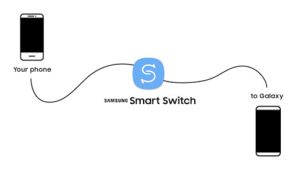
2.Open the app on the old phone and select the [Send data] function;
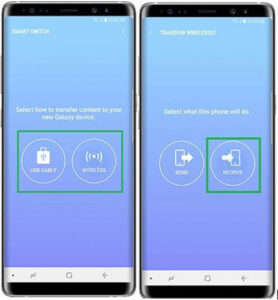
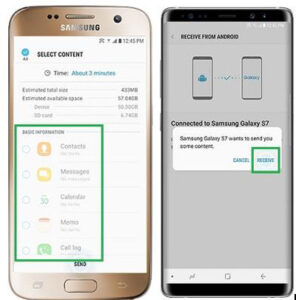
3.Manually check the required mobile data types (contacts, photos, videos, etc.) for precise selection to avoid redundancy;
4.Complete the connection between the old and new devices via wireless network, USB interface or data cable according to the page prompts;
5.After the connection is successful, select [Receive data] on the new Samsung phone and follow the on-screen instructions to complete the entire transfer process.
Method 2: Efficiently Sync Samsung/iPhone Data to Samsung S23/S24/S25 via MobieSync
MobieSync is a multi-functional cross-platform
data sync tool that supports intertransmission between Apple, Android devices and computers. It is also an excellent data transfer choice for Samsung S23/S24/S25 Ultra/Plus models. It can quickly transfer contacts, text messages, videos, photos, music and other data, realize seamless data migration between Apple and Samsung devices, and the transfer speed is much higher than conventional methods.
Specific Operation Steps
Step 1:Download and install the genuine MobieSync software on the computer;

Step 2:Connect the old phone (Samsung/iPhone) and Samsung S23/S24/S25 to the computer at the same time with a suitable data cable;
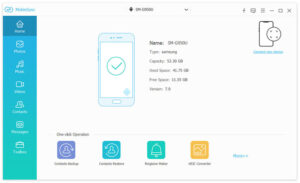
Step 3:Open the MobieSync program, which will automatically identify the two connected devices;
Step 4:Select the source device (old Samsung/iPhone) in the drop-down menu at the top center of the program, the page will display all data information of the source device, and you can replace the source device as needed;
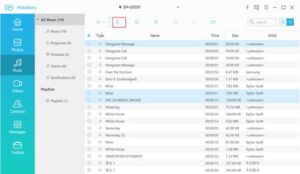
Step 5:Click the corresponding file type in the left sidebar of the program, check the mobile data to be transferred, and start the synchronization to complete the transfer.
Method 3: Realize Cross-device Migration of Samsung/iPhone Data with Cloud Storage
If a large amount of mobile data needs to be transferred, cloud storage is a convenient wireless transmission method. Without data cable connection, you only need to upload the old device data to the cloud platform and then download it on the new Samsung device. It is adapted to mainstream cloud storage services such as Google Drive, iCloud, and Dropbox.
Specific Operation Steps
- On the old phone (Samsung/iPhone), upload the mobile data to be transferred such as photos, videos and documents to cloud storage platforms such as Google Drive, iCloud and Dropbox;
- Install the corresponding cloud storage app on the Samsung S23/S24/S25 and log in to the same account as the old device;
- Find the uploaded files in the cloud storage app and select [Download] to migrate the data to the new Samsung device.
Method 4: Complete Samsung/iPhone Data Transfer via Computer as a Medium
Computer transfer is the most classic mobile data transfer method. It does not require the installation of special tools and can be realized with a USB data cable. It is adapted to all old Samsung/iPhone models and is suitable for novice users who are not familiar with data transfer tools.
Specific Operation Steps
1、Connect the old phone (Samsung/iPhone) to the computer with a USB data cable, copy and save the mobile data to be migrated to the local folder of the computer;
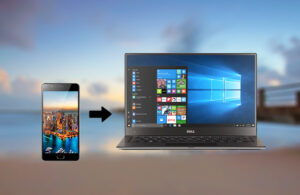
2、Safely disconnect the old phone from the computer, then connect the Samsung S23/S24/S25 to the same computer with a USB data cable;
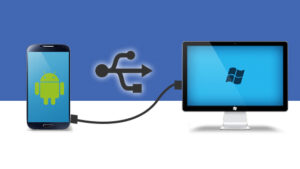
3、Find the old device data saved in the computer, copy and paste it to the corresponding storage path of the new Samsung phone to complete the data transfer.
Method 5: Realize Direct Connection Transfer between Samsung/iPhone and New Samsung Device with Special Data Cable
Some Samsung models are equipped with a dedicated USB data cable, which supports direct connection between the old phone (Samsung/iPhone) and Samsung S23/S24/S25. It can realize point-to-point mobile data transfer without computer or network transfer, and the operation is extremely simple.
Specific Operation Steps
- Use the Samsung matching dedicated USB data cable to directly connect the old phone (Samsung/iPhone) to the Samsung S23/S24/S25;
- Enable the [File Transfer Mode] on both devices according to the on-screen prompts to ensure device recognition and connection;
- Check the specific mobile data to be transferred on the old device, start the copy/move process, and the data will be directly transferred to the new Samsung device.
Summary
All the above 5 methods can realize the
data transfer from the old Samsung/iPhone to the Samsung S23/S24/S25. Among them,
MobieSync, as a professional cross-platform tool, supports more
mobile data types and has a faster transfer speed, which is the preferred solution for Samsung S23/S24/S25 Ultra/Plus models. The tool belongs to iDATAPP, which can realize seamless transmission of various data such as files, photos, videos, contacts and text messages, and escort mobile data migration.



 iPhone Data Recovery
  iPhone Unlocker
  Android Data Recovery
  Broken Android Data Extraction
  Android Unlocker
  Data Recovery (Windows/Mac)