By Data RecoveryUpdated on January 15, 2026
Photos on Android phones often record precious moments in life, but accidents can happen unexpectedly—accidental deletion, system crash, factory reset, or even physical damage to the phone may lead to the loss of these important data, leaving people regretful. In fact, data loss on Android devices is not irreversible. As long as you choose the right method, most lost photos, videos and other files can be successfully retrieved. Below are 5 proven effective recovery solutions, along with data protection tips to help you fully safeguard your data security.
Common Causes of Android Data Loss
Before starting data recovery, understanding these common loss scenarios can help you choose the most appropriate recovery method:
1.Accidental deletion due to operational errors;
2.Data erasure after factory reset;
3.Data loss caused by failed system update or system crash;
4.File damage or disappearance due to phone virus infection;
5.Physical damage to the phone such as drops or water ingress;
6.Loss or theft of the phone.
Currently, mainstream Android phone brands on the market, such as Samsung, Huawei, Xiaomi, OPPO, vivo, LG, Motorola, OnePlus, etc., are compatible with the following recovery methods.
Android Data Recovery is a comprehensive professional software, known as an “all-rounder” for Android data recovery. It supports almost all Android devices and can quickly scan and recover various types of data, including contacts, text messages, call logs, photos, videos, audio, documents, etc.


Core Advantages:
1.Compatible with all Android phone brands, supporting recovery of lost/deleted data;
2.Fast scanning speed and wide coverage, supporting multiple file formats;
3.Can safely extract data from damaged Android devices without secondary damage;
4.100% secure encryption, no risk of data leakage.
Operation Steps:
Step 1:Download and install Android Data Recovery on your computer;
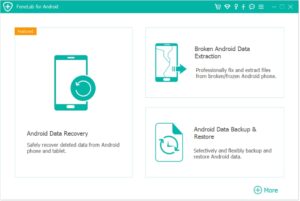
Step 2:Connect your Android phone to the computer using a USB data cable;
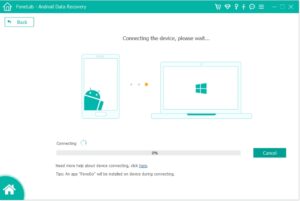
Step 3:Enable USB debugging mode on your phone (the activation path varies by brand, refer to the in-tool guide if needed);
Step 4:Open the software and select the target data type such as “Photos” that you need to recover;
Step 5:Choose the scan mode (Quick Scan is suitable for recently deleted data, while Deep Scan is for data deleted a long time ago or complex cases);
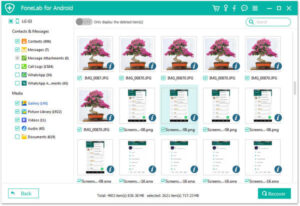
Step 6:After the scan is complete, you can preview all recoverable data and check the photos you want to retrieve;

Step 7:Click the “Recover” button and wait for the recovery process to finish.
If you have previously enabled the backup function of Google Drive, data recovery will be very simple. As a reliable cloud storage service, Google Drive can properly save various types of data on your Android phone. When data is lost, you can directly retrieve it from the backup.
Operation Steps:
Step 1:Open the Google Drive app on your Android phone;
Step 2:Click the three horizontal lines icon in the upper left corner and select “Settings” from the pop-up menu;
Step 3:Find the “Backup” option, enter it and check the data types such as photos you need to recover;
Step 4:Click the “Restore” button and wait patiently for the recovery process to end. The data will be automatically restored to your phone.
Google Photos is a commonly used photo storage tool for Android users. As long as the “Back up & sync” function is enabled in advance, it will automatically back up photos and videos on your phone. Even if photos are deleted from the phone, they can be easily retrieved from Google Photos’ backup.
Operation Steps:
Step 1:Open the Google Photos app on your phone;
Step 2:Click the three horizontal lines icon in the upper left corner and select “Settings”;
Step 3:Go to the “Back up & sync” page and confirm that the function is enabled;
Step 4:After completing the above steps, the backed-up photos and videos will be automatically synced to your phone’s album without additional operations.
Undelete App is a free Android app specifically designed to recover deleted files from the phone’s internal storage or SD card. It is easy to operate and suitable for quickly handling simple data loss situations.
Operation Steps:
Step 1:Open the Google Play Store, search for and download “Undelete App”;
Step 2:Launch the app after installation and grant it the necessary storage permissions as prompted;
Step 3:Select the file storage location (internal storage or SD card) in the app;
Step 4:The app will automatically scan for deleted files in the selected location and list recoverable photos and other data;
Step 5:Select the files you need to recover and click the “Restore” button to complete the retrieval.
If the above four methods fail to recover the data, such as severe phone damage or data deleted a long time ago, you can try contacting professional data recovery service providers. These institutions have advanced technical equipment and professional teams that can extract data from faulty or damaged devices. However, such services are usually relatively expensive, and the recovery cycle varies depending on the data situation.
In short, there is no need to be overly anxious about photo loss on Android phones. Choosing the right recovery method according to your own situation can mostly retrieve the lost data. It is hoped that the 5 solutions introduced in this article can help those in need, so that precious memories will not be easily lost.
Copyright © 2025 DatasRecovery All rights reserved.
 iPhone Data Recovery
  iPhone Unlocker
  Android Data Recovery
  Broken Android Data Extraction
  Android Unlocker
  Data Recovery (Windows/Mac)