By Data RecoveryUpdated on January 17, 2026
Last month, my Samsung Galaxy S6’s screen shattered abruptly after a drop, but luckily, the device itself still powered on and functioned properly. I recently upgraded to the Samsung Galaxy S7 and urgently needed to transfer all text messages from the broken S6 to the new phone. However, when I connected the broken S6 to Samsung Kies, the software prompted that the device was locked—leaving me stuck on how to unlock it and retrieve the SMS successfully.
Unexpected accidents like screen cracks, water damage, or unresponsive touches are common for Samsung users, especially for models like Galaxy S7, S6, S5, and S4. When your Samsung’s screen is broken and unresponsive, you might have already claimed insurance for a replacement device, but the key issue is how to recover crucial data like text messages from the damaged phone without accessing the touch screen.
Whether your Samsung Galaxy S6/S5/S4 has a broken screen due to a fall, suffered water damage, frozen on a certain interface, or you’ve forgotten the lock screen password, there’s a reliable solution to retrieve your SMS. Broken Android Data Recovery tools are designed to tackle such problems—they can help fix your bricked Samsung device to a usable state (without altering existing data) and recover not just SMS, but also contacts, call logs, WhatsApp chats, photos, and videos from the broken screen.
It’s important to note that this specialized software only supports bricked Samsung devices, including Galaxy S6/S5/S4, Galaxy Note 5/Note 4/Note 3, and Tab Pro 10.1. It does not work for other brands like HTC, Motorola, LG, Sony, Huawei, Xiaomi, Google Pixel, ZTE, Sharp, or Windows phones. This targeted support ensures higher compatibility and recovery success rate for Samsung users.
If you’re facing the same dilemma of a broken Samsung screen and need to recover SMS, you can download the free trial version of Android Data Recovery on your Windows or Mac computer. The tool comes with a step-by-step guide, making the recovery process simple even for non-technical users—no professional skills required.
If your Samsung phone remains responsive despite the broken screen, the simplest way to recover data is through File Explorer. By connecting your phone to a computer, you can directly access its internal storage and transfer the needed files.
Step-by-Step Operation:
Step 1:Connect your Samsung device to a computer using a USB cable and grant the computer permission to access its internal storage.
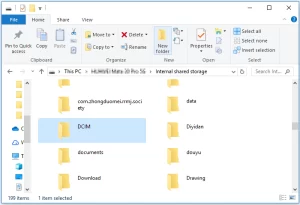
Step 2:Open “This PC” on your computer, locate your Samsung device’s name, and navigate to “Internal shared storage”.
Step 3:Select the files or folders you want to recover and copy them to a designated location on your computer.
Commonly stored files include those in folders like DCIM (photos), Download, Documents, Douyin, Drawing, and more. The interface typically offers options such as Move to, Delete, Copy, Paste, Rename, and New Folder to facilitate file management.
If you have previously enabled “USB Debugging” and “Always allow from this computer” on your Samsung phone, using dedicated Android data recovery software is an excellent choice. This tool supports multiple Android brands including Samsung, HTC, and LG, and can recover various data types such as photos, videos, contacts, text messages, and audio files.


Step-by-Step Operation:
Step 1:Connect Device to Software
Launch the Android data recovery software on your computer. Connect your Samsung phone to the computer via a USB cable and click the “Start” button to allow the software to recognize and connect to your device.
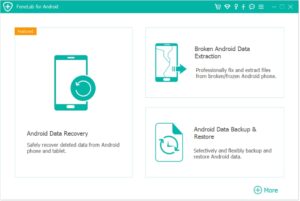
⚠️ Note: This software can only access rooted Android devices. Ensure your phone is rooted before attempting data recovery.
Step 2:Scan for Lost Files
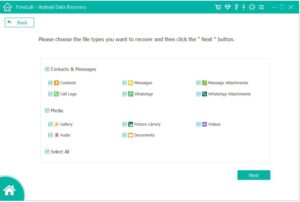
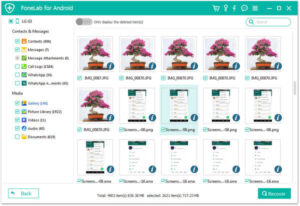
Once the device is successfully connected, the software will quickly scan the device to find all existing and lost data. You can filter by file type to quickly locate the data you need. Scan results may display counts for contacts, text messages, photo albums, videos, audio files, and documents (e.g., 2 out of 8 contacts, 1 out of 2 text messages).
Step 3:Preview and Recover Data
Preview all recoverable files one by one and select the ones you need. You can check the “Only display deleted items” option to filter the results. Finally, click the “Recover” button and choose a local storage path (e.g., C drive, D drive, E drive) to save the retrieved files.
If you’re proactive and have backed up your Samsung phone’s data beforehand, recovering data becomes much easier. For example, if you’ve backed up your data to cloud storage, simply log in to the same account on another Samsung device to restore all data and settings. For detailed instructions on backing up and restoring Samsung phone data, refer to the official Samsung guide.
If the above methods fail to retrieve your data, the final resort is to use professional manual data recovery services. Data recovery experts extract data directly from the damaged hardware of your Samsung device. While this method is more effective for severe cases, it comes with a higher cost compared to the previous options.
Copyright © 2025 DatasRecovery All rights reserved.
 iPhone Data Recovery
  iPhone Unlocker
  Android Data Recovery
  Broken Android Data Extraction
  Android Unlocker
  Data Recovery (Windows/Mac)