By Data RecoveryUpdated on January 16, 2026
Samsung phones differ from iPhones in their photo deletion mechanism. iPhones temporarily store deleted images in the “Recently Deleted” folder, while many Samsung models do not automatically retain photos after deletion. This often leaves users anxious when they accidentally delete precious photos. But there’s no need to worry excessively—here are 4 tested and effective methods to help you easily undo the deletion and get your lost photos back to the album.
Some Samsung models are equipped with a “Recycle Bin” feature similar to iPhone’s “Recently Deleted.” As long as it’s activated in advance, photos deleted for the first time will be temporarily stored here.
The operation steps are very simple: First, open the Album app on your phone, click the “three-dot icon” in the upper right corner, select “Recycle Bin” from the pop-up menu, and then click the “Edit” button. Next, check the photos you want to recover and click “Restore”—these photos will automatically return to the original album.
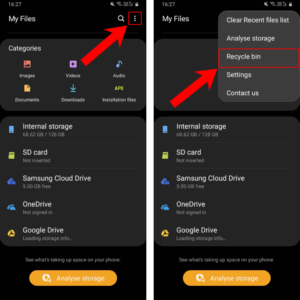
It should be noted that if you haven’t activated this feature in advance, deleted photos cannot be retrieved here. To activate it: Open the Album, click the “three-dot icon” to enter “Settings,” find the Recycle Bin feature, and turn it on.
If your Samsung phone doesn’t have the Recycle Bin feature enabled or the model itself doesn’t support it, you can also use professional Android data recovery software to extract deleted photos from the phone’s internal storage, achieving efficient recovery without relying on backups.
Android Data Recovery is an excellent choice for such scenarios. It is compatible with most mainstream Samsung models and supports scanning multiple locations including internal storage, SD cards, and SIM cards. Covering over 100 data formats, it can easily handle photo loss caused by accidental deletion, system failures, or other reasons. This tool has a low operation threshold, requiring no professional skills, and can complete recovery in three steps. It also supports personalized settings such as quick scan and deep scan to meet different user needs.


The specific operations are as follows:
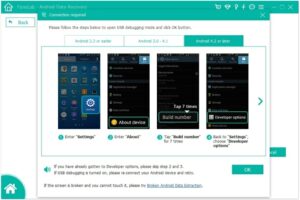
Connect the device to the software: Open Android Data Recovery on your computer, connect your Samsung phone with a data cable, and wait for the software to detect the device. If prompted to enable USB debugging, go to “Settings” > “Developer Options” to complete the activation. To activate Developer Options: Enter “Settings” > “About phone” > “Software Information” and click “Build Number” 7 times continuously. If the phone screen is cracked and unresponsive to touch, you can try the tool’s “Broken Android Data Extraction” feature.
Select scan type and authorize: After the device is successfully connected, check “Gallery” as the scan file type and click “Next.”
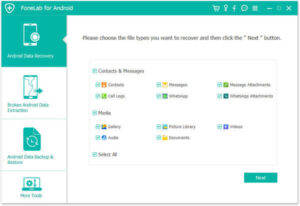
Perform the scan: If the phone is rooted, the software will automatically start deep scan to retrieve deleted photos more comprehensively. If not rooted, it will perform a quick scan by default. If the scan results are not satisfactory, you can root the device first and then perform a deep scan again.
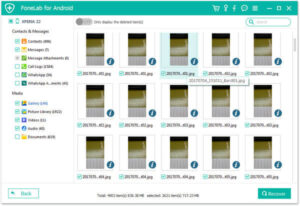
Select and recover: After the scan is completed, all detected photos will be listed by category. Check the photos you want to recover and click “Recover” to finish the retrieval.
Samsung Cloud is an official cloud storage service launched by Samsung, similar to Apple’s iCloud, which helps users back up important data such as photos, contacts, and text messages. If you have backed up photos via Samsung Cloud before, you can quickly recover them after accidental deletion by following these steps:
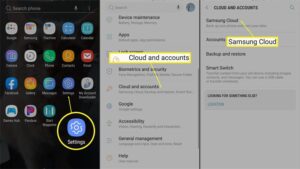
First, enter “Settings” on your phone and find the “Cloud and accounts” option. Then select “Samsung Cloud” and click “Restore.” Finally, check “Photos” and click the “RESTORE” button—the backed-up photos will be synced back to the phone’s album.
Samsung Cloud also supports the Smart Switch feature, which allows data transfer between old and new devices via USB data cable or wirelessly, making daily photo backup very convenient.
If you have the Google Photos app installed on your Samsung phone and have enabled photo sync and backup, accidentally deleted photos can also be retrieved through its Trash.
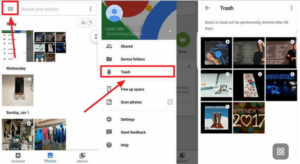
The operation process is as follows: Open the Google Photos app on your phone, click the “Menu” button in the upper left corner, select “Trash,” and you can view “Recently Deleted Photos.” Select the photos you want to recover and click “Restore” to get them back to the original album.
It should be noted that items in the Google Photos Trash will be permanently deleted after 60 days. It is recommended to operate promptly after discovering the accidental deletion of photos.
Copyright © 2025 DatasRecovery All rights reserved.
 iPhone Data Recovery
  iPhone Unlocker
  Android Data Recovery
  Broken Android Data Extraction
  Android Unlocker
  Data Recovery (Windows/Mac)