By Data RecoveryUpdated on January 17, 2026
Dealing with a broken screen on your Samsung phone is frustrating enough, but the fear of losing precious data—photos, contacts, messages, and important documents—adds another layer of stress. The good news is that retrieving data from a Samsung device with a cracked screen is feasible, and the difficulty largely depends on whether your phone still responds to operations. Below are four reliable methods to help you recover your valuable data.
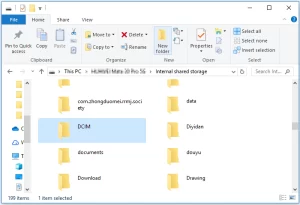
If your Samsung phone remains responsive despite the broken screen, the simplest way to recover data is through File Explorer. By connecting your phone to a computer, you can directly access its internal storage and transfer the needed files.
Step-by-Step Operation:
Step 1:Connect your Samsung device to a computer using a USB cable and grant the computer permission to access its internal storage.
Step 2:Open “This PC” on your computer, locate your Samsung device’s name, and navigate to “Internal shared storage”.
Step 3:Select the files or folders you want to recover and copy them to a designated location on your computer.
Commonly stored files include those in folders like DCIM (photos), Download, Documents, Douyin, Drawing, and more. The interface typically offers options such as Move to, Delete, Copy, Paste, Rename, and New Folder to facilitate file management.
If you have previously enabled “USB Debugging” and “Always allow from this computer” on your Samsung phone, using dedicated Android data recovery software is an excellent choice. This tool supports multiple Android brands including Samsung, HTC, and LG, and can recover various data types such as photos, videos, contacts, text messages, and audio files.


Step-by-Step Operation:
Step 1:Connect Device to Software
Launch the Android data recovery software on your computer. Connect your Samsung phone to the computer via a USB cable and click the “Start” button to allow the software to recognize and connect to your device.
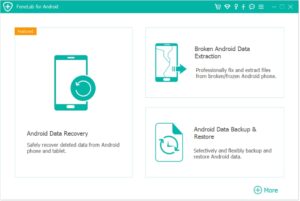
⚠️ Note: This software can only access rooted Android devices. Ensure your phone is rooted before attempting data recovery.
Step 2:Scan for Lost Files
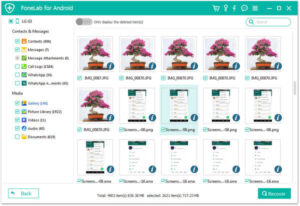
Once the device is successfully connected, the software will quickly scan the device to find all existing and lost data. You can filter by file type to quickly locate the data you need. Scan results may display counts for contacts, text messages, photo albums, videos, audio files, and documents (e.g., 2 out of 8 contacts, 1 out of 2 text messages).
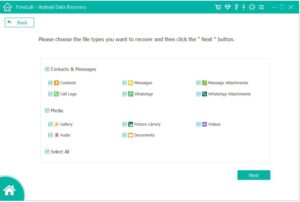
Step 3:Preview and Recover Data
Preview all recoverable files one by one and select the ones you need. You can check the “Only display deleted items” option to filter the results. Finally, click the “Recover” button and choose a local storage path (e.g., C drive, D drive, E drive) to save the retrieved files.
If you’re proactive and have backed up your Samsung phone’s data beforehand, recovering data becomes much easier. For example, if you’ve backed up your data to cloud storage, simply log in to the same account on another Samsung device to restore all data and settings. For detailed instructions on backing up and restoring Samsung phone data, refer to the official Samsung guide.
If the above methods fail to retrieve your data, the final resort is to use professional manual data recovery services. Data recovery experts extract data directly from the damaged hardware of your Samsung device. While this method is more effective for severe cases, it comes with a higher cost compared to the previous options.
Copyright © 2025 DatasRecovery All rights reserved.
 iPhone Data Recovery
  iPhone Unlocker
  Android Data Recovery
  Broken Android Data Extraction
  Android Unlocker
  Data Recovery (Windows/Mac)