By Data RecoveryUpdated on January 17, 2026
Did your Android device suddenly stop working? Is the screen too damaged to operate, the system crashed and went black, or even bricked and won’t turn on at all? Do the precious photos, important contacts, work messages and other data stored in your phone have to be lost forever? In fact, there’s no need to panic. Even in such tricky situations, as long as you find the right method, data from faulty Android devices can be successfully extracted. What’s more, some solutions allow you to mirror the screen of the faulty Android phone on your computer without enabling USB debugging.
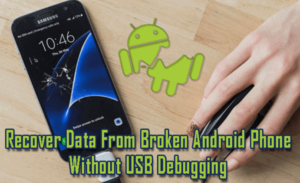
In daily use, Android users always store a large amount of important personal or work-related data on their devices. However, electronic devices are prone to accidents. Problems such as cracked screens, system failures, and unbootable devices occur from time to time. At this time, data extraction becomes the top concern for users. Below, we first answer two common questions about data extraction from faulty Android devices:
Can data be recovered from an unbootable Android phone?
Situations such as an unlit screen, unbootable phone, or system crash can indeed cause anxiety for users, especially since they may contain years of photos, critical contact information, and important work files. But the answer is yes! As long as you use the appropriate operation methods or rely on reliable Android data extraction tools, you can retrieve various lost data in just a few minutes. Next time you encounter an Android device that won’t turn on, don’t worry about losing your data. With the right tools and steps, you can complete data recovery with just a few simple clicks.
Can data be extracted from an Android phone with a cracked screen without enabling USB debugging?
Many users mistakenly believe that USB debugging is a necessary condition for data extraction, but in fact, data can be extracted from an Android phone with a cracked screen even without enabling USB debugging. You just need to choose a suitable Android data recovery software on your computer. Even if USB debugging is disabled, you can still successfully retrieve all the data stored in the device, easily solving the data extraction problem caused by a cracked screen.
Repairing a mobile phone screen may take several days. If you urgently need to access your phone data while the touch screen is unresponsive, you can consider extracting data directly from the damaged device. Whether your Android phone has suffered water damage, become stuck on a certain interface, encountered a forgotten lock screen password, malfunctioned due to incorrect operations, or experienced issues such as touch failure, device bricking, or white/black screen of death caused by a virus attack, this Broken Android data recovery can help extract various types of data, including text messages, photos, contacts, call logs, and WhatsApp messages. Simply follow the step-by-step tutorial, and all your important data can be retrieved.
If you need this kind of help, you can download the trial version of Android data recovery on your computer for free.


Step 1:Connect your broken screen phone to computer, and run this software on your PC. Choose “Start”.
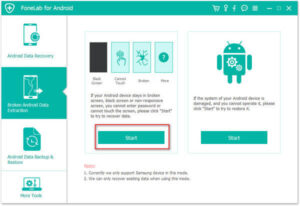
Step 2:Select your phone name and model to check if your phone can be fixed in this software and click “Confirm” for the next process.
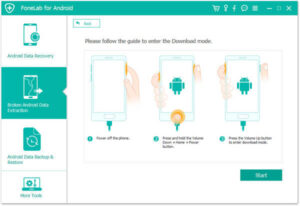
Step 3:Follow the three steps as the interface tells to put your phone into Download mode. After doing that click “Start” to fix your phone.
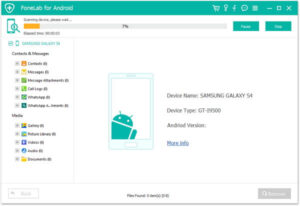
Step 4:After fixing your phone, this program will scan your phone data automatically. Select what data type that you want to access, and click “Recover” to save the data from your broken screen phone to computer.
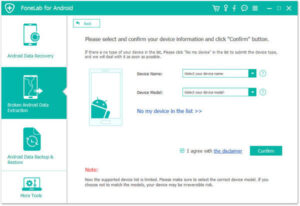
Check what data type you can access from broken screen in the following list:
Tip
This way is applied when you cannot touch your phone screen like password-forgot, phone screen is totally broken, etc. so that you can see your phone screen on computer.
Copyright © 2025 DatasRecovery All rights reserved.
 iPhone Data Recovery
  iPhone Unlocker
  Android Data Recovery
  Broken Android Data Extraction
  Android Unlocker
  Data Recovery (Windows/Mac)