By Data RecoveryUpdated on January 17, 2026
What is a Factory Reset?
A factory reset (also known as a master reset or hard reset) is an operation that restores an Android device to its original state as it was when it left the manufacturer. This process erases all user-added data, settings, and applications on the device. It is an effective solution when you need to sell your phone (to clear personal information) or troubleshoot issues such as device malfunctions, virus attacks, or software crashes.
However, this built-in feature comes with a potential risk—if you accidentally perform a factory reset without backing up data, important information like photos, contacts, and text messages may be lost instantly. But there’s no need to panic; most lost data can be successfully retrieved with the right methods. Below are two high-success-rate recovery solutions in detail.
Nowadays, most Android users have the habit of backing up data regularly. Whether through system-built features or cloud services, backups can safeguard your data security. If you have a backup, the recovery process will be very straightforward.
Option 1: Recovery via Google Account Sync
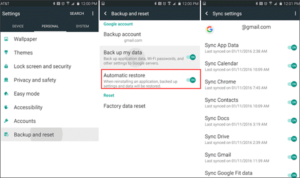
If your Android phone is logged into a Google account and you have enabled data sync (for contacts, photos, calendars, etc.) in advance, after a factory reset, log into the same Google account during the phone’s reconfiguration process. The system will automatically pop up the “Restore synced data” option—click confirm to restore all synced content with one click, no complex operations required.
Option 2: Recovery via Local Backup
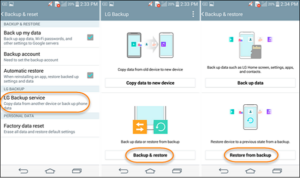
Many Android brands (such as Huawei, Xiaomi, Samsung, etc.) come pre-installed with local backup tools. If you have regularly backed up data through the “Backup & Restore” feature in your phone’s “Settings” before, simply access this page again after the reset, select the latest backup file, and you can quickly restore important data like contacts, text messages, and photos.
If you haven’t backed up data in advance, or if the backup file is corrupted or unrecognizable by the device, don’t worry—a professional free data recovery tool (Android Data Recovery Free) can solve your problem. This software is highly compatible, supporting almost all mainstream Android brands such as Samsung, Huawei, Xiaomi, OnePlus, Google Pixel, and Motorola, and can efficiently retrieve various types of lost data.
Supported Data Types for Recovery:
1.Multimedia files: Gallery photos, recorded videos, local audio (music, recordings, etc.)
2.System data: Text messages, contacts, call history, WhatsApp/Viber chat records and attachments
3.Other files: Various documents (Word, Excel, PDF, etc.)
Step-by-Step Recovery Process:
Step 1 Download Android Data Recovery
First of all, you need to download Android Data Recovery. Then finish the installation according to the guide it gives you. You can also download it free to enjoy the free trial.


Step 2 Connect Android device
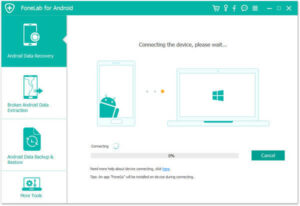
Launch Android Data Recovery on your computer. Then you need to connect your Android device to computer via a USB cable. This professional software will detect your Android phone automatically.
Step 3 Enable USB debugging mode
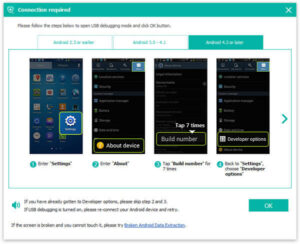
This software will prompt you to enable USB debugging on your phone if you don’t open the debugging mode. Then it will detect your Android version and give you the guide how to open this mode. Next click on OK button to continue your operation.
Step 4 Scan Android data
Now you can see all file types on your Android will be showed to you. Just choose the file types you want to recover from these types. Then click Next button to scan the deleted Android data.
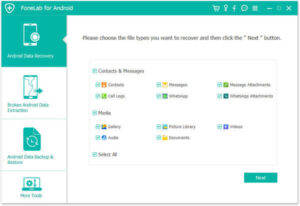
Step 5 Restore Android phone
When the scanning process is finished, all types of files will be listed to you. Now you are allowed to check the detailed information of each data you want to know. Then preview and select what you want to recover to restore Android phone by clicking Recover button.
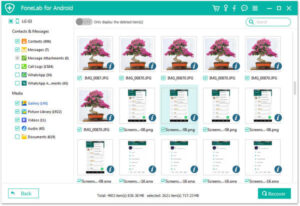
Important Reminder:
With this free tool, you can quickly recover photos, text messages, contacts, and other data lost after a factory reset. However, it is highly recommended to proactively back up important data before resetting your device—for example, use Gihosoft Phone Transfer to one-click back up contacts, text messages, photos, videos, and other content from your Android phone to your computer, fundamentally avoiding the risk of data loss.
Copyright © 2025 DatasRecovery All rights reserved.
 iPhone Data Recovery
  iPhone Unlocker
  Android Data Recovery
  Broken Android Data Extraction
  Android Unlocker
  Data Recovery (Windows/Mac)