By Data RecoveryUpdated on January 21, 2026
iMessage is the core communication tool for Apple ecosystem users, offering convenience and cost-effectiveness. It supports sending text messages, stickers, audio, video, photos, and more, functioning similarly to mainstream social apps like Facebook and X (formerly Twitter). However, when organizing chat histories or cleaning up spam, it’s easy to accidentally delete important iMessage conversations or lose critical information due to device malfunctions, system updates, or other accidents. Don’t worry—this article shares 3 proven methods to retrieve deleted iMessage from your iPhone or iPad, even without iCloud or iTunes/Finder backups.
Absolutely! Apple has built a “Recently Deleted” protection mechanism into iOS devices, acting like a temporary safe for accidentally deleted information. Additionally, if you regularly back up your data, you can restore it via iCloud or iTunes/Finder backups. Even without backups—if the messages seem “permanently deleted”—professional iOS data recovery tools can dig deep into your device’s data, significantly increasing the chances of recovery.
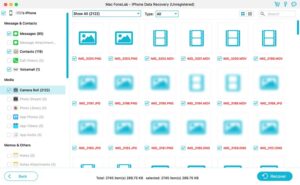
If you can’t retrieve iMessage via “Recently Deleted” or backups, the highly reputable iPhone Data Recovery Software is the top choice. It boasts an extremely high success rate for recovering deleted, erased, and even permanently deleted iOS files. It supports various common data types, including iMessage, photos, videos, notes, contacts, and more. It’s compatible with all iPhone models (such as iPhone 17 series, iPhone 16 series, iPhone 15/14/13) and the latest systems like iOS 26 and iPadOS 26.


Step-by-Step Guide:
Step 1 Emergency Preparation: Once you notice accidental deletion of iMessage, immediately download software on your computer. Do not download new files or install apps on your iPhone/iPad during this period to avoid overwriting lost data. After launching the software, connect your iOS device to the computer via a USB cable. The software offers three recovery modes: “Recover from iOS Device,” “Recover from iTunes Backup,” and “Recover from iCloud Backup.”
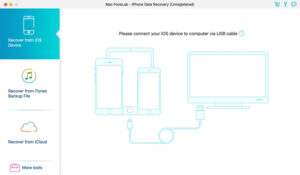
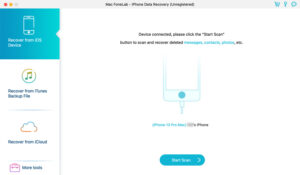
Step 2 Authorization & Scanning: Tap “Trust” on your iPhone/iPad and enter your device passcode to complete authorization. Once the software detects the device, click the “Start Scan” button. The first scan may take a while as it needs to traverse all device data—please be patient.
Step 3 Filter Target Messages: After scanning, all data will be categorized by file type. Click the “Messages” option on the left to view all deleted and existing iMessage. The software marks the deletion time of messages for quick location.
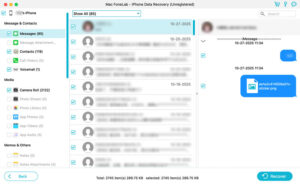
Step 4 Preview & Recovery: Click on a single message to view details. Check all the iMessage you want to recover, then click the “Recover” button in the lower right corner to finish retrieval. Additionally, if you need to recover photos, videos, Safari bookmarks, or other files, check the corresponding categories and perform the recovery operation.
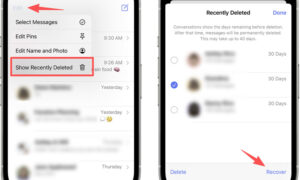
If your iPhone/iPad runs iOS 26, iPadOS 26.1, or later, you can directly use the system’s built-in “Recently Deleted” feature to quickly retrieve iMessage, regular text messages, and complete conversations deleted within 30-40 days—no third-party tools required.
Step-by-Step Guide:
1.Open the “Messages” app on your device, tap the “Edit” button in the upper left corner or the “Filter” button in the upper right corner. The “Recently Deleted” option will appear.
2.Tap “Recently Deleted” to view all recently deleted conversation lists. Find the conversation containing the target messages, tap “Recover” in the upper right corner, then confirm “Recover Messages” to complete the restoration.
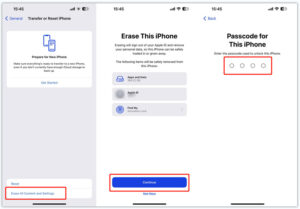
If you regularly back up iOS data via iCloud or your computer, you can recover deleted iMessage from the corresponding backup. Note: This method requires restoring your device to factory settings first, and all new data generated after the backup was created will be lost—please proceed with caution.
Step-by-Step Guide (iCloud Backup Example):
1.On your iPhone/iPad, go to “Settings” > “General” > “Transfer or Reset iPhone” > “Erase All Content and Settings,” and follow the prompts to complete the factory reset.
2.After the device restarts, follow the setup wizard until you reach the “Apps & Data” screen, then select “Restore from iCloud Backup.”
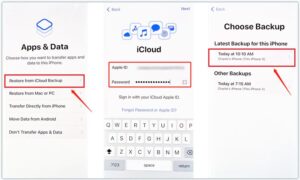
3.Log in to your Apple ID, choose the backup file that contains the target iMessage (we recommend selecting the most recent backup created before the deletion), and wait for the recovery to finish.
If you have an iTunes (Windows) or Finder (Mac) backup on your computer, you can use the software’s “Restore Backup” feature. It works similarly to iCloud backup and will restore your device to the state it was in when the backup was created.
The 3 methods introduced in this article cover different scenarios: For iOS 16+ users whose messages were deleted within 40 days, the “Recently Deleted” feature is the first choice. Users with backups can opt for iCloud or iTunes/Finder recovery. For those without backups or needing to retrieve permanently deleted iMessage, we recommend using iPhone Data Recovery Software directly—it doesn’t require resetting your device, supports preview and filtering, and minimizes data loss, making it the most reliable solution with the highest success rate.

Copyright © 2025 DatasRecovery All rights reserved.
 iPhone Data Recovery
  iPhone Unlocker
  Android Data Recovery
  Broken Android Data Extraction
  Android Unlocker
  Data Recovery (Windows/Mac)


