By Data RecoveryUpdated on January 22, 2026
The built-in “Calendar” app on iPhone is a powerful tool for managing schedules, appointments, and important events. Whether it’s work meeting reminders or daily travel plans, it helps us proceed in an orderly manner. However, it’s inevitable to encounter situations where calendar events are lost due to accidental deletion or system failures. Once this happens, it may affect the execution of subsequent plans.
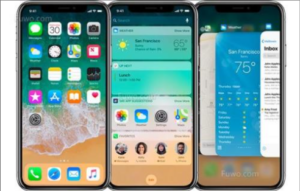
In fact, there’s no need to be overly anxious. Whether you have backed up your data in advance or not, there are corresponding solutions. Below, we will detail 3 efficient methods to recover lost iPhone calendar events, helping you quickly retrieve the missing schedule information.
If your iPhone had iCloud backup enabled before the calendar was lost, recovering via the iCloud official site is the most convenient method—no additional tools required, and it can be completed in a few steps:
1.Open any web browser on your computer or mobile phone, visit the iCloud official website (iCloud.com), and log in with your Apple ID.
2.After logging in, find and click the “Settings” option.
Scroll down the page and select “Restore Calendars and Reminders” in the “Advanced” section.
3.The system will display past calendar archive records. Click the “Restore” button next to the archive you need to recover.
4.Click “Restore” again to confirm the operation, and wait for the system synchronization to complete.
Important Notes:
If you haven’t backed up your calendar data in advance, you can also use professional iOS data recovery tools. Such tools can deeply scan device storage to retrieve deleted calendar events. After testing, iOS Data Recovery is an excellent tool. It supports direct recovery of native files (including calendars, contacts, etc.) from iOS devices, and can also extract specific content from iTunes/iCloud backups without damaging the existing intact data on the device.
Operation Steps:
Step 1:First, download and install iOS Data Recovery on your computer. After opening the software, select the “Recover from iOS Device” mode (dedicated for no-backup recovery), then connect your iPhone to the computer using the original device data cable.


Step 2:After the device is successfully connected, the software will display the device name, model, and other information. At this time, check the “Calendar” option and click “Start Scan”. The software will perform a deep scan of the device storage, and the scan progress can be viewed through the progress bar on the page.
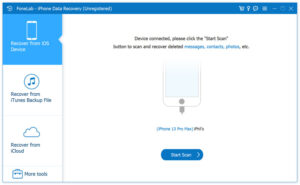
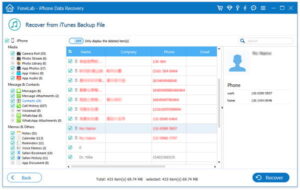
Step 3:After the scan is completed, the software will display all found files classified by data type. Click “Notes & Others” on the left, and the middle panel will show all calendar events (including deleted ones).
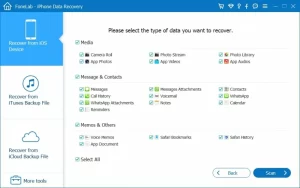
Step 4:Check the calendar items you need to recover, click “Recover”, select a save path on your computer, and the recovery will be completed.
Key Reminder:
After discovering that the calendar is lost, stop using your iPhone immediately (to avoid new data overwriting the deleted content). The more frequently you use the device, the lower the chance of successful recovery.
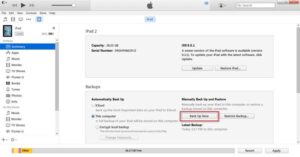
If you have previously created an iPhone backup on your computer via iTunes, you can extract and recover the calendar from the backup through the following steps:
1.Connect your iPhone to the computer where the backup was created using a Lightning data cable.
2.Open the iTunes software on your computer. When the iPhone icon appears on the interface, click the icon to enter the device management page.
3.In the “Summary” section of the device, find and click the “Restore Backup” option.
4.In the pop-up backup list, select the backup file that contains the target calendar events, click “Restore” again, and wait for the recovery process to complete.
Losing iPhone calendar events is not terrible. Whether you have a backup (iCloud/iTunes) or not, you can retrieve them through the corresponding methods. To avoid the trouble of subsequent data loss, it is recommended to back up your iPhone data regularly via iCloud or a computer, so that you can recover quickly when problems arise. If you don’t have a backup, remember to use a third-party data recovery tool immediately and minimize device usage to improve the success rate of recovery.

Copyright © 2025 DatasRecovery All rights reserved.
 iPhone Data Recovery
  iPhone Unlocker
  Android Data Recovery
  Broken Android Data Extraction
  Android Unlocker
  Data Recovery (Windows/Mac)


