By Data RecoveryUpdated on January 19, 2026
iPhones and iPads have become indispensable tools for capturing life’s precious moments, thanks to their exceptional camera quality and portability. However, photo loss can occur unexpectedly—whether from inadvertent deletion, factory resetting, failed iOS updates, or even jailbreak mishaps. The good news is that lost or deleted photos on your iPhone/iPad are rarely gone for good. This guide walks you through effective methods to retrieve deleted photos from iPhone and iPad, helping you recover those irreplaceable memories.
Regardless of the cause of data loss—be it accidental deletion, a botched iOS upgrade, or data corruption after jailbreaking—you still have a high chance of recovering your photos with the right tool. iOS Data Recovery software stands out as a reliable solution for such scenarios. A crucial tip: once you realize photos are missing, stop using your iPhone/iPad camera or storing new data immediately. This prevents overwriting the lost photos, which could make iPad photo recovery without backup impossible.
Key Features of iOS Data Recovery Tools:
1.Three flexible recovery modes to suit different data loss scenarios (direct device scan, iCloud backup extraction, iTunes backup retrieval).
2.Deeply scans iOS devices to recover photos, videos, contacts, text messages, notes, and other lost data.
3.Allows preview and extraction of content from iCloud and iTunes backups without overwriting existing data on your device.
4.Enables selective recovery—you can choose specific photos or files to restore to your iPhone/iPad or save directly to your computer.
5.Fully compatible with the latest iPhone and iPad models, including iOS 18 and above.
While there are free manual methods for photo recovery, they often come with limitations (e.g., only working for recently deleted photos or requiring existing backups). For a hassle-free experience with higher success rates, we recommend trying the free trial version of professional iOS Data Recovery software—it lets you preview recoverable photos before committing to a full restore.


Here’s how to scan and recover deleted files from iPhone without a backup:
Step 1: Launch iPhone Data Recovery on Computer
Launch the iPhone data recovery on your computer, then select “iPhone Data Recovery” feature.
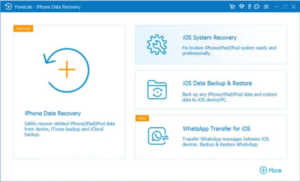
Step 2: Connect iPhone to Computer
To scan and recover data from iPhone devices directly, then select “Recover from iOS Device” and connect your iPhone to the computer via a USB cable.
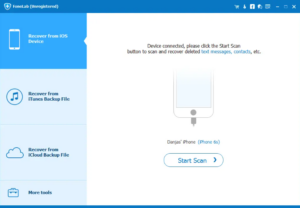
Step 3: Select Type of Data and Scan the iPhone
Then, please select type of data you need to recover, click “Start Scan” to scan your iPhone’s memory, the software start to find the deleted data from your iPhone device directly.
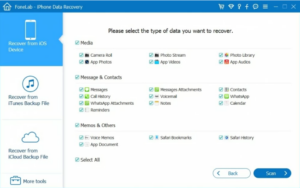
Step 4: Choose Deleted Data to Scan
After the software has fully scanned your iPhone’s internal storage, it will classify your files and data into the three categories: Message & Contacts, Media, Memos & Others. You can click on the specific subdirectories to view the recoverable files. Now, navigate to the list of items you want and select the data to recover.
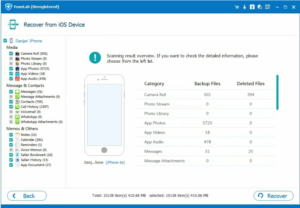
Step 5: Recover iPhone Data
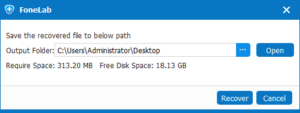
When you are done selecting, click the “Recover” button and customize the location where you want to store the recovered iPhone files in the pop-up dialog box, then hit “Recover” to start the recovery process.
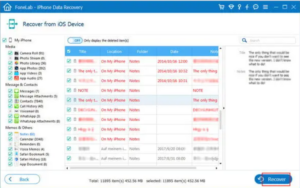
Click the “Recover” button, then choose a location on the hard drive, and hit the “Recover” button again to save the lost/deleted data onto your computer. To recover contacts from iPhone, the contacts will then be saved as HTML or CSV file to your chosen path.
Whether you’re recovering deleted or lost data from your iPhone, restoring files without a backup, or retrieving data to a lost, damaged, or reset iPhone, the iPhone data recovery tool provided in this article can help you get your lost and deleted data back. With this iPhone data recovery, you can deleted data from iPhone/iPad directly, restore iPhone data from iTunes or iCloud backups, this iPhone Data Recovery will helps you save many of your time in data recovery task.

Copyright © 2025 DatasRecovery All rights reserved.
 iPhone Data Recovery
  iPhone Unlocker
  Android Data Recovery
  Broken Android Data Extraction
  Android Unlocker
  Data Recovery (Windows/Mac)


