By Data RecoveryUpdated on January 23, 2026
As the built-in browser on iPhone, Safari’s bookmark feature is a handy tool for many users — it allows quick access to frequently visited websites with just one click, eliminating the hassle of repeated searches. However, in practice, many people encounter the problem of lost bookmarks: accidental deletion, iOS system updates (such as updating to iOS 11), device malfunctions, or even iPhone theft can cause carefully saved Safari bookmarks to “disappear without a trace.”
There’s no need to panic — in most cases, lost bookmarks can be recovered. From simple restart operations to professional tool assistance, here are 3 practical solutions. Whether you have a backup or not, you can try to retrieve your important bookmarks.
This is the most basic and often overlooked method. Sometimes bookmarks aren’t truly lost, but fail to display due to system cache errors:
1.Double-click the Home button on your iPhone (or swipe up from the bottom of the screen), find the Safari background process, and swipe up to close it;
2.Wait 10 seconds, then reopen Safari to check if the bookmarks have been restored;
3.If it doesn’t work, restart your iPhone (press and hold the power button, slide the slider to shut down, then turn it on again) — this usually resolves temporary system glitches.
Apple’s iCloud offers a 30-day grace period for bookmark recovery. As long as you previously enabled iCloud sync on your iPhone, you can quickly retrieve bookmarks via the official website:
1.Visit the iCloud official website (iCloud.com) on a computer or other device and log in with your Apple ID;
2.Click the “Settings” option on the page, then scroll down to find the “Advanced” section;
3.Click “Restore Bookmarks” — the system will display available bookmark backup records. Select the desired backup and confirm to sync it back to your iPhone.
If the above two methods don’t work, or if your bookmarks were lost more than 30 days ago, we recommend using a professional iOS data recovery tool. This type of tool supports three recovery modes: Recover from iOS Device, Recover from iTunes Backup, and Recover from iCloud Backup. It covers various data types including Safari bookmarks, photos, contacts, etc., and can accurately extract target data without overwriting existing files.


Step-by-Step Operation (Taking Direct Recovery from iOS Device as Example):
Step 1:Connect Device and Launch Software: Download and install the iOS data recovery tool on your computer. After launching, select the “Recover from iOS Device” mode; connect your iPhone to the computer via a USB cable and wait for the software to recognize the device.
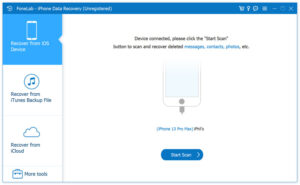
Step 2:Deep Scan Device Data: Click the “Start Scan” button. The software will perform a full scan of your iPhone to find all existing and deleted files (including Safari bookmarks). The scan time depends on the amount of data on your device — please wait patiently. The scan results will be displayed in categories such as “Media,” “Messages & Contacts,” and “Notes & Others.”
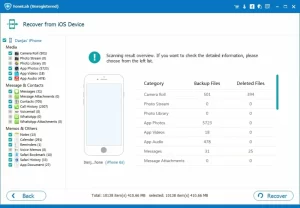
Step 3:Filter and Select Bookmarks: In the left category list, find the “Safari Bookmarks” option under “Notes & Others.” Click it, and all recoverable bookmarks (both deleted and existing) will be displayed on the right. You can enable the “Show Only Deleted Items” filter to quickly locate lost bookmarks, then check the single or all bookmarks you want to recover.
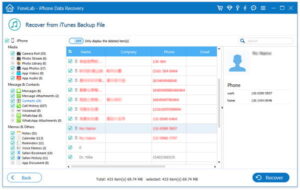
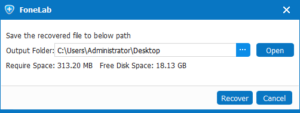
Step 4:Confirm Recovery and Save: Click the “Recover” button in the lower right corner. In the pop-up dialog box, select a save path on your computer (such as the desktop), then click “Recover” again. The software will automatically save the bookmarks to your computer in HTML format. Later, you can re-add these bookmarks to the Safari favorites on your iPhone.
Recovery from Backup (iTunes/iCloud)
1.If you previously backed up your iPhone via iTunes or iCloud, the operation is more flexible:
2.Select the “Recover from iTunes Backup File” or “Recover from iCloud Backup File” mode;
3.The software will identify all available backup files. Select the backup containing the target bookmarks and download it;
4.After the download is complete, filter and check “Safari Bookmarks,” then follow the prompts to recover them to your computer — there’s no need to restore all backup data.
Important Reminders
1.After discovering that bookmarks are lost, try to avoid new operations on your iPhone (such as downloading apps or taking photos) to prevent new data from overwriting the storage space of the lost bookmarks, which may reduce the recovery success rate;
2.Develop the habit of regular backups. You can back up iPhone data via iCloud, iTunes, or external devices to avoid subsequent data loss.
Copyright © 2025 DatasRecovery All rights reserved.
 iPhone Data Recovery
  iPhone Unlocker
  Android Data Recovery
  Broken Android Data Extraction
  Android Unlocker
  Data Recovery (Windows/Mac)


