By Data RecoveryUpdated on January 26, 2026
As a top global instant messaging application, WeChat has long been ranked among the world’s top ten lists and enjoys high usage in many overseas countries. It has become a core tool for people’s daily communication and storage of important information. However, accidents are inevitable—accidental deletion, device failure, phone replacement, and other situations may lead to the loss of precious chat records. These records may carry important work information or retain valuable emotional memories, so safe and efficient recovery methods are crucial.
This article is specially designed for users who need to recover chat records. It collects 5 tested and practical methods covering different scenarios, balancing safety and operability. Whether you use an iPhone or an Android device, you can find a suitable solution.
Method 1: Recover iPhone WeChat Chat History Without Backup (Safety First)
For iPhone users, it’s not easy to find a reliable no-backup recovery tool. As a high-quality tool in the industry,
iPhone Data Recovery can not only specifically recover WeChat chat records but also restore various data such as text messages, photos, and contacts without resetting the device, ensuring maximum safety.
Core Advantages of the Tool:
- No prior backup required; directly extract deleted WeChat chat records and attachments from iPhone devices
- Precisely extract specific data from iCloud/iTunes backups without full restoration
- Compatible with all iPhone models (including iPhone 15/14/13 and earlier), iPad, and iPod touch
- Supports recovery of multiple file types such as WeChat, WhatsApp, text messages, and notes
- Full local operation to protect personal privacy from leakage
Free Download Channels:


Operation Steps (Two Steps to Complete):
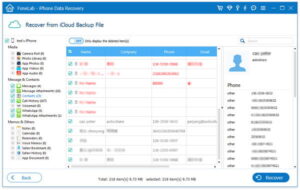
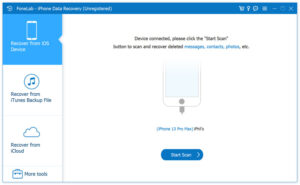
Step 1 Connect Device and Scan: Connect your iPhone to the computer with a USB data cable. After downloading and installing the tool, launch it, select the “Recover from iOS Device” mode, and click “Start Scan”. The tool will automatically detect and scan deleted WeChat data, and the scan progress will be displayed in real-time.
Tip: If no WeChat messages are scanned, first check if the device connection is stable. If the problem persists, restart the device and computer and try again.
Step 2 Preview and Recover: After the scan is completed, find “WeChat/WeChat Attachments” in the left menu bar to preview all recoverable content. Check the chat records you need to retrieve, click the “Recover” button, and save them to the specified folder on the computer.
Method 2: Recover Backed-Up Chat History via WeChat Desktop Version
If you have previously backed up WeChat chat records to your computer (Backup method: Install WeChat Desktop Version, log in by scanning the QR code with your mobile WeChat, click “Menu” > “Backup and Recovery” > “Backup to Computer”, and select the chat sessions to be backed up), you can quickly recover them as follows:
1.Open the WeChat client on your Windows or Mac computer
2.Log in with the WeChat account bound to your original mobile phone by scanning the QR code
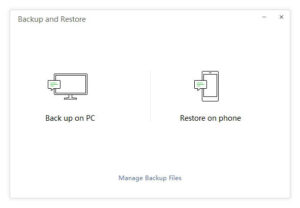
3.Click “Menu” at the top of the client and select the “Backup and Recovery” option
4.Choose “Restore to Mobile Phone” and select the previously backed-up chat record file
5.Check the specific chat content you need to recover, confirm, and wait for the transfer to complete
Method 3: Chat History Migration for Quick Recovery on New Phones
After replacing your old phone, you can seamlessly transfer chat records from the old device to the new one using WeChat’s built-in “Chat History Backup and Migration” function (the operation logic is the same for iPhone and Android, with slight differences in details). The specific steps are as follows:
1.Open WeChat on your old device
2.iPhone users: Tap “Me” > “Settings” > “General” > “Chat History Migration”; Android users: Tap “Me” > “Settings” > “Chats” > “Chat History Backup and Migration”
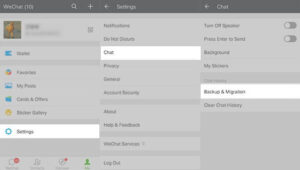
3.Select “Migrate Chat History to Another Device” and check the chat sessions you need to migrate
4.Click “Complete” to generate a QR code. Install WeChat on the new device and log in with the same account
5.Scan the QR code displayed on the old device with the new device’s WeChat, and the chat records will be automatically synced and transferred
Method 4: Recover Chat Records with Attachments via WeChat Web Version
To recover chat records containing attachments such as photos and videos, you can first back them up via WeChat Web Version and then restore them. Backup steps: Open WeChat Web Version on your computer, log in by scanning the QR code with your mobile WeChat, open the target chat window, select the attachments to be backed up, send them to yourself via the “File Transfer” function, and then download and save them on WeChat Web Version. After the backup is completed, follow these steps to recover:
1.Open a browser on your computer and visit the official WeChat Web Version entrance
2.On your mobile WeChat, click the “+” sign or three-dot icon in the upper right corner and select “Scan QR Code”
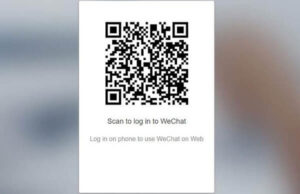
3.Scan the QR code displayed on the web version to complete the login
4.Find the settings icon (gear shape) on the web version and enter the “Chat Backup” section
5.Follow the on-screen prompts to select the chat records you need to recover from the backed-up content to complete the operation
Method 5: WeChat Built-in Repair Function for Quick Fix of Abnormal Loss
If chat records are lost due to abnormal situations such as app crashes or freezes, you can first try WeChat’s built-in repair tool. It’s easy to operate but has limited success rate, suitable for mild abnormal scenarios.
Operation Steps:
1.Open WeChat on your mobile phone and tap “Me” in the lower right corner
2.Enter “Settings” and select “Help & Feedback”
3.On the “Help & Feedback” page, click the wrench icon in the upper right corner
4.Select “Repair Chat History”, confirm the operation, and start the repair process
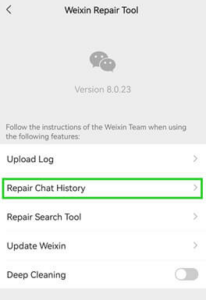
5.If the repair fails: Find “Contact Customer Service” in “Help & Feedback”, submit a recovery application with relevant information, wait for the customer service’s guidance, and follow the subsequent operations
Frequently Asked Questions About WeChat Chat History Recovery
Q1: How to search for WeChat chat history?
- Mobile version: Open the “Chats” page of WeChat, enter keywords in the top search bar, and the system will display relevant chat results. Click to view.
- Desktop version: Open WeChat Desktop Version, enter the “Chats” page, enter keywords in the search box, and filter relevant results to quickly locate.
Q2: Can I recover WeChat chat records if my phone is lost/stolen?
If you backed up WeChat data via iCloud (iPhone) or Google Backup (Android) before the phone was lost, you can log in to your WeChat account on the new device and recover the chat records through the corresponding backup tool; if no backup was made, the recovery is quite difficult.
Q3: What should I pay attention to before recovery?
Before recovery, ensure that the device has sufficient power (it is recommended to be no less than 50%) and a stable network connection; when operating on the computer, close unnecessary background applications to avoid interference during the recovery process, which may cause data transmission interruption.
Summary
Whether it’s accidental deletion, device replacement, or abnormal loss, the 5 methods introduced in this article can cover most WeChat chat history recovery scenarios. Among them, iPhone users without backups should prioritize the
iPhone Data Recovery tool; users with backups can quickly restore via the desktop version or web version; chat migration is recommended for new phone replacements. Mastering these skills can maximize the retention of important chat traces and avoid troubles caused by record loss.


 iPhone Data Recovery
  iPhone Unlocker
  Android Data Recovery
  Broken Android Data Extraction
  Android Unlocker
  Data Recovery (Windows/Mac)


