By Data RecoveryUpdated on January 22, 2026
Reminders, a pre-installed utility on iPhone, helps organize to-do items and set time/location alerts—an essential tool for scheduling daily tasks. Accidentally deleting a single reminder or an entire list, however, can disrupt your upcoming plans. Fortunately, whether you have an iCloud or iTunes backup, the following 3 methods will help you retrieve lost reminders accurately.
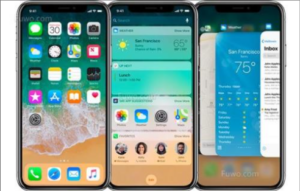
iCloud’s automatic sync and archiving feature provides security for reminders. As long as you enable the relevant function in advance, deleted content will be stored in iCloud archives for up to 30 days, which can be directly recovered from the official website.
Pre-Recovery Notes:
Step-by-Step Operation:
Step 1:Open a browser and log in to the official iCloud website (iCloud.com) with your Apple ID;
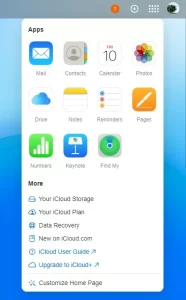
Step 2:Click the square grid icon in the upper right corner of the page and select “Data Recovery” from the drop-down menu;
Step 3:On the Data Recovery page, find “Restore Calendars and Reminders” (labeled “Restore Calendars” in the new iCloud interface—click to view related options);
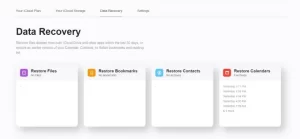
Step 4:The page will display all archive versions within 30 days, each marked with a specific date and time (e.g., “Last night 11:00 PM,” “Yesterday 4:00 PM”), and some accounts may show “More Archives”;
Step 5:Select the archive version created before the reminder was deleted, click the “Restore” button, and wait for the system to complete synchronization;
Step 6:After successful recovery, all devices with iCloud “Reminders” enabled will update the content synchronously.
Tip: If you only need to recover a single specific reminder, avoid this method (it overwrites all existing lists) and opt for the no-backup recovery method below for precise filtering.
If you haven’t enabled iCloud sync or the backup doesn’t include the latest lost reminders, use a professional data recovery tool—iPhone Data Recovery—to scan your iPhone’s internal storage and retrieve deleted content.
This tool supports recovering reminders, voice memos, contacts, photos, text messages, call logs, and other data. It also features a filtering function to quickly locate deleted items and restore only what you need, without overwriting the entire list.


No-Backup Recovery Steps:
Step 1:Install and launch iPhone Data Recovery on your computer, then select the “Recover from iOS Device” mode;
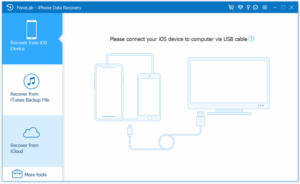
Step 2:Connect your iPhone to the computer with an original data cable—the tool will automatically detect the device, and the screen will display the device name and a “Start Scan” button;
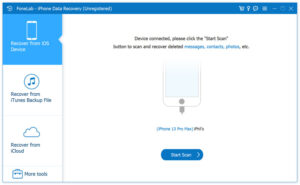
Step 3:Click “Start Scan” to fully scan existing and deleted data on the device (including media files, notes, reminders, etc.). The scanning time varies by data volume, so please be patient;
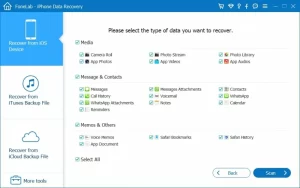
Step 4:After scanning, find “Reminders” under the “Notes & Others” category in the left menu bar, and select “Show Only Deleted Items” from the drop-down menu in the upper left corner;
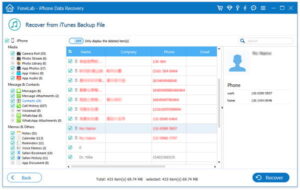
Step 5:Preview the deleted reminders in the right panel, check the items you want to recover, and click the “Recover” button to save the files to a specified folder on your computer.
If you regularly back up iPhone data to your computer, iTunes (Windows) or Finder (Mac with macOS Catalina or later) automatically creates a backup each time you connect the device—including reminder data. Follow these steps to recover:
1.Open iTunes (Windows) or Finder (Mac) on your computer and connect your iPhone with a data cable;
2.When the device icon appears in the software interface, click it to enter the device management page;
3.Switch to the “Summary” tab and click the “Restore Backup” button;
4.From the pop-up backup list, select the backup created before the reminder was deleted (judge by the date);
5.Confirm and click “Restore,” then wait for the backup to finish restoring. Reminders will be recovered to your iPhone along with other data.

Copyright © 2025 DatasRecovery All rights reserved.
 iPhone Data Recovery
  iPhone Unlocker
  Android Data Recovery
  Broken Android Data Extraction
  Android Unlocker
  Data Recovery (Windows/Mac)


