By Data RecoveryUpdated on January 19, 2026
Contacts are core data for iPhone users’ daily communication. Whether it’s clients’ phone numbers for work or contacts of family and friends, losing them can cause great inconvenience. Accidental deletion, failed iOS updates, mistaken factory resets, or even device damage may lead to missing iPhone contacts. But don’t panic—this article collects 5 effective recovery methods, covering scenarios like no backup, iCloud backup, and iTunes/Finder backup, helping you quickly retrieve precious contact information.
1. No Backup Scenario: Recover iPhone Contacts Directly with Professional Tools
If you haven’t backed up via iCloud or iTunes before, a professional iPhone data recovery tool is your lifesaver. Such tools can directly scan iPhone’s internal storage to extract deleted contact data without relying on any backup files. They also retain all contact details completely, including names, phone numbers, emails, and notes, making them highly practical.


Core Advantages of the Tool:
1.No backup required: Extract lost contacts directly from the iPhone device itself;
2.Support multiple data types: Recover not only contacts but also text messages, photos, call logs, etc.;
3.Fast scanning speed: Preview all recoverable contacts and accurately select targets to retrieve;
4.Compatible with all iPhone models (including iPhone 16/15/14 series) and latest systems like iOS 17/16;
5.Safe and reliable recovery: Won’t overwrite existing data on the phone, avoiding secondary losses.
Step-by-Step Operation:
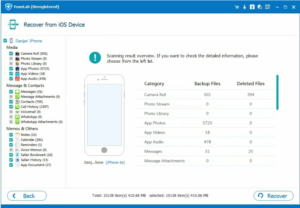
Step 1 Download, install, and connect the device: Download the tool, complete the installation, and launch the software. Connect your iPhone to a computer (Windows or Mac) via a USB cable, unlock the phone, and tap “Trust This Computer”. Wait for the software to automatically recognize your device.
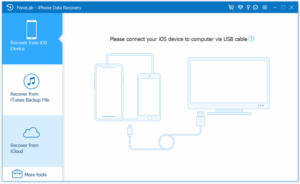
Step 2 Select scan mode and data type: On the software’s main interface, choose the “Recover from iOS Device” mode. Then check “Contacts” (you can also check other data types if needed) and click the “Start Scan” button.
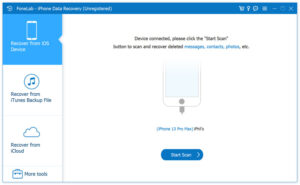
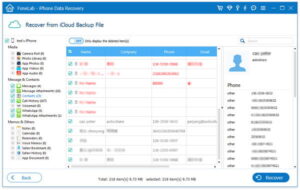
Step 3 Preview and filter contacts: After the scan, the software will display results by data type. Click “Contacts” on the left, and all scanned contacts (including deleted and existing ones) will appear on the right. Use the “Only display deleted items” function to quickly filter lost contacts.
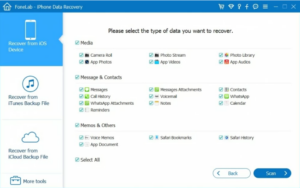
Step 4 Recover and save: Check the contacts you want to recover (select all or individually) and click “Recover” in the bottom right corner. Choose a folder on your computer as the save path. It supports export in three formats: VCF, CSV, and HTML, facilitating subsequent import to iPhone or other devices.
2. With iCloud Backup: Two Ways to Quickly Recover Contacts
If you have enabled iCloud contact sync or have a complete iCloud backup, you can recover contacts easily without a computer. There are two specific scenarios:
Method 1: Recover via iCloud Sync (Suitable for contacts lost after sync is turned off)
Open “Settings” on your iPhone, tap your Apple ID at the top, and enter the “iCloud” page;
Find the “Contacts” option and ensure the toggle is on (if it’s already on, turn it off and on again to trigger sync);
Wait 3-5 minutes, and the contacts backed up in iCloud will automatically sync to your iPhone’s Contacts app.
Method 2: Recover from Complete iCloud Backup (Suitable for completely lost contacts)
⚠️ Important Note: This method will erase all current data on your iPhone and overwrite the device with the iCloud backup. It’s recommended to back up existing important data first.
Open “Settings” > “General” > “Transfer or Reset iPhone” on your iPhone;
Tap “Erase All Content and Settings” to complete the device reset;
After the phone restarts, enter the initial setup interface and complete basic settings like language and network;
In the “Apps & Data” step, select “Restore from iCloud Backup”;
Log in to your Apple ID, choose the latest backup file containing the target contacts, and wait for the recovery to finish.
Tips: Ensure your iPhone is connected to a stable WiFi network during recovery. The recovery time depends on the backup size and network speed—please be patient.
3. With iTunes/Finder Backup: Extract and Recover Contacts
If you have backed up your iPhone via iTunes (Windows or macOS Mojave and earlier) or Finder (macOS Catalina and later), you can extract contacts from the backup file without erasing existing data on the phone.
Step-by-Step Operation:
Connect the device and open the tool: Connect your iPhone to a computer via a USB cable, open iTunes (for Windows users) or Finder (for Mac users), and wait for the tool to successfully recognize the device.
Locate the backup file:
iTunes: Click the device icon on the interface, enter the “Summary” page, and view all backup records in the “Backups” section;
Finder: Click your device name in the “Locations” column on the left, enter the device overview page, and you’ll see the backup list.
Extract and recover contacts:
Method A (Directly restore backup): Select the backup file containing the target contacts, click “Restore Backup”, and wait for the recovery to complete (Note: This method will overwrite existing data on the device);
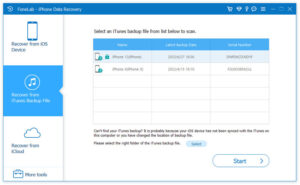
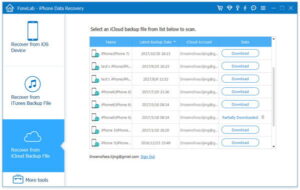
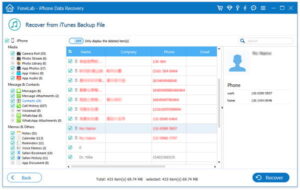
Method B (Selective extraction): If you don’t want to overwrite existing data, use a third-party tool (such as Aisi iPhone Data Recovery Tool) in the “Recover from iTunes Backup” mode. Select the corresponding backup file, scan and extract only “Contacts”, then export and import them to your iPhone.
Frequently Asked Questions (FAQs):
1.How long can deleted iPhone contacts be recovered?
The recovery success rate mainly depends on whether the data is overwritten by new data: If you don’t use the phone heavily after deletion (such as taking photos, downloading large files, or installing apps), even contacts deleted months ago may be recoverable. However, if the phone’s storage is full, new data may overwrite the deleted contacts, increasing the recovery difficulty. It’s recommended to perform recovery as soon as possible after losing contacts.
2.Will recovered contacts be duplicated? How to handle it?
Duplication is possible, especially when recovering via backup. There are two handling methods: First, manual deletion—open the iPhone “Contacts” app, tap “Edit”, and delete duplicate contacts in batches. Second, use a tool—utilize a recovery tool with a “Contact Deduplication” function to automatically merge duplicates.
3.How to recover previous contacts after changing Apple ID?
If your previous contacts are backed up in the iCloud of the old Apple ID, you can temporarily log in to the old ID on your iPhone, enable contact sync, and switch back to the new ID after the data is synced. Alternatively, extract contacts from the iCloud backup file of the old ID using a data recovery tool and then import them to the device associated with the new ID.
4.Can I recover contacts if my iPhone is damaged by water?
If the device can’t be turned on, try two methods: First, if you have an iCloud or iTunes backup, recover directly via the backup. Second, if there’s no backup, contact an Apple Authorized Service Provider or use a professional tool that supports data extraction from faulty devices to try extracting contacts from the damaged device.
Losing iPhone contacts is not irreversible—without a backup, use a professional iPhone data recovery tool to scan the device directly; with a backup, recover quickly via iCloud or iTunes/Finder. It’s recommended to develop the habit of regular backups, enabling both iCloud sync and local computer backups for double protection against data loss. If you still can’t recover contacts after trying the above methods, contact the official customer service of the relevant tool for professional technical support.

Copyright © 2025 DatasRecovery All rights reserved.
 iPhone Data Recovery
  iPhone Unlocker
  Android Data Recovery
  Broken Android Data Extraction
  Android Unlocker
  Data Recovery (Windows/Mac)


