By Data RecoveryUpdated on January 21, 2026
Call logs on smartphones store crucial information about communications with relatives, friends, and colleagues. Accidental deletion can often lead to inconvenience—such as losing contact with important clients or missing details of calls from loved ones. Don’t worry! This article compiles 5 effective recovery methods covering both iPhone and Android systems. Whether you have a backup or not, you can retrieve lost call logs step by step to resolve the emergency.
For iPhone users, we offer 3 targeted recovery methods adapted to three scenarios: “no backup”, “with iCloud backup”, and “with iTunes backup”, all of which are easy to operate.


If you haven’t backed up call logs in advance, a professional recovery tool can help you retrieve them efficiently. We recommend the user-friendly iPhone Data Recovery software, with the following steps:
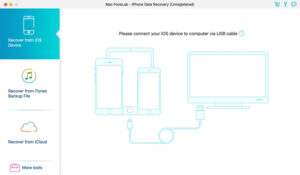
Step 1:Download and install the software. After opening it, connect your iPhone to the computer via a USB cable, and select the “Recover from iOS Device” mode in the software interface (the software supports direct access to residual data on the device).
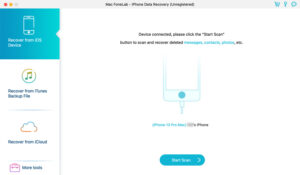
Step 2:Click “Start Scan”. The software will automatically detect and scan existing and deleted iOS data on the device (including call logs, contacts, messages, etc.). During the scan, you need to tap “Trust” on the iPhone screen to ensure a smooth connection; the scan results will mark recoverable deleted data in red for easy identification.
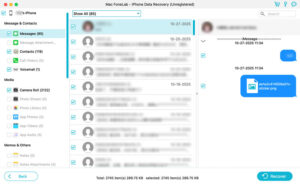
Step 3:After the scan is complete, find the “Call Logs” category in the left sidebar. You can quickly filter target records by “Show All” or “Show Only Deleted”. After previewing and confirming, select the entries you want to recover, choose a save path on the computer, and click “Recover” to complete the export.
Step 1:If your latest iCloud backup includes the deleted call logs, you can retrieve them by restoring to factory settings + backup restoration:
Step 2:Open “Settings” on your iPhone, go to “General”, select “Transfer or Reset iPhone”, tap “Erase All Content and Settings”, and click “Continue” on the confirmation screen.
Step 3:Enter your phone’s unlock password and follow the system prompts to complete the reset process.
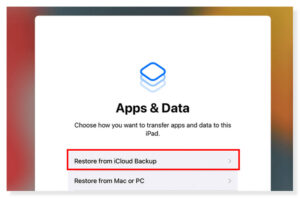
After the reset, reactivate your iPhone. In the “Apps & Data” step, select “Restore from iCloud Backup”, log in to your iCloud account, and choose the latest backup file to wait for the restoration to complete. The call logs will be synced and recovered.
If you have backed up phone data via iTunes, you can directly extract call logs from the backup:
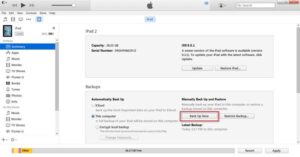
Step 1:Launch iTunes on your computer and connect your iPhone via a USB cable.Once iTunes recognizes the device, click the device icon to enter the details page.
Step 2:Find the “Backup” section in the “Summary” interface, click “Restore Backup”, and select the latest backup file containing the target call logs.
Step 3:After the recovery process is complete, restart your iPhone, and you will see the recovered call logs.
Note for Android users: After deleting call logs, stop using your phone immediately (to avoid new data overwriting the deleted records and reducing recovery success rate), then choose one of the following two methods.
Android systems natively support sync backup via Google accounts. If you have enabled call log sync, you can recover them as follows:
Step 1:Open “Settings” on your Android phone, go to “System” or “Accounts” (the path varies slightly by brand and model), select the bound “Google” account, and confirm that the “Call Logs” sync function has been enabled previously.
Step 2:Return to “Settings”, navigate to “System” → “Advanced” → “Reset options”, tap “Erase all data (factory reset)”, and reactivate the phone after completing the reset.
Step 3:Log in to your previous Google account. The system will prompt “Restore data from backup”, check “Call Logs”, and wait for the sync to complete.
We recommend Android Data Recovery, which supports direct scanning and recovery from the device. Here are the steps:
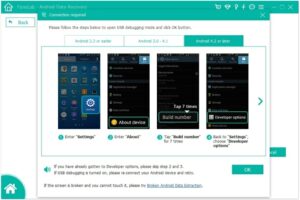
Step 1:Download and install the software. Open the app and connect your phone via a USB cable. Follow the prompts to switch the USB connection mode to “File Transfer (MTP Mode)”, then enable “USB Debugging” (Enabling method: Go to “Settings” → “About Phone” → tap “Build Number” 7 times to activate Developer Mode. Return to “Settings” → “Developer Options” → enable “USB Debugging”).
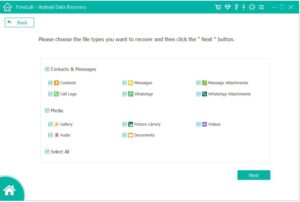
Step 2:After a successful connection, check “Call Logs” in the software interface (you can also select other data types such as contacts and messages that need to be recovered), and click “Next” to start scanning.
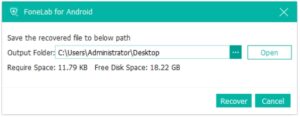
Step 3:After the standard scan is complete, enter the “Call Logs” category to preview the deleted records; if the target content is not found, click “Deep Scan” to retrieve more residual data. Select the entries to be recovered and click “Recover” to export them to the computer.
How to view iPhone call logs from a month ago?
Open the “Phone” app on your iPhone, tap the “Recents” tab, and scroll down to view historical records. If the system only displays records from the past 30 days, use Aiseesoft iPhone Data Recovery to extract earlier call logs from the device or backup files.
How to check the complete call logs on iPhone?
Go to “Phone” → “Recents”, tap the “All” tab at the top of the screen, and you can view the complete call list sorted by date and time (including incoming calls, outgoing calls, missed calls, etc.).
Can deleted messages on iPhone be recovered?
Deleted messages on iPhone are temporarily stored in the “Recently Deleted” folder and can be recovered directly within 40 days. If the time limit is exceeded, you can try to retrieve them using the iPhone recovery methods in this article (no-backup tool, iCloud/iTunes backup).
There’s no need to panic about accidental deletion of call logs. As long as you choose the right method, the recovery success rate is very high. The 5 solutions in this article cover all scenarios for iPhone and Android. Whether you have a backup or not, you can retrieve important call information through simple operations. It is recommended to back up your phone data regularly. If you encounter sudden deletion, you can try the corresponding steps step by step to solve the problem efficiently.

Copyright © 2025 DatasRecovery All rights reserved.
 iPhone Data Recovery
  iPhone Unlocker
  Android Data Recovery
  Broken Android Data Extraction
  Android Unlocker
  Data Recovery (Windows/Mac)


