By Data RecoveryUpdated on January 15, 2026
Do you have a lot of videos and movies stored on your iPhone, iPad, or iPod? Nowadays, many users love using these portable iOS devices to watch dramas and movies—iPhones are compact and easy to carry, while iPads offer an excellent high-definition viewing experience that’s highly popular. You can sync videos from your computer to the device or purchase movies directly from the iTunes Store to enjoy your favorite content anytime, anywhere. However, iOS devices have limited storage space, and as more and more video files accumulate, you’ll inevitably face storage shortages. So how do you free up space by deleting videos and movies? And what if you need to completely erase data to protect your privacy? Below is a comprehensive solution for you.
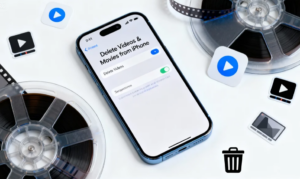
If you only want to free up some storage space without permanent erasure, the following two regular methods will meet your needs:
Delete Videos/Movies Directly on the Device
To delete a single movie, an entire season of TV shows, or some music videos, follow these steps:
① Find and tap the “Video” app icon on the home screen of your iPhone, iPad, or iPod;
② Tap the “Edit” option in the upper right corner of the screen, then tap the delete icon in the upper left corner of the target show or movie, and finally tap “Done”;
③ If you want to delete a single episode of a TV show, simply find the episode, swipe left on the screen, and tap the “Delete” button that appears.
Delete Videos/Movies via the Settings Interface
Go to “Settings” > “General” > “Storage & iCloud Storage” (for iOS 9 or later; “Usage” for iOS 9 or earlier) > “Manage Storage” > “Videos”, find the video file you want to delete, swipe left, and confirm the deletion to remove it from the device.
💡 Practical Tip: It is recommended to back up important videos (especially self-shot footage) to your computer or cloud storage before deletion to avoid data loss due to accidental removal.
If you plan to resell or give away your device, or need to fully protect your privacy, regular deletion methods are not sufficient—such operations cannot completely erase data, which may still be recoverable by professional tools. In this case, you need to use a professional iOS Erasing tool (iOS Eraser). The specific steps are as follows:


Step 1:First, download and install the iOS Eraser software for free on your computer. Then connect your iPhone, iPad, or iPod to the computer using a USB cable. After launching the software, it will automatically recognize your device;

Step 2:The software offers three erasure levels: Low, Middle, and High. To achieve permanent and complete deletion, it is strongly recommended to select the High level, which can completely overwrite data and prevent recovery;
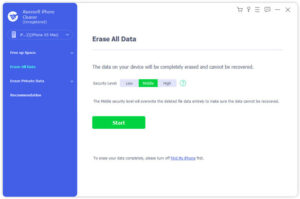
Step 3:After selecting the erasure level, click the “Start” button, enter the verification code “0000” to confirm the operation, then click the “Erase” button. The software will start erasing all data on the device (including videos, movies, and other files).
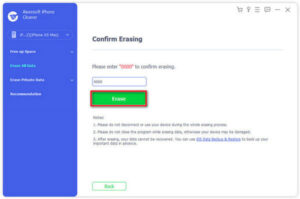
The entire process only takes a few minutes to completely delete all videos and movies from the iOS device.
⚠️ Important Note: This method is suitable for scenarios where you need to completely erase data, such as reselling or gifting the device; if you only want to free up some storage space, use the regular methods in Part 1. In addition, if there are old apps or games taking up a lot of space on your device, you can also choose to uninstall them to free up storage.
Frequently Asked Questions (FAQs) About Deleting Videos from iOS Devices
Can accidentally deleted iPhone videos be recovered?
Yes. You can recover them using the iPhone Data Recovery tool: Launch the tool, connect your iPhone to the computer, click “Start Scan”, the tool will scan all recoverable data on the device. After finding the target video, click the “Recover” button to complete the recovery.
How to quickly delete all photos on an iPhone?
You can use Aiseesoft iPhone Cleaner: Launch the tool, click “Quick Scan” to check the device’s storage status, select the “Clean up Photos” option, click the “Erase” button to scan for junk files, and finally click “Export & Delete” to batch delete all photos.
Is it possible for others to recover deleted videos?
Yes. If you use the device’s built-in reset tool, or the recovery function in Finder or iTunes to erase data, the data may still be extracted by professional recovery tools. Therefore, to protect your privacy, it is recommended to use a professional iPhone erasing tool (such as iPhone Cleaner) to completely delete videos and other sensitive data.

Copyright © 2025 DatasRecovery All rights reserved.
 iPhone Data Recovery
  iPhone Unlocker
  Android Data Recovery
  Broken Android Data Extraction
  Android Unlocker
  Data Recovery (Windows/Mac)