By Data RecoveryUpdated on June 23, 2026
If you plan to sell, gift or trade in your old iPhone, simply deleting photos, contacts or apps cannot fully protect your sensitive information. Manually removed files are still stored in device storage and can be recovered easily with regular data recovery software. To completely eliminate personal records, bank credentials, account passwords and all private traces, you need a complete solution to erase private data on iPhone. This post covers three verified methods to fully wipe iPhone content and settings, optimized for users who pursue absolute data privacy.
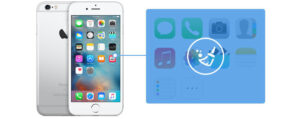
Many iPhone users mistakenly believe deleting files manually equals full privacy protection. In fact, basic deletion only hides files from the system interface, instead of overwriting raw storage data. Recovery tools can scan residual data and restore your private photos, chat logs, payment records and login information without difficulty.
Only professional overwriting erasure tools can fully destroy data and make it unrecoverable, which is the safest way to erase private data on iPhone before reselling devices to strangers.
FoneEraser is a professional iOS data wiping software designed to erase private data on iPhone permanently with zero recovery possibility. It supports all iPhone, iPad and iPod touch models, fully compatible with iOS 10.3 up to the latest iOS 26, and works smoothly on Windows and Mac computers. It provides 3 security erasure levels to match different privacy demands and supports batch wiping multiple iOS devices at once.
All data types can be thoroughly cleared: contacts, SMS, iMessage, call logs, calendars, notes, photos, videos, Safari bookmarks, app cache, lock screen passwords, banking records and all hidden private fragments.
1、Download, install and launch FoneEraser on Windows/Mac. Activate full functions with your registered email and license code.


2、Connect your iPhone to the computer via original USB cable. Unlock your phone, tap Trust This Computer and enter lock screen passcode to finish authorization.
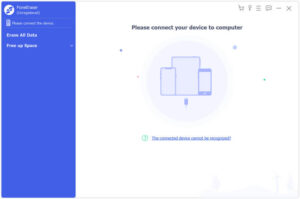
Troubleshooting: If the PC fails to detect your iPhone, update iTunes to the newest official version from Apple website.
3、Pick one of the three erasure security levels based on your needs:
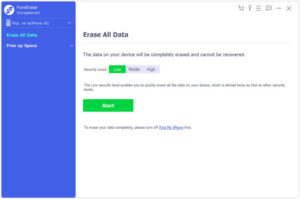
Low Level: Fastest wiping speed, twice more efficient than other modes; suitable for cleaning non-sensitive daily files.
Medium Level: Fully covers residual deleted data; ordinary recovery software cannot retrieve files, ideal for second-hand iPhone resale.
High Level: Complies with US DoD 5220.22-M military data destruction standard; completely eliminates passwords, financial data and confidential private info for high privacy scenarios.
4、Confirm and start one-click erasure: Tap Start, input verification code 0000 in the pop-up window, then click Erase to wipe all content and settings.
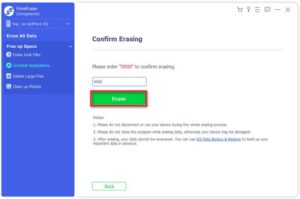
1、Do not disconnect the iPhone during the whole wiping process, or the device may malfunction.
2、All erased data cannot be restored forever. Back up iPhone data via iCloud or computer in advance if you need to reserve files.
3、Turn off Find My iPhone before erasure to avoid operation failure.
This native reset function requires no extra software and is completely free. However, data wiped by this method can still be retrieved by professional recovery tools, so it is not recommended when selling your iPhone to unknown buyers. Complete data backup is mandatory before operation.
1、Open Settings > Tap your Apple ID at the top > Find > Toggle off Find My iPhone, verify with your Apple ID password.
2、Return to Settings homepage > General > Transfer or Reset iPhone.
3、Select Erase All Content and Settings.
4、Enter your lock screen passcode, choose to keep or delete eSIM as needed, then tap Erase iPhone to confirm.
5、The iPhone will restart automatically, finish data clearing and jump to the new device activation page.
When your iPhone is lost, stolen or inaccessible physically, use iCloud Find My to remotely erase private data. Prerequisite: The target iPhone has enabled Find My iPhone and connected to cellular data or Wi-Fi network.
1、Open icloud.com on any browser and log in the Apple ID bound to your lost iPhone.
2、Click Find iPhone > All Devices, select the target iPhone from the device list.
3、Choose Erase iPhone, input your Apple ID password to confirm remote wiping.
4、Once the iPhone connects to the network later, it will automatically execute full data erasure.
Protecting personal privacy is the top priority before disposing of an old iPhone. Aiseesoft FoneEraser delivers multi-grade secure wiping, the most reliable choice to erase private data on iPhone permanently. For quick casual reset, use the native iPhone factory reset function. When your device is out of reach, iCloud remote erasure serves as emergency privacy defense. Remember to back up all valuable files before launching any data erasure operation.
Sorry the comment has been closed.
Copyright © 2025 DatasRecovery All rights reserved.
 iPhone Data Recovery
  iPhone Unlocker
  Android Data Recovery
  Broken Android Data Extraction
  Android Unlocker
  Data Recovery (Windows/Mac)