By Data RecoveryUpdated on May 12, 2026
Long-term use generates massive cache, redundant files and residual data on iPhone, which not only occupies iPhone storage but also slows down your device. Whether for daily performance or full privacy protection before selling or trading in, this article shares two safe methods to permanently clear iPhone memory and free up significant space easily.
No third-party apps needed. Use built-in iOS features to clear cache and junk files safely.
1、Go to Settings → General → iPhone Storage
2、Check app usage, Offload Unused Apps, and delete large videos & attachments
3、Clear Safari cache: Settings → Safari → Clear History and Website Data to remove web cache and cookies
Ideal for daily light cleaning but cannot achieve permanent data erasure; data may be recovered, not recommended for selling or trading in.
For permanently clearing iPhone memory and destroying private data, use a professional iOS cleaner with multiple erasure levels and batch processing.


1、Install software on PC, connect iPhone, unlock and trust the device
2、Select Free Up Space, run Quick Scan to detect junk, cache, large files and duplicate photos
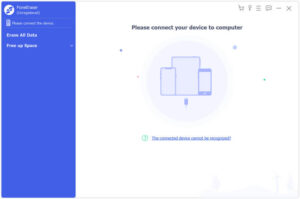
3、One-click Erase Junk Files to clean app and system residues
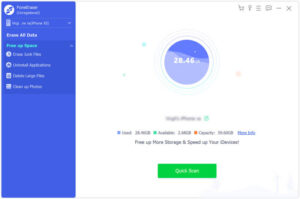
4、Batch Uninstall Unused Apps and delete large videos, installers and files
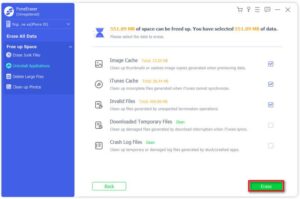
5、Choose Backup & Compress or Export & Delete for photos to free space safely
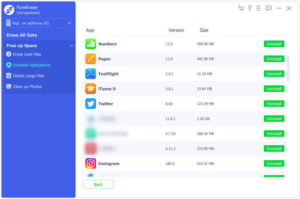
6、Use Erase All Data for selling/trading in; select high security level for permanently erasing iPhone data with no recovery possible
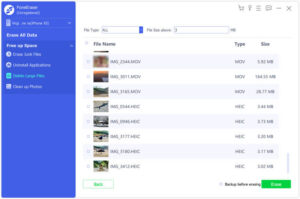
Clean up PhotosChoose Clean up Photos on the left. You’ll see Backup & Compress and Export & Delete. You can choose one according to your need.

If you choose Backup & Compress, select the files you want to compress and click Compress. In addition, you can choose Backup original photos before compressing.

If you choose Export & Delete, you can click Export to export your photos to your computer or click Delete.

Besides, you can choose to wipe all the data on your iPad if you need a totally clean iPad for certain purposes. Just click Erase All Data and choose the security level. Follow the on-screen instructions to complete erasing.
Use iOS settings for daily maintenance; choose a professional tool to permanently clear iPhone memory and protect privacy, balancing storage freeing and data security for long-lasting smooth performance.
Sorry the comment has been closed.

Copyright © 2025 DatasRecovery All rights reserved.
 iPhone Data Recovery
  iPhone Unlocker
  Android Data Recovery
  Broken Android Data Extraction
  Android Unlocker
  Data Recovery (Windows/Mac)