By Data RecoveryUpdated on January 15, 2026
In daily use of iPhone, after reading SMS or iMessage, you can delete them with just a few clicks. But do you really think these messages have completely disappeared? Actually, you only removed them from the message list — with professional data recovery tools, these “deleted” messages can still be retrieved. Especially when you plan to sell your old iPhone on second-hand platforms, this hidden data residue may lead to privacy leaks and unnecessary risks.
So, how can you truly permanently delete SMS and iMessage from your iPhone? Below are 3 safe and effective solutions to help you completely eliminate data residue.

If you pursue absolute security, it is recommended to use a professional iPhone data cleaning tool — iPhone Cleaner. This tool supports almost all iPhone models, from the latest iPhone 16/15 series to the classic iPhone 5 series. It can fully erase all content and settings on the device with one click, and the deleted data cannot be recovered by any recovery tool, making it the first choice for protecting privacy.


Detailed Operation Steps:
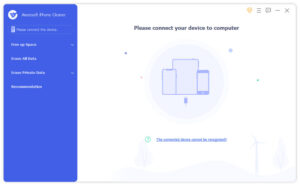
Step 1:Free download iPhone Cleaner on your computer, install it according to the on-screen guide, and launch the program. Connect your iPhone to the computer with a USB data cable, unlock the phone screen, and click “Trust this computer” in the pop-up prompt to ensure the device is successfully connected. (The software interface will display “Please connect device” and provide functional options such as “Free Up Space”, “Erase All Data”, and “Erase Private Data”. If the device is not recognized, check the data cable or reinstall the driver)
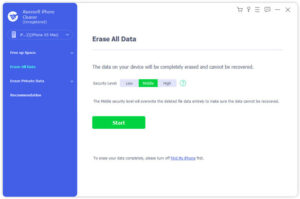
Step 2:Enter the function panel on the left side of the software and select the “Erase All Data” option. Choose a security level based on your privacy protection needs: Low, Middle, or High. The higher the level, the more thorough the data erasure. The Middle security level can already fully overwrite deleted files to ensure they cannot be recovered. Note: You need to turn off the “Find My iPhone” function before operation, otherwise the erasure cannot be performed normally.
Step 3:Enter “0000” in the text box on the confirmation interface and click the “Erase” button to start the deletion process.
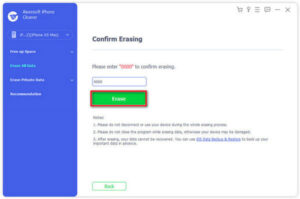
⚠️ Important Reminder: This operation will completely erase all data on the phone, including SMS, photos, contacts, etc. Be sure to back up important content with an iOS data backup tool in advance. During the entire erasure process, do not disconnect the device, use the phone, or close the software, otherwise the device may be damaged.
If you only want to delete some SMS and don’t mind a small residual risk, you can operate directly on the iPhone. The operation methods vary slightly with different iOS versions, as follows:
1.Latest iOS version: Open the “Messages” app, click the “three-dot icon” in the upper right corner, select “Select Messages”, check the SMS you want to delete, and click “Delete” to delete in batches.
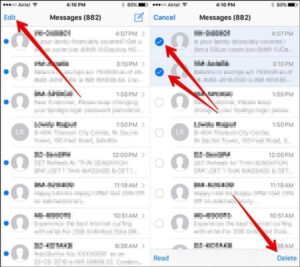
2.iOS 8: Launch the “Messages” app, click the “Edit” button on the interface, select the target SMS, and click “Delete” to quickly delete a specific single SMS.
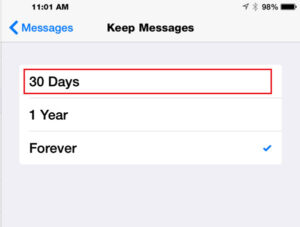
3.Automatically delete old SMS: Go to iPhone “Settings” > “Messages” > “Keep Messages”, select “30 Days”, and the system will automatically clean up expired SMS older than 30 days without manual operation.
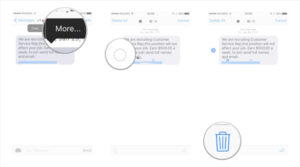
4.iOS 7: Open the conversation with the target contact in the “Messages” app, long-press the SMS you want to delete, click “More…”, check the relevant SMS, click the “trash can icon” in the lower left corner, and select “Delete Message” to complete the operation.
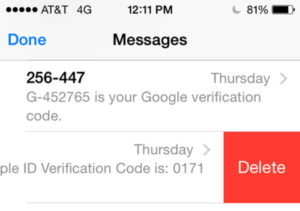
5.Swipe to delete one by one: Open the “Messages” app, swipe left or right on a single SMS to delete it quickly. This method is suitable for deleting a small number of SMS; it is time-consuming and inefficient for deleting a large amount of information.
6.iOS 6 and earlier versions: Click the contact name of the target conversation in the “Messages” interface, click “Edit” in the upper right corner, check the SMS to be deleted, and click “Delete” in the lower left corner to confirm.
It should be noted that although this direct deletion method is convenient, SMS cache will be classified into the “Other” category of iPhone storage, and these messages can still be retrieved with data recovery tools. Therefore, if you plan to sell your old iPhone, it is not recommended to delete SMS only through this method, as there is still a risk of privacy leakage.
In addition to the above two methods, you can also permanently delete SMS by restoring the iPhone to factory settings. This method can erase all data on the device, including SMS, apps, settings, etc., with a more thorough erasure effect, but it also requires backing up important data in advance.
Detailed Operation Steps:
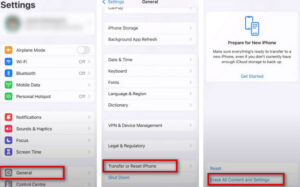
Step 1:Open the “Settings” app on your iPhone, find and click the “General” option.
Step 2:Select “Transfer or Reset iPhone” in the “General” menu, click “Erase All Content and Settings”, and click “Continue” to confirm as prompted. Wait for the device to complete the erasure.
Frequently Asked Questions (FAQs)
Can iPhone SMS be permanently deleted?
Yes. To delete a single SMS, long-press the message bubble, click “More”, check it, and delete. To completely delete all SMS, it is recommended to use the iPhone Cleaner tool or restore factory settings to ensure data cannot be recovered.
Will deleted SMS still remain on the iPhone?
Yes. Deleted SMS will be marked as “deleted” in the iPhone’s internal database, but the data itself will not be immediately removed from the storage; in addition, some SMS records may still be saved on the network operator’s server.
Where are deleted SMS stored on Android phones?
Deleted SMS on Android phones are retained in the internal database. The database path varies by model, and the common path is: data/data/com.android.providers.telephony/databases/mmssms.db.
How to delete only SMS in iCloud while keeping local SMS on iPhone?
Go to iPhone “Settings” > “General”, click your name at the top > “iCloud” > “Manage Storage”, select “Messages”, click “Disable & Delete” > “Delete Messages” to delete SMS in iCloud without affecting local SMS.
If I delete SMS from my iPhone, will the other party’s SMS be deleted too?
No. Deleting SMS from your own device only removes the local chat records; it will not affect the content on the other party’s device or their iCloud. The other party can still view the previous chat records normally.

Copyright © 2025 DatasRecovery All rights reserved.
 iPhone Data Recovery
  iPhone Unlocker
  Android Data Recovery
  Broken Android Data Extraction
  Android Unlocker
  Data Recovery (Windows/Mac)