By Data RecoveryUpdated on January 28, 2026
“Just got a new iPad Air 5 and have hundreds of favorite songs on my old iPad Pro. How can I transfer these music to the new device so I don’t have to carry two tablets around?” — Mark
“I own an iPad mini 6, iPhone 14, and iPod touch 7. I want to listen to the albums I bought on the iTunes Store and the lossless music I downloaded on my iPad on my phone and iPod. Is there a simpler way than transferring to a computer first?” — Sophie
As Apple users know, the closed nature of the iOS system makes data transfer less flexible than on Android devices. Especially when your iPad stores a large number of music—whether lossless songs downloaded from the internet or tracks obtained from the iTunes Store or Apple Music subscription—cross-device sharing often becomes a hassle. In fact, transferring music from iPad to another iPad, iPhone, or iPod is not complicated. Below are two tested practical methods to help you sync music quickly!
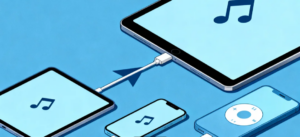
iTunes is not only Apple’s official media management tool but also a classic solution for transferring music across iOS devices. Before operation, clarify two easily confused concepts to avoid mistakes later:
iTunes Playlist: Includes local songs imported to iTunes from a computer or music purchased from official platforms. Stored in the iTunes library, these songs can be played directly with iTunes, but library corruption may lead to data loss.
iTunes Backup Music: Covers all audio files (songs, ringtones, audiobooks, etc.) on iPad, iPhone, and other devices. By backing up the device, these music can be fully saved to a computer and later restored to other iOS devices.
Step 1: Backup Music from Old iPad to Computer (Windows/Mac)
If you have already imported iPad music to the iTunes library, skip this step; otherwise, follow these operations:
1.Connect the old iPad to the computer with a USB cable and launch the iTunes software on the computer.
2.Find the device icon of the corresponding iPad in the iTunes interface (if iTunes fails to recognize the device, check the USB cable or restart the software), and click the icon to enter the device details page.
3.Switch to the “Backups” tab, select “This computer”, and click “Backup Up Now” on the right to start a full data backup.
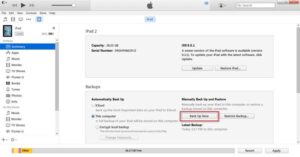
This operation will fully back up all data on the iPad (including music, contacts, messages, videos, etc.) to the computer. It is recommended to set an encryption password for important music files; you will need to enter the password to unlock during restoration to ensure data security.
Step 2: Restore Backed-up Music to the Target iOS Device
1.Disconnect the old iPad from the computer and connect the target device (iPad/iPhone/iPod) that needs to receive music to the same computer with a USB cable.
2.After iTunes recognizes the new device, click the device icon to enter the details page.
3.Similarly, go to the “Backups” tab, select “This computer”, click “Restore Backup…”, choose the previously backed-up old iPad data from the pop-up list, and click “Restore”.
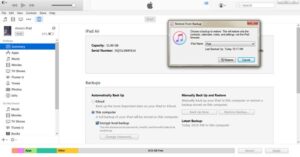
The restoration process takes 3-10 minutes (depending on the data volume). During this period, the device will restart automatically; enter the unlock password after restarting to ensure smooth restoration of music and other data.
⚠️ Note: This method will overwrite the original data (including music, contacts, apps, etc.) on the target device with the backup data from the old iPad. If the target device has important data, it is recommended to back it up separately first. Additionally, the iOS version of the target device must be higher than or equal to that of the old iPad; otherwise, the restoration cannot be completed.
Due to the drawbacks of “full data overwriting” and “inability to select specific transfers” with iTunes, we recommend using a professional Apple device transfer tool—FoneTrans (iPad Transfer)—for precise transfer.
This tool supports direct music transfer between iPad and iPad, iPad and iPhone, as well as iPad and iPod. It can also sync audio files such as ringtones and audiobooks, and is fully compatible with the latest models like iPad Pro and iPhone 15. With simple operation steps and no complex settings, you can complete the transfer in three steps by downloading and installing it for free on your computer:
Step 1: Download and Install FoneTrans
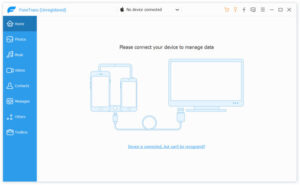
Search for the FoneTrans official website on your computer (Windows 10/11 or Mac OS 12 and above), download the software for free, complete the installation, and launch it to wait for device connection.


Step 2: Connect Two iOS Devices to the Computer
Use two USB cables to connect both the source iPad (storing music) and the target device (iPad/iPhone/iPod) that will receive music to the computer. FoneTrans will automatically detect and display device information.
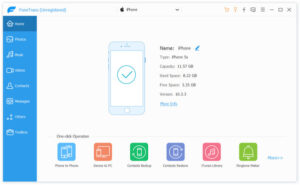
Step 3: Select Songs and Start Transfer
1.Click the “Music” category in the left navigation bar of the software; all music files on the source iPad (including song name, artist, album, duration, etc.) will be listed on the right.

2.If you are unsure whether a song needs to be transferred, use the built-in music player of the software to preview it. After confirmation, check the target songs (supports batch selection or select all).
3.Click the “Device Transfer” icon at the top of the software, select the target device name from the drop-down menu, and click “Confirm” to start the transfer.

The entire transfer process only takes a few seconds to minutes (depending on the number of songs). It will not overwrite the original data on the target device, and you can freely select the tracks to transfer, making it very flexible. In addition, FoneTrans also supports file transfer between iPad and computer, video sync, and other functions, making it a practical tool for Apple users to manage device files.


Copyright © 2025 DatasRecovery All rights reserved.
 iPhone Data Recovery
  iPhone Unlocker
  Android Data Recovery
  Broken Android Data Extraction
  Android Unlocker
  Data Recovery (Windows/Mac)