By Data RecoveryUpdated on January 09, 2026
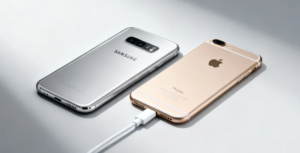
Transferring data from a Samsung phone to an iPhone often frustrates users. Incompatible device systems, differences in file formats, and the complexity of various personal data such as contacts, text messages, photos, videos, and app data further increase the difficulty of transfer. Don’t worry—this article has compiled 3 tested and efficient methods to help you easily complete data transfer from Samsung to iPhone. Let’s see which one suits you best!
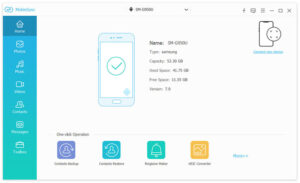
As a comprehensive mobile synchronization software, MobieSync enables direct cross-system data transfer from Samsung phones to iPhones with zero data loss. Its capabilities go far beyond basic synchronization—whether it’s contacts, photos, videos, music, or other types of personal data, it can be transferred effortlessly. You can also view file details in real-time before transfer, and if data loss accidentally occurs, its built-in contact recovery function can come to the rescue. Follow the steps below to get started quickly:
Core Features:
1.Supports direct data transfer between Samsung phones and iPhones;
2.Compatible with the latest iOS 18 and Android 16 systems;
3.Can back up and restore photos, videos, music, contacts, and text messages between iOS and Android devices;
4.Provides data management functions: categorization, batch deletion, merging duplicates, real-time preview, etc.;
5.Comes with practical tools for ringtone making and HEIC format conversion.
Pros:
1.Wide device compatibility, supporting both new and old models;
2.Comprehensive range of transferable file types to meet diverse needs;
3.Stable and smooth operation with fast transfer speed;
4.Efficient and convenient data management with clear operation logic;
5.Offers a 30-day money-back guarantee, risk-free to use;
6.Intuitive and simple interface, easy for beginners to master.
Cons:
The free trial version only unlocks some core features; full functionality requires a paid subscription.
How to Use:
Step 1:Download and install MobieSync on your computer. After running the software, connect your Samsung phone to the computer via a USB data cable;

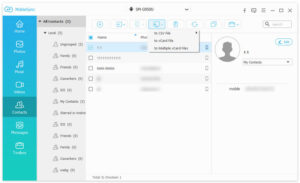
Step 2:The software will automatically recognize the device, and the interface will display device model, storage capacity, system version, and other information. Select data categories such as photos, music, videos, contacts, and text messages from the left sidebar, view detailed file information in the right window, and use one-click functions like contact backup and ringtone making in the “Toolbox” at the bottom;
Step 3:Check the files you want to transfer, click the “Export to Device” button, and wait a few seconds to complete synchronization. The software supports categorized photo viewing (including screenshots, camera photos, WhatsApp images, etc.) and real-time display of the number of selected files and occupied space.
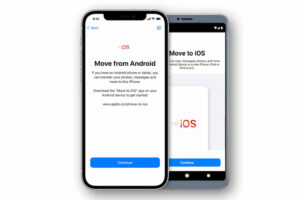
Developed by Apple, the “Move to iOS” app is a convenient choice for transferring data from Samsung phones to iPhones. It supports the transfer of various data such as contacts, text message records, photos, music, and videos. There’s no need to back up data to third-party platforms in advance—with just a few simple steps, you can complete data migration automatically and securely.
Core Features:
1.Supports transfer of core data such as contacts, text messages, photos, and videos from Android devices to iOS devices;
2.Compatible with 5GHz high-speed networks to improve transfer efficiency;
3.Supports transfer of large photos over 2GB in size.
Pros:
1.End-to-end encrypted data transfer, no sharing with third parties, high security;
2.Completely free to use with no hidden charges.
Cons:
1.Group messages may fail to migrate due to compatibility issues;
2.Data loss, sorting confusion, or transfer errors may occur in some scenarios.
How to Use:
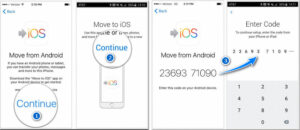
Step 1:Install the “Move to iOS” app on both your Samsung phone and iPhone. Tap “Continue” on both devices, then enter the 12-digit pairing code displayed on the iPhone into the Samsung phone;
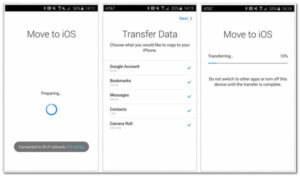
Step 2:After the devices finish connection preparation, check the data you want to transfer on the Samsung phone (including options like Google Account, bookmarks, camera roll, etc.). Confirm and tap “Next” in the upper right corner. During the transfer, keep the devices screen on, do not switch apps or shut down the devices. The interface will display the transfer progress in real-time (e.g., “Transferring (10%)”) and the connected WiFi network information.
If you don’t want to install additional transfer tools, a Google Account is a great option. With the synchronization function of the Google ecosystem, you can easily achieve data interoperability between Samsung phones and iPhones, especially suitable for migrating contacts, calendars, and other information.
Core Features:
1.One-stop access to Google products such as Gmail, Chrome, Google Drive, YouTube, and Google Maps;
2.Supports automatic filling of addresses, passwords, and payment information for enhanced convenience;
3.Built-in malware and virus detection system to protect account data security.
Pros:
1.Simple operation process, no professional knowledge required;
2.Time-saving and efficient transfer with fast synchronization speed;
3.Supports simultaneous login on multiple devices for convenient cross-platform data management.
Cons:
1.Third-party websites may access data associated with your Google Account, posing a privacy leakage risk;
2.Identity verification is required for multi-device login, which is slightly cumbersome.
How to Use:
Step 1:On your Samsung phone, go to “Settings” > “Accounts” and ensure that the synchronization function of your Google Account is enabled;
Step 2:On your iPhone, go to “Settings” > “Contacts” > “Add Account”, select “Google”, and log in to the same Google Account associated with your Samsung phone;
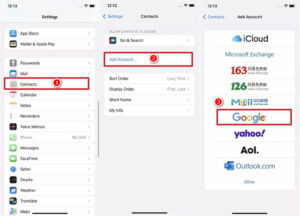
Step 3:Check the contacts and other data you want to synchronize. After completing the settings, you can view the synchronized content in the Google Account on your iPhone. iPhones support customizing contact sorting (last name first/first name first) and display methods to meet personalized needs.


Copyright © 2025 DatasRecovery All rights reserved.
 iPhone Data Recovery
  iPhone Unlocker
  Android Data Recovery
  Broken Android Data Extraction
  Android Unlocker
  Data Recovery (Windows/Mac)