By Data RecoveryUpdated on January 09, 2026
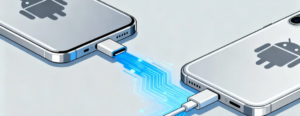
Just got a new Android phone but worried about how to transfer important data like contacts, photos and SMS from your old one? Apple devices offer convenient full-data sync features, but file transfer between Android devices can be a bit complicated due to model differences—ordinary transfer methods may only move media files and fail to cover all needed data.
Don’t worry! This article shares 3 simple and free Android to Android data transfer methods. Whether you’re a regular Android user or a Samsung user, you can find a suitable solution to easily achieve full-type data migration.
If you pursue a stable and comprehensive data transfer experience, the professional tool MobieSync is definitely the first choice. It not only supports two-way data transfer between Android devices but also cross-system transfer and file exchange between computers and mobile devices, with practical additional functions.
Core Advantages:
1.Covers all common data types: Supports transfer of contacts, SMS, photos, music, videos, call logs and other Android files;
2.Multi-scenario compatibility: Enables data transfer between Android→Android, Android→iPhone, and computer→Android/iOS devices;
3.Practical additional features: Built-in tools for data management, contact backup/restoration, ringtone making, HEIC format conversion, providing one-stop data processing solutions.
Operation Steps:
Step 1 :Download and install: Free download MobieSync on your computer, install it according to on-screen prompts and launch the software;

Step 2 :Connect devices: Use USB data cables to connect both the old and new Android phones to the computer. The software will automatically detect the devices and display basic information such as model, storage capacity and system version;
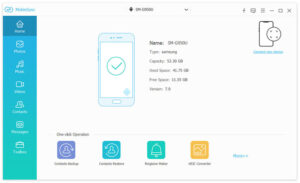
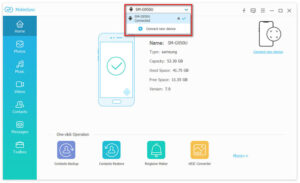
Step 3 :Set source device: Click the device model dropdown menu at the top of the interface and set the old phone as the source device for data transfer;
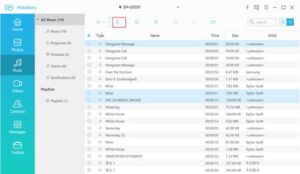
Step 4 :Preview and select data: The left sidebar of the software categorizes all data (photos, music, contacts, etc.). Click the corresponding category to preview details on the right and check the files you need to transfer;
Step 5 :Start transfer: Click the “Export to Device” button and wait for the transfer to complete—no manual intervention is required during the process.
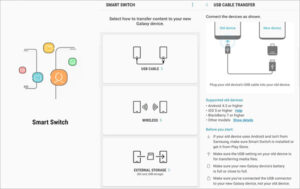
If you use a Samsung phone, the brand-specific tool Samsung Smart Switch is a more suitable choice. It supports transfer of various file types with simple operation and is completely free.
Operation Steps:
Step 1 :Install the app: For two Samsung phones, you can directly find the app in “Settings” → “Cloud and accounts” → “Smart Switch”; for non-Samsung Android phones, download and install it from Google Play Store;
Step 2 :Unified network connection: If transferring via Wi-Fi, connect both phones to the same wireless network to ensure stable transfer;
Step 3 :Start transfer process: Open Smart Switch on the new phone, click “Start”, and follow the on-screen prompts to complete pairing, then automatic data transfer will begin.
Notes:When using this tool, both Android devices need to have at least 500MB of free internal storage space to avoid transfer interruption.
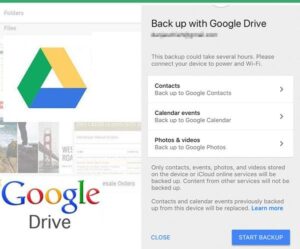
Similar to Apple’s iCloud, Google Drive provides convenient cloud backup and sync functions for Android users, with 15GB of free storage space, enabling easy cross-device data transfer.
Operation Steps:
Step 1 :Backup settings on old phone: Open the Google Drive app on the old Android phone, click the menu icon in the upper left corner, and go to “Settings” → “Backup and reset” to enable the “Back up to Google Drive” feature;
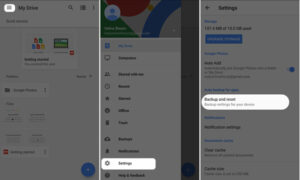
Step 2 :Confirm associated account: Ensure the currently logged-in Google account is linked to the new phone. If not, add or change the correct account in the “Account” option;
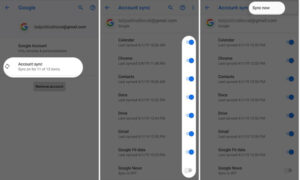
Step 3 :Start sync on old phone: Return to the phone’s home screen, go to “Settings” → “Accounts” → “Google Account” → “Sync”, check all file types you want to back up, click “Sync now”, and wait for the backup to complete;
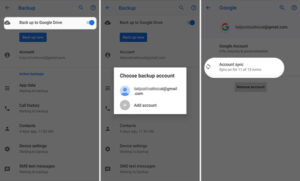
Step 4 :Sync and restore on new phone: Open the Google Drive app on the new Android phone, go to “Settings” → “Backup and reset” similarly, and enable “Back up to Google Drive”;
Step 5 :Complete data transfer: Go to “Accounts” → “Google Account” → “Sync” → “Account sync” in sequence, click “Sync now”, and the data backed up from the old phone will be synced to the new device.


Copyright © 2025 DatasRecovery All rights reserved.
 iPhone Data Recovery
  iPhone Unlocker
  Android Data Recovery
  Broken Android Data Extraction
  Android Unlocker
  Data Recovery (Windows/Mac)