By Data RecoveryUpdated on January 09, 2026
After switching to a new Android phone, the most troublesome thing is how to completely migrate important data from your iPhone – whether it’s memory-filled photos and videos, daily essential contacts and SMS, or collected music and call logs, you all want to transfer them to the new device seamlessly. In fact, there’s no need to worry. As long as you choose the right method, iOS to Android data transfer can be twice as effective with half the effort. This article will detail two tested effective solutions to help you complete data migration quickly.
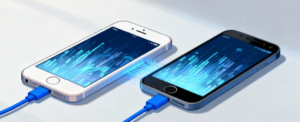
MobieSync is a professional tool designed specifically for cross-system data transfer. It not only enables direct file migration from iPhone to Android but also supports bidirectional transfer and multi-device management, making it the preferred tool for data migration. It is compatible with various mainstream iOS data types, with simple operation steps that can be mastered without professional knowledge.
Core Advantages of MobieSync:
1.Comprehensive compatibility with data types: Supports all common iOS files such as contacts, photos, videos, audio, SMS, and call logs, meeting daily migration needs;
2.Bidirectional free transfer: Not only iPhone to Android, but also Android to iPhone. It also supports file transfer between computers and mobile phones (iOS/Android);
3.Data backup and management: One-click backup of mobile phone data to the computer, and you can directly view and edit various data in the mobile phone in the software, combining practicality and convenience;
4.Additional practical functions: Built-in ringtone maker and HEIC format converter, solving the problem of iOS photo format incompatibility with Android, with full functionality.
Detailed Operation Steps:
Step 1:Download, install and launch the software: Click the official legitimate channel to download MobieSync, complete the computer-side installation according to the on-screen prompts, and launch to enter the main interface;

Step 2:Connect two devices: Connect both iPhone and Android phone to the computer with USB data cables. The software will automatically recognize the devices and display basic information such as device model, storage capacity, and system version on the interface;
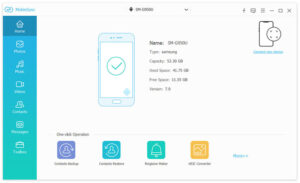
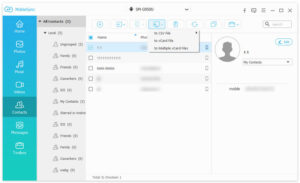
Step 3:Set the source device and select data: Since transferring from iPhone to Android, you need to set iPhone as the source device (can be switched through the device icon at the top of the interface); the left menu bar will list all iOS data by category. Click the corresponding category (such as “Photos” “Contacts”) and check the files to be migrated in the preview window on the right;
Step 4:Start data transfer: After confirming the selected files, click “Export to Device” and select the target Android phone, then wait for the transfer to complete. The entire process is stable and fast, with no data loss or damage.
In addition, MobieSync also supports various operations such as importing computer files to mobile phones and backing up iOS data to computers, making it an all-round tool for cross-device data management.
If you don’t have a computer, or only need to migrate basic data such as contacts and photos, Google Drive is a good choice. Similar to Apple’s iCloud, it supports iOS device data backup and then syncs to Android phones, with no computer required and only network support needed.
Detailed Operation Steps:
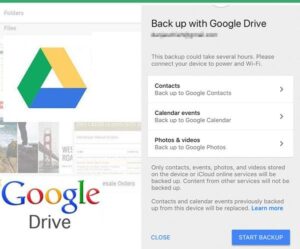
Step 1:Backup data on iPhone: Download and install the Google Drive app from the App Store, open it and log in to your Google account (you can register directly if you don’t have one); after logging in, click “Menu” → “Settings” → “Backup” → “Start backup” to back up specified data from iPhone to the cloud;
Step 2:Notes: This method only supports backing up contacts, schedules, pictures, and videos stored in iPhone or iCloud, and cannot migrate data such as SMS and call logs. In addition, previously backed-up contacts and schedules will be overwritten;
Step 3:Sync data on Android: Log in to the same Google account on your new Android phone, and the system will automatically sync the data backed up in the cloud. You can view it without additional operations.


Copyright © 2025 DatasRecovery All rights reserved.
 iPhone Data Recovery
  iPhone Unlocker
  Android Data Recovery
  Broken Android Data Extraction
  Android Unlocker
  Data Recovery (Windows/Mac)