By Data RecoveryUpdated on December 27, 2025
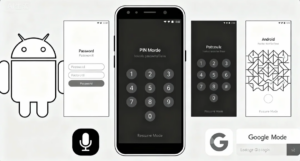
To ensure device security, almost all Android users set up unlock verification for their phones. However, when we forget the unlock password due to long-term idleness of the phone or mixing up too many set passwords, the phone will become an “untouchable device”. Don’t worry, this tutorial will sort out 6 effective methods to unlock an Android phone. Whether you are using a Samsung, Huawei, Motorola, or other Android models, you can find a solution that suits you and easily regain access to your phone.
Android Unlocker is an ideal solution for unlocking your Android phone when you forget the PIN. It can effortlessly get rid of the screen PIN lock on Android devices with just a few clicks. Perfect for beginners, it requires no professional knowledge or complex operations. More importantly, this Android Unlocker works with nearly all Android phone models, including Samsung, Google, OnePlus, Huawei, Motorola, and more. Additionally, if needed, you can use it to bypass FRP (Factory Reset Protection) or Google Lock on your Android phone.
Key Advantages:
1.Unlock Android phones with forgotten PIN in just a few minutes
2.Remove PIN, Face ID, pattern lock, fingerprints, and passwords from Android phones
3.Bypass FRP on Samsung, Motorola, OnePlus, Xiaomi, OPPO, and other brands
4.Support popular Android brands such as Samsung, Google Pixel, Motorola, etc.
How to unlock an Android phone if you forgot the PIN?
Step 1: Download and install this powerful Android Unlocker on your computer.


Step 2: Launch the Android Unlocker and connect your Android phone to the computer via a USB cable. Select the “Remove Screen Password” option, then click the “Start” button under this option on the left side of the interface.
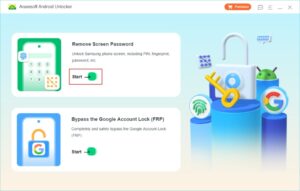
Step 3: Click the “Start Removal” button to unlock your forgotten PIN.If your Android device is an old Samsung model, your data will not be lost during the removal process.
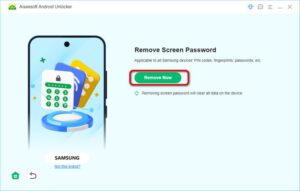
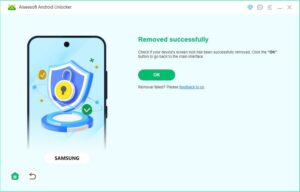
Step 4: Wait for a few minutes to allow the Android Unlocker to remove the PIN lock. When you see the interface below, it means the PIN lock on your Android phone has been successfully removed.
PROS:
CONS:
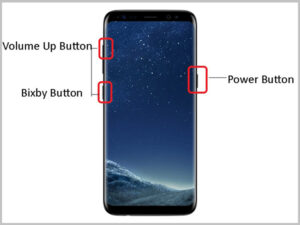
Performing a factory reset in Android Recovery Mode is another 100% effective method to unlock an Android phone when you forget the PIN. This approach doesn’t require any additional apps or a computer. Any Android user can carry out a factory reset even without knowing the PIN. However, different Android brands or systems typically have different corresponding methods, which may take you some extra time to figure out. Here, we take the Samsung Galaxy S8 as an example to show you the detailed steps.
Step 1: Ensure that the battery level of your Android phone is above 30%. Press and hold the Volume Down and Power buttons simultaneously for several seconds until the screen goes black.
Step 2: Press and hold the Bixby, Volume Up, and Power buttons at the same time. Release all buttons when the phone vibrates. At this point, your Android phone has entered Recovery Mode.
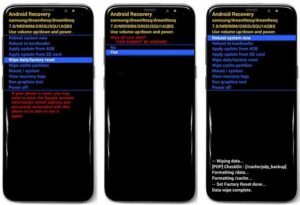
Step 3: Press the Volume Down button multiple times to select the “Wipe data/factory reset” option, then press the Power button to confirm. Select “Yes” and then choose “Reboot system now”.
The Android phone will restart automatically. After the restart, you need to follow the prompts to log in to your Google account.
PROS:
CONS:
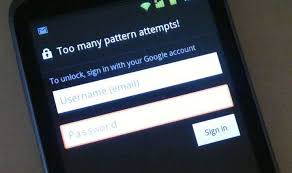
If you’re using an older Android OS version (Android 4.4 or prior), you can unlock your Android phone by using the Forgot PIN feature. This feature enables you to enter your Google account and password, or answer security questions, to set up a new PIN.
Steps to Operate:
1. Enter the incorrect PIN repeatedly on your Android phone until the “Forgot PIN” prompt appears on the screen.
2. Tap this prompt and sign in with your Google account and password. Then follow the on-screen instructions on the Android device to create a new PIN.
PROS:
CONS:
Copyright © 2025 DatasRecovery All rights reserved.
 iPhone Data Recovery
  iPhone Unlocker
  Android Data Recovery
  Broken Android Data Extraction
  Android Unlocker
  Data Recovery (Windows/Mac)