By Data RecoveryUpdated on December 27, 2025
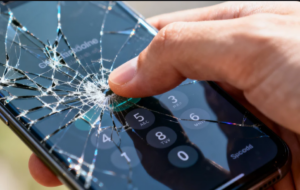
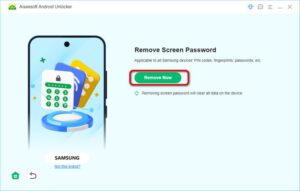
If your Android phone has a shattered screen and unresponsive touch functionality, using a professional smart unlocking tool (Android Unlocker) is the most convenient solution. This type of tool is specifically designed to bypass the lock screen—whether secured by a password, pattern, PIN, or fingerprint—on devices with broken screens, requiring no complex technical knowledge and making it suitable for most users. Many high-quality tools also support data preservation features, ensuring that photos, messages, or files are not lost during the unlocking process.


Step-by-Step Guide:
1.Visit the official website of the smart unlock tool on your computer and download the latest version.
2.Install the software following the on-screen prompts, then complete the registration (check your email for the activation code) and log in.
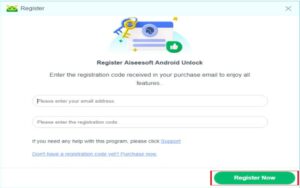
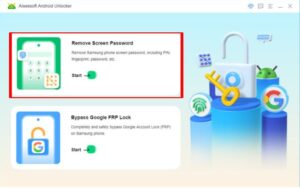
3.Launch the tool and select the “Broken Screen Unlock” option from the main interface. Choose your phone’s brand and model from the dropdown list.
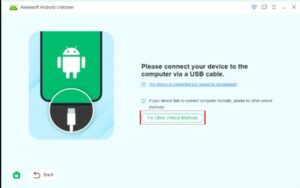
4.Connect your broken-screen phone to the computer using a USB cable. If the device isn’t detected automatically, click “Retry Connection” or enable USB debugging via the tool’s built-in guide (if supported).
5.Click “Start Unlock” to initiate the process. Wait for a few minutes—once completed, you can access your phone’s data normally.
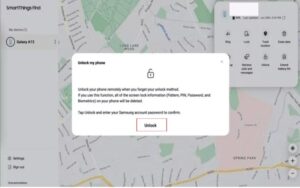
For Samsung users, SmartThings Find (formerly Samsung Find My Mobile) is a built-in service that lets you unlock your broken-screen phone remotely. This method works only if your device is linked to your Samsung account and the “SmartThings Find” feature is enabled beforehand. It’s a secure way to bypass the lock screen without installing additional software.
How to Operate:
1.Open a web browser on any computer or mobile device and visit the SmartThings Find official website (find.samsung.com).
2.Log in with the same Samsung account associated with your broken-screen phone.
3.From the list of linked devices, select your broken phone—it will be located on the map (location accuracy depends on network connection).
4.Click the “Unlock” button, then follow the on-screen verification steps (e.g., enter your account password or verify via two-factor authentication).
5.Once verified, your phone will unlock automatically, allowing you to access its content.
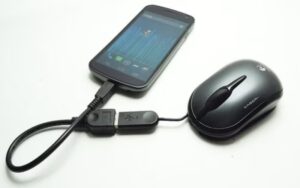
If your phone’s screen is visible but unresponsive, a USB OTG (On-The-Go) cable and a standard USB mouse can be a lifesaver. This method leverages the OTG function to connect external devices, allowing you to control your phone with the mouse pointer—perfect for entering passwords or drawing unlock patterns.
Step-by-Step Instructions:
1.Purchase a compatible USB OTG cable (ensure it matches your phone’s port: USB-C, micro-USB, etc.).
2.Connect one end of the OTG cable to your phone’s charging port, and plug the USB mouse into the other end.
3.Wait a few seconds—your phone will automatically recognize the mouse, and a cursor will appear on the screen.
4.Use the mouse to navigate: click the screen to simulate touches, enter your unlock password/PIN, or draw the pattern to unlock.
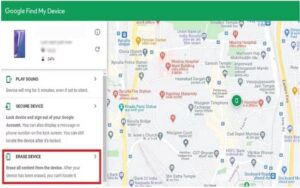
If other methods fail (e.g., OTG not supported, no Samsung account), Google Find My Device is a reliable backup. This tool allows you to remotely factory reset your phone, which erases all data (including the lock screen) and restores the device to its original settings. Note: This method will delete all data, so use it only if you have no other options or have backed up your data.
How to Use:
1.Open a browser and go to the Google Find My Device website (android.com/find).
S2.ign in with the Google account linked to your broken-screen phone.
3.Select your device from the “Available devices” list (ensure the phone is connected to the internet).
4.Click the “Erase Device” button, then confirm the action by entering your account password.
5.The factory reset process will start—once completed, your phone will restart, and you can set it up as a new device.
For tech-savvy users, ADB (Android Debug Bridge) commands offer a advanced way to unlock a broken-screen phone. This method works only if you enabled USB debugging on your phone before the screen broke. ADB allows you to send commands from your computer to the phone, enabling you to unlock the screen or access data.
Step-by-Step Guide:
1.Set up the Android SDK Platform-Tools on your computer (download from the official Android website).
2.Connect your phone to the computer via USB cable.
3.Open Command Prompt (Windows) or Terminal (Mac/Linux) and navigate to the Platform-Tools folder (e.g., cd C:\android\platform-tools).
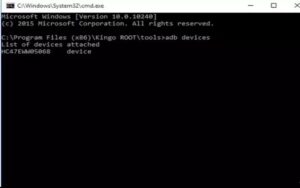
4.Enter adb devices to confirm the phone is connected (a device ID will appear if successful).
5.To unlock with a PIN: Enter adb shell input text “1234” (replace “1234” with your PIN) and press Enter. Then enter adb shell input keyevent 66 to confirm.
6.To unlock with a pattern: Use coordinates to draw the pattern (e.g., adb shell input swipe x1 y1 x2 y2—replace x/y values with your pattern’s coordinates).
Conclusion
This article recaps the key solutions for Android broken screen unlock, offering practical and actionable methods to help users regain access to their devices when the screen is cracked, unresponsive, or fully non-functional. It highlights the value of having multiple troubleshooting approaches—whether you opt for specialized software, remote management tools (like SmartThings Find or Google Find My Device), or physical connections (such as USB OTG and ADB commands). Each method caters to different scenarios and technical needs, ensuring that you can retrieve critical data and restore device functionality without unnecessary hassle.
Copyright © 2025 DatasRecovery All rights reserved.
 iPhone Data Recovery
  iPhone Unlocker
  Android Data Recovery
  Broken Android Data Extraction
  Android Unlocker
  Data Recovery (Windows/Mac)