By Data RecoveryUpdated on January 09, 2026
Almost all Apple users are advised to set a password for their iPhones to ensure the security of personal information. However, thanks to the convenience of Touch ID and Face ID, many people gradually forget their original lock screen passwords. Once this password is lost, not only will unlocking the phone become a problem, but most phone operations such as changing Apple Pay settings and uninstalling apps will also be restricted. If you are facing such a dilemma, there is no need to panic. This article has compiled 3 practical solutions to help you easily unlock and reset your iPhone.
Users familiar with Apple devices know that iPhone’s security mechanism is relatively strict, and unlocking a device with a forgotten password is not easy. In particular, it should be noted that if you enter the wrong password multiple times, the difficulty of unlocking will gradually increase — when the number of incorrect attempts reaches 10, the device will be completely locked. At this time, you usually need to contact Apple Support for assistance, which is not only cumbersome but may also incur additional costs. Therefore, before seeking official help, you may wish to try the following more efficient independent solutions first.
A password is a “protective shield” for privacy, but once forgotten, it becomes a “stumbling block” to accessing your own device. The emergence of iPhone Unlocker makes solving the password forgetting problem fast and simple. This cross-platform tool supports cracking 4-digit and 6-digit numeric passwords, and can also remove Screen Time restrictions, Face ID and Touch ID bindings. In just a few minutes, you can regain full control of your iPhone. Its multiple password cracking options make it the preferred tool when you forget your iPhone password.
This tool can safely erase all old data and settings on the device, and you can later log in with a new Apple ID to use all functions. The specific operation steps are as follows:


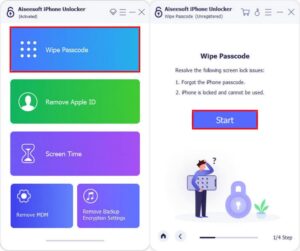
1. Download iPhone Unlocker on your computer, complete the installation according to the installation wizard, and then launch the software. Click “Wipe Passcode” on the main interface, then click “Start”, and then connect your iPhone to the computer with a compatible USB data cable.
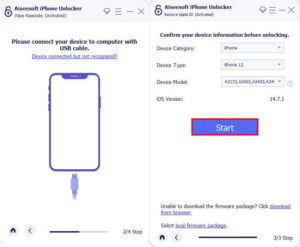
2. The software will automatically read the iPhone’s device information, including device category, model, iOS version, etc. Please carefully check that the information is correct, then click the “Start” button to initiate the password removal process. At this time, the software will automatically download the matching firmware package; please wait patiently for the download to complete.
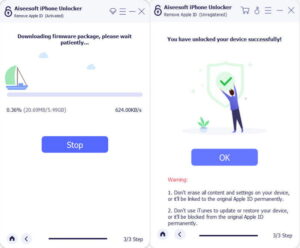
3. After the firmware package is downloaded successfully, click the “Unlock” button and enter the verification code “0000” to confirm the operation. Note: During the unlocking process, ensure that the iPhone remains connected to the computer at all times. This operation will erase all data on the device, so it is recommended to back up in advance (if backup conditions are available).
4. In addition to removing the lock screen password, this tool also supports the “Remove Apple ID” function. Select this option from the main menu, click “Start” and connect your iPhone to initiate the process.
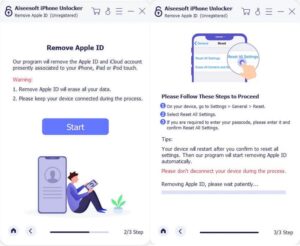
5. If the “Find My iPhone” function on the device is turned off, the software will directly remove the Apple ID; if this function is turned on, you need to reset the device settings and enter the password for confirmation according to the prompts. After completing all pre-settings, click the “Start” button, and the Apple ID will be automatically removed.
If you don’t want to update the iOS version, FoneEraser is another high-quality iPhone password bypass tool. It can erase the lock screen password by restoring the device to factory settings without upgrading the system, and the operation only takes 3 steps, which is simple and easy to use.
Note: This method will completely erase all content and settings on the device (including the lock screen password). Therefore, before the operation, if the device can back up data through other methods, it is recommended to complete the backup first.
1. Download and install FoneEraser: Download this software for free on your computer, complete the installation and launch the program.
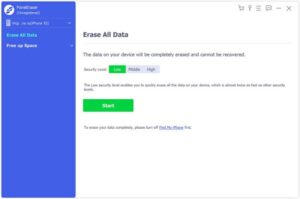
2. Select the erasure level and connect the device: Connect your iPhone to the computer with a USB data cable. In the pop-up interface of the software, click the “Low” option under the “Erasure Level” section (you can adjust it according to your needs; the low-level erasure is faster). Ensure that your iPhone is successfully connected and that you have previously clicked “Trust” this computer on the device, so that the device can be recognized on the computer without entering the PIN code.
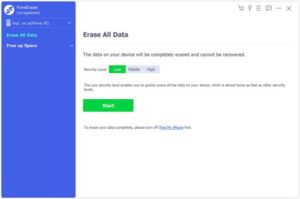
3. Initiate the erasure process: After confirming the erasure level, click the “Start” button, and the software will erase the iPhone without a password. After the erasure is completed, the device will return to its initial state, and you will need to reset the lock screen password to use it normally.
If your iPhone has been disabled due to too many incorrect password attempts, or you want to update the system to the latest version (such as iOS 18/17) while unlocking, you can use the iOS System Recovery tool. This tool can realize factory reset without password without relying on iTunes, and can bypass the limit of too many incorrect password attempts. It is applicable to various iOS devices such as iPhone, iPad and iPod.
Note: Similarly, this operation will erase all data on the device; it is recommended to back up in advance.
1. Download and launch the tool: Download iOS System Recovery for free on your computer, complete the installation and open the software. On the main interface, select “iOS System Recovery”, click “Other Tools”, then click the “Start” button, and connect your iPhone to the computer with a USB data cable at the same time.
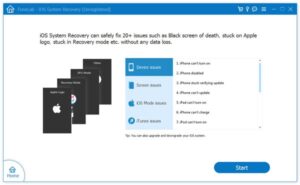
2. Enter DFU or Recovery Mode: Follow the instructions on the software screen to put your iPhone into Recovery Mode or DFU Mode in three steps (the operation varies slightly for different models; please strictly follow the prompts).
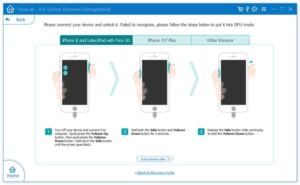
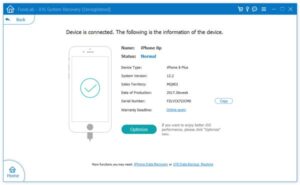
3. Factory reset without password: Select “Advanced Mode” and click “Confirm”. After checking and confirming the iPhone’s category, model and other information, click the “Repair” button. The software will start restoring the device to factory settings and automatically update to the latest iOS version, and the lock screen password will also be cleared accordingly.
Even with a confident memory, we can all occasionally forget things—especially with iPhone passwords that are rarely used due to the convenience of Face ID or Touch ID. Yet these details matter, and losing them can be frustrating. So what should you do if you forget your iPhone passcode, and how can you prevent it from happening again?
First, back up your device regularly. If you have concerns about cloud security and prefer not to store sensitive files on iCloud, consider using iTunes for local encrypted backups. More than just a media app, iTunes can protect private data like browsing history and saved passwords. Keep in mind: you’ll need to remember your backup password. Once your data is backed up, you can reset your passcode using recovery mode or Find My without worrying about losing information.
Second, manage your passwords systematically. You can record them securely in the Notes app or store written copies in a safe place at home. If you change passwords often, keep a pen and paper handy for immediate updates. Where possible, use a familiar set of digits to create your passcode—this makes it easier to recall and helps avoid the hassle of forgetting it.
Copyright © 2025 DatasRecovery All rights reserved.
 iPhone Data Recovery
  iPhone Unlocker
  Android Data Recovery
  Broken Android Data Extraction
  Android Unlocker
  Data Recovery (Windows/Mac)